
How to Append Pages to an Existing PDF Without Re-exporting It

Append the Missing Pages Without Rebuilding the Whole PDF
Appending a page is different from rebuilding a document. The base PDF is already correct; one signature page, addendum, receipt, or appendix simply needs to land after it. Reopening the source document can disturb fonts, page breaks, or review marks, so the safer workflow is to keep the finished PDF as the first file and add the late pages after it.
Скористайтеся цими інструментами зараз
Натисніть кнопку, щоб одразу відкрити потрібний інструмент.
To document the workflow, I appended a one-page addendum to a finished report in the Batch Printer merge tool and watched for three signals a real user cares about: whether both files appeared in the queue, whether the order was obvious before processing, and whether the result screen produced a download-ready PDF with the addendum at the end.
What Appending Really Means in the Merge Tool
The merge tool appends pages by combining file page ranges in the order shown on screen. If the original report is first and the extra page is second, the new PDF keeps the report first and places the appendix at the end. It does not rewrite your page numbers, repair a bad scan, or decide whether the added page belongs before a signature block. That judgment still belongs to you before you click the processing button.
- A signed approval page arrives after the report has already been exported.
- An invoice needs a terms page attached before it is sent to a client.
- A school or HR packet needs one late form added to the end.
- A scanned ID, receipt, or addendum belongs after the main PDF.
- The original document should remain unchanged except for the extra pages after it.
Test Run: Add the Base PDF First, Then the Extra Page
The sequence matters more than the click. I selected the base report first, then the appendix, and the page displayed a Files queue with the two filenames listed separately. That queue is the control point for appending: if the appendix appears above the base document, the output will not match the intent. In this run the order was correct before processing.
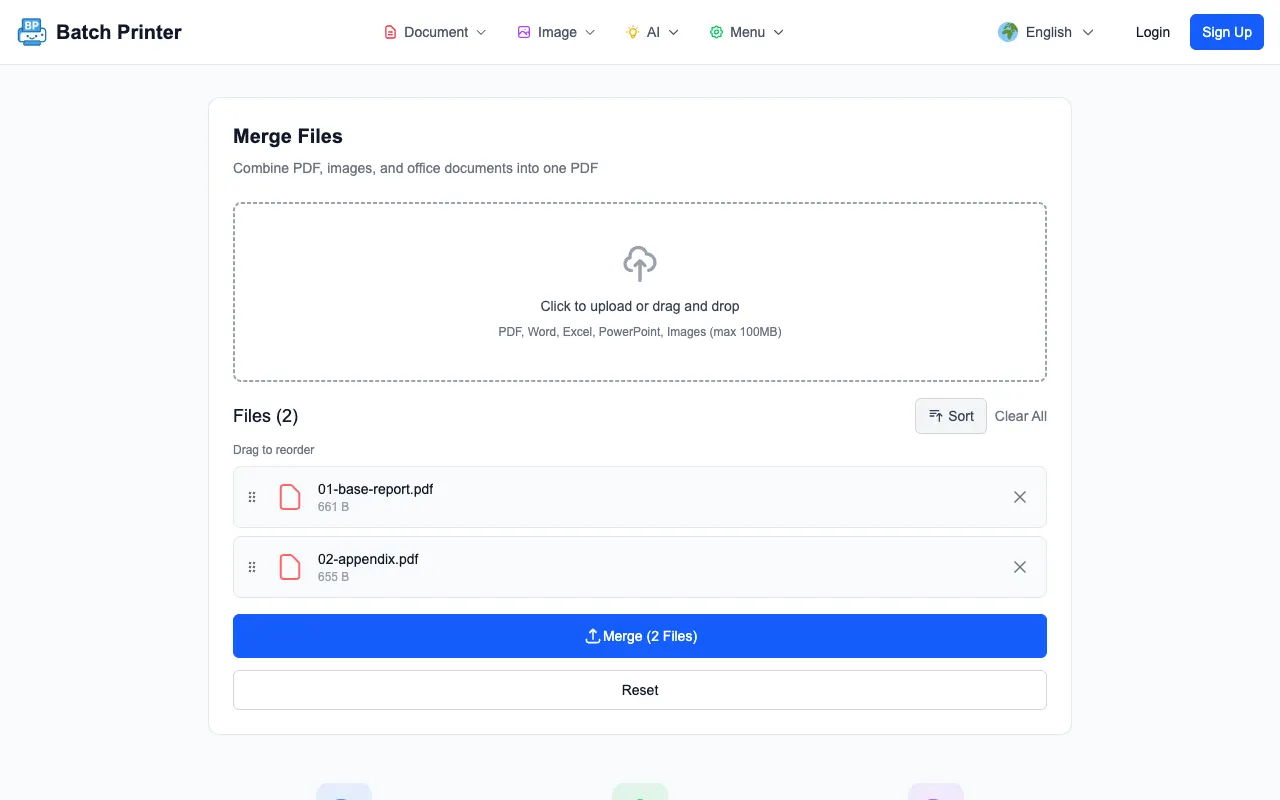
- Add the finished PDF first so it remains the first page range in the output.
- Add the extra page or extra PDF after the base file.
- Read the queue top to bottom before starting the merge.
- Use reset or clear all if the file order is wrong rather than hoping to fix it later.
- Keep the originals nearby until the recipient accepts the appended copy.
The Order Check That Prevents Bad Packets
Most append mistakes are order mistakes. A late signature page goes before the contract, an appendix lands before the cover sheet, or a duplicate draft sneaks into the queue. The live tool made the current order visible before the merge, which is why I would not skip that screen even for a small two-file job.
If your extra material is more than one file, rename it before uploading. Names such as 01-main-report, 02-signed-page, and 03-receipts are easier to audit than scan-final, scan-final-new, and scan-final-new2. The queue can only show what you give it, so clear filenames reduce the chance of appending the wrong page.
What the Finished Append Should Show
After I started the merge, the output area changed to a download state and reported that the created PDF had two pages. That matched the test input: one page from the base report and one page from the appendix. A bookmark prompt also appeared, but the important workflow signal was the download-ready result and page count.
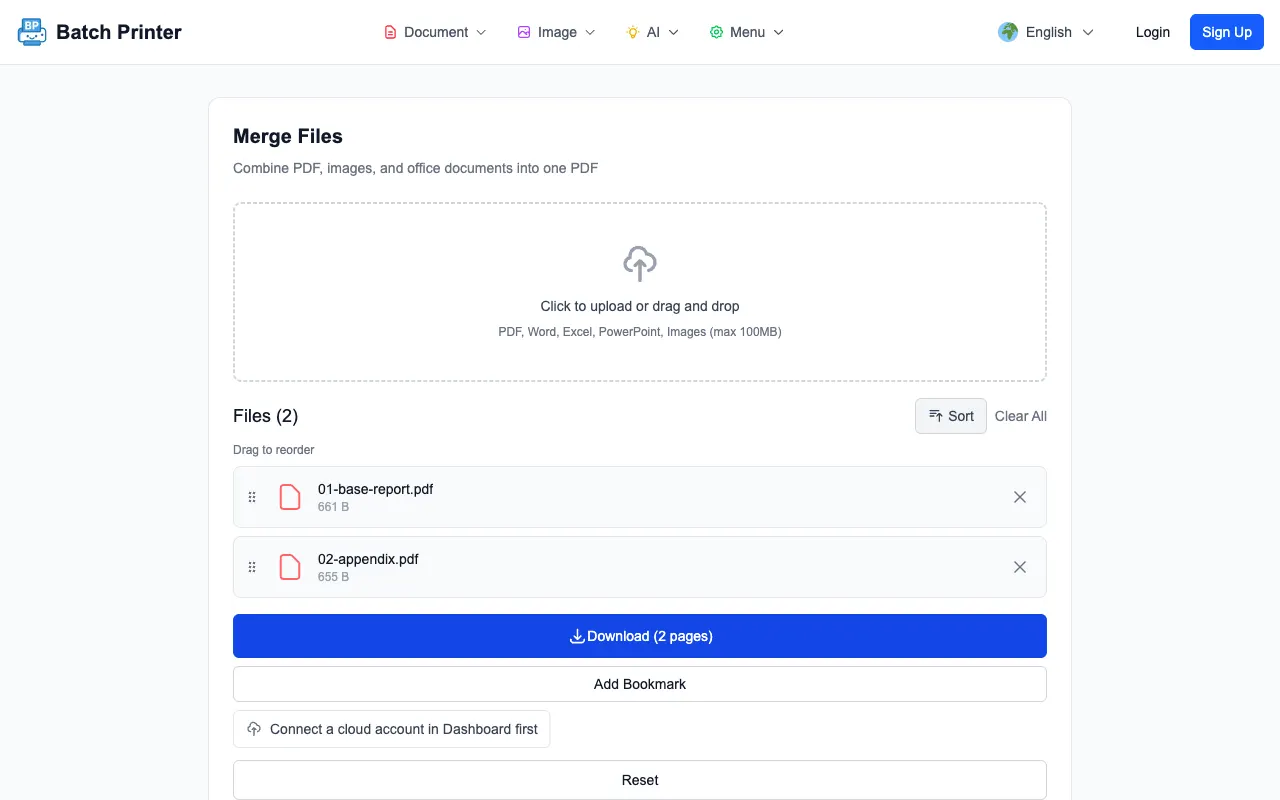
The final review happens after download. Open the new PDF, scroll from the end of the base document into the appended page, and confirm the last page is really the page you meant to add. If the original document has printed page numbers, remember that appending does not automatically renumber those visible page labels.
When Appending Is the Wrong Move
Do not append blindly when the extra page belongs inside the document rather than at the end. A replacement page, corrected table, or revised clause may need proper editing in the source file before export. Appending is best for addenda and trailing material, not for fixing a middle page that has changed.
- The new page changes the table of contents or visible page numbers.
- The PDF has bookmarks that should point to the new page.
- The extra material is confidential and should not be sent with the base packet.
- The recipient requested separate uploads instead of one combined file.
- One of the files is password protected and cannot be opened normally.
Practical Cleanup Before You Send
A clean appended PDF should have a clear filename, a sensible page order, and no surprise duplicates. I like naming the output after the real packet, not after the tool action. For example, client-proposal-with-appendix is more helpful than merged-file or final-final.
If the appended file becomes heavy because the extra page is a scan, compress a copy only after confirming the append worked. Compression is a separate decision from appending; doing the checks in that order gives you a known-good original and a smaller sending copy if needed.
Append Pages FAQ
Can I append more than one PDF? Yes. Add the base PDF first, then place every extra PDF after it in the order you want them to appear.
Does appending change the original file? No. The workflow creates a new combined PDF. Keep the original files until the appended version has been checked.
Can I append a page in the middle? The merge workflow is strongest when you add material after the base file. For middle-page replacement, edit or rebuild the source document so the structure stays intentional.
Скористайтеся цими інструментами зараз
Натисніть кнопку, щоб одразу відкрити потрібний інструмент.