
Convert Image Formats Online: Tested WebP, JPEG, PNG, and BMP Workflow

Image Conversion Is a Delivery Choice, Not a File Extension Guess
Changing an image format should start with the destination. A web page, product upload, email attachment, print handoff, and archive copy all care about different things. Some need transparency. Some need small files. Some need the safest possible compatibility. The wrong conversion can make a file larger or remove details you still need.
Скористайтеся цими інструментами зараз
Натисніть кнопку, щоб одразу відкрити потрібний інструмент.
The size table below uses observed files, not estimated ranges. Three inputs went through the Batch Printer image converter in Chromium - a large photo-style JPEG, a flat PNG UI card, and a BMP version of that same card - all converted to WebP and downloaded for measurement. Including the BMP twin was deliberate: it isolates what the source format contributes when the pixels are identical.
Start With the Destination, Then Pick the Output Format
- Use JPEG when the receiver needs maximum compatibility and the image is an ordinary photo without transparency.
- Use PNG when transparency, crisp flat graphics, or lossless editing matters more than file weight.
- Use WebP when the image is going to a modern website or app and you want a smaller web-friendly output.
- Keep BMP or TIFF only when a legacy workflow explicitly requires it; for sharing or web use, convert a copy instead.
- Keep the original source file until you have opened the converted file and checked edges, color, and transparency.
Measured: Three Files Converted to WebP
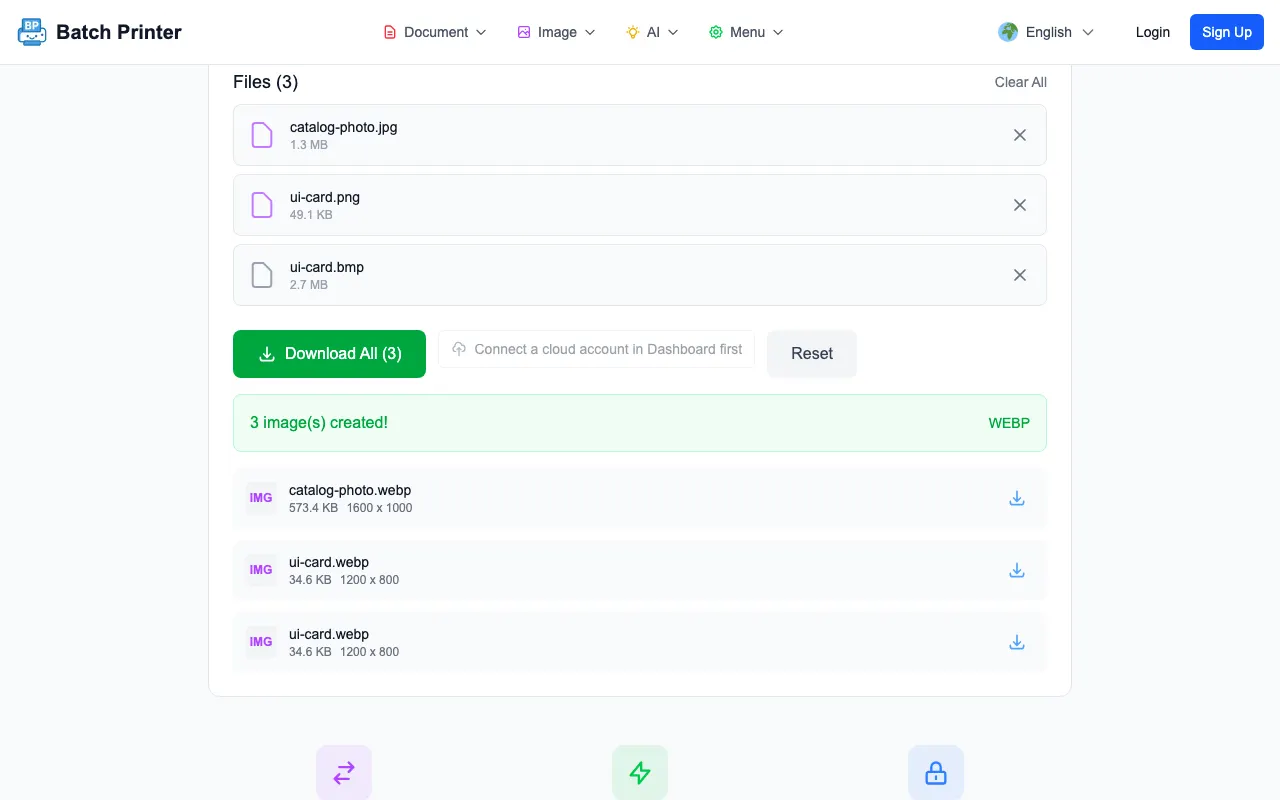
- catalog-photo.jpg | input JPEG | original 1.3 MB | output WebP | downloaded 573.4 KB
- ui-card.png | input PNG | original 49.1 KB | output WebP | downloaded 34.6 KB
- ui-card.bmp | input BMP | original 2.7 MB | output WebP | downloaded 34.6 KB
Two patterns in these numbers generalize. First, the photo-style JPEG stayed much larger than the flat UI card even after conversion, because photographic detail and noise are inherently harder to compress than flat color regions. Second, the BMP and PNG versions of the UI card produced identical WebP sizes - once the browser decodes an image, only the pixels matter, and both files decoded to the same 1200 x 800 card.
Walkthrough: Upload, Choose WebP, Download
Open the image converter, add the files, then choose the target format before pressing Convert. The page keeps the selected WebP button, the quality slider, and the queued files visible together before processing, so the three decisions that determine your output are all reviewable on one screen.
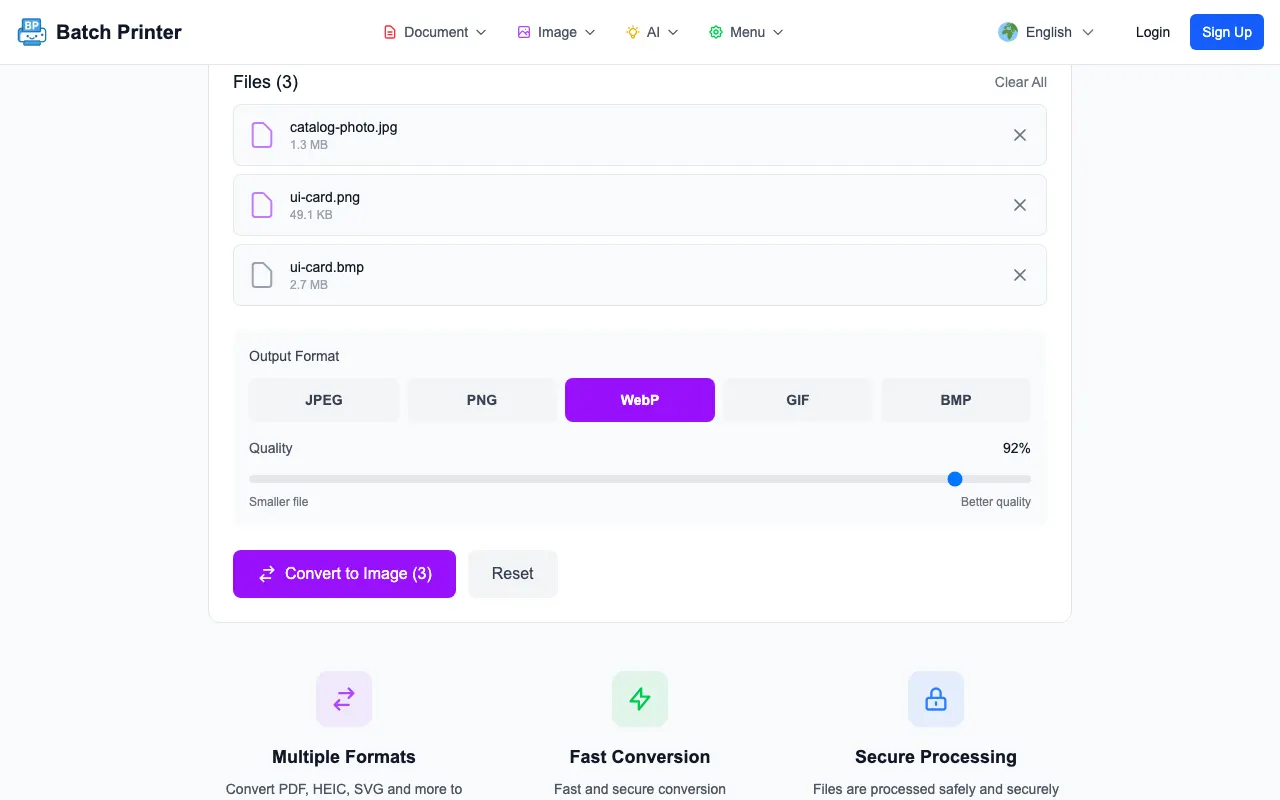
- Step 1: Upload the sample images and confirm the file names in the queue.
- Step 2: Select WebP and leave the default quality setting in place for the first run.
- Step 3: Press Convert and wait for the result list instead of leaving the page early.
- Step 4: Download each result and open at least one output before replacing the original file.
Format Notes From the Browser Run
The most useful signal was not a universal percentage. It was the difference between file types. The BMP sample was large because it stored the flat image with very little compression. Once decoded and encoded as WebP, it became similar to the PNG-derived result. The photo sample remained heavier because photographic texture needs more data to stay clean.
Transparency needs a separate check. If the original PNG has a transparent background, WebP can preserve transparency, but JPEG cannot. If the converted file will sit on a colored page or inside a design system, test it on that background before publishing.
Mistakes That Make Converted Images Worse
- Converting a low-quality JPEG to PNG and expecting lost detail to return.
- Flattening a transparent logo into JPEG when the final page needs a transparent background.
- Converting every file to the same format without checking the destination requirements.
- Judging only by file size and not opening the converted image at its real display size.
- Overwriting the only original before the converted file has been reviewed.
FAQ for Browser Image Conversion
Does conversion happen in the browser? For ordinary image format conversion in this tool, the file is decoded and encoded in the browser workflow. Keep following your own device and file-handling rules for sensitive images.
Is WebP always smaller? No. It was smaller in this test, but the exact result depends on image detail, dimensions, transparency, and the starting format.
Should I convert screenshots to JPEG? Usually not if they contain text, lines, or transparency. PNG or WebP is often safer for crisp interface screenshots.
Скористайтеся цими інструментами зараз
Натисніть кнопку, щоб одразу відкрити потрібний інструмент.