Batch Printer Logo
blog.category.tips

Convert Markdown to PDF Online Free — With Code Highlighting & Diagrams

Batch Printer Team6 хв. читання
Convert Markdown to PDF Online Free — With Code Highlighting & Diagrams

Convert Markdown to PDF Online Free — With Code Highlighting & Diagrams

In the 2025 Stack Overflow Developer Survey, 75.8 percent of developers ranked Markdown as their most admired documentation tool — for the third consecutive year. Over 180 million developers on GitHub write READMEs, technical specs, and project documentation in Markdown every day. Yet when it comes time to share that work with a client, submit it to a professor, or hand it to a non-technical stakeholder, the same question comes up: how do I turn this .md file into a professional-looking PDF?

Скористайтеся цими інструментами зараз

Натисніть кнопку, щоб одразу відкрити потрібний інструмент.

The answer used to involve installing command-line tools like Pandoc, configuring LaTeX templates, or copy-pasting into Google Docs and fighting with formatting. Not anymore. You can now convert Markdown to PDF online — with syntax highlighting, Mermaid diagrams, and GitHub Flavored Markdown tables preserved — in under 30 seconds, without installing anything or creating an account.

Why Developers Need Markdown to PDF Conversion

Markdown is brilliant for writing. It is plain text, version-control friendly, and renders beautifully on GitHub, GitLab, Notion, and Obsidian. But the moment you need to share documentation outside your development team, Markdown hits a wall. Your project manager cannot open a .md file. Your client does not have a Markdown renderer. Your university requires PDF submissions.

  • Technical documentation handoffs — Your engineering team writes docs in Markdown, but the operations team needs a PDF manual they can print and reference offline.
  • Client-facing proposals and reports — You draft a project specification in Markdown for version control, then convert it to a polished PDF before sending it to the client.
  • Academic paper submissions — Researchers and students write papers in Markdown for its simplicity, then convert to PDF for journal or course submissions.
  • Internal knowledge bases — Companies using Notion or Obsidian for internal wikis need to export specific pages as PDFs for compliance audits or onboarding packets.
  • Open source project documentation — README files and contributor guides need to be available as downloadable PDFs for offline reference.

A 2025 survey by AutoDoc found that 73 percent of developers spend more than 8 hours per week on documentation tasks, and 41 percent said their documentation becomes outdated within a single week. The average cost of poor documentation was estimated at 340,000 dollars per year per organization. Converting Markdown to PDF is not just a convenience — it is a critical part of the documentation workflow that saves time and prevents miscommunication.

How to Convert Markdown to PDF in 3 Steps

You do not need Pandoc, LaTeX, or any desktop software. Batch Printer converts your Markdown to a professionally formatted PDF — free, online, and without creating an account.

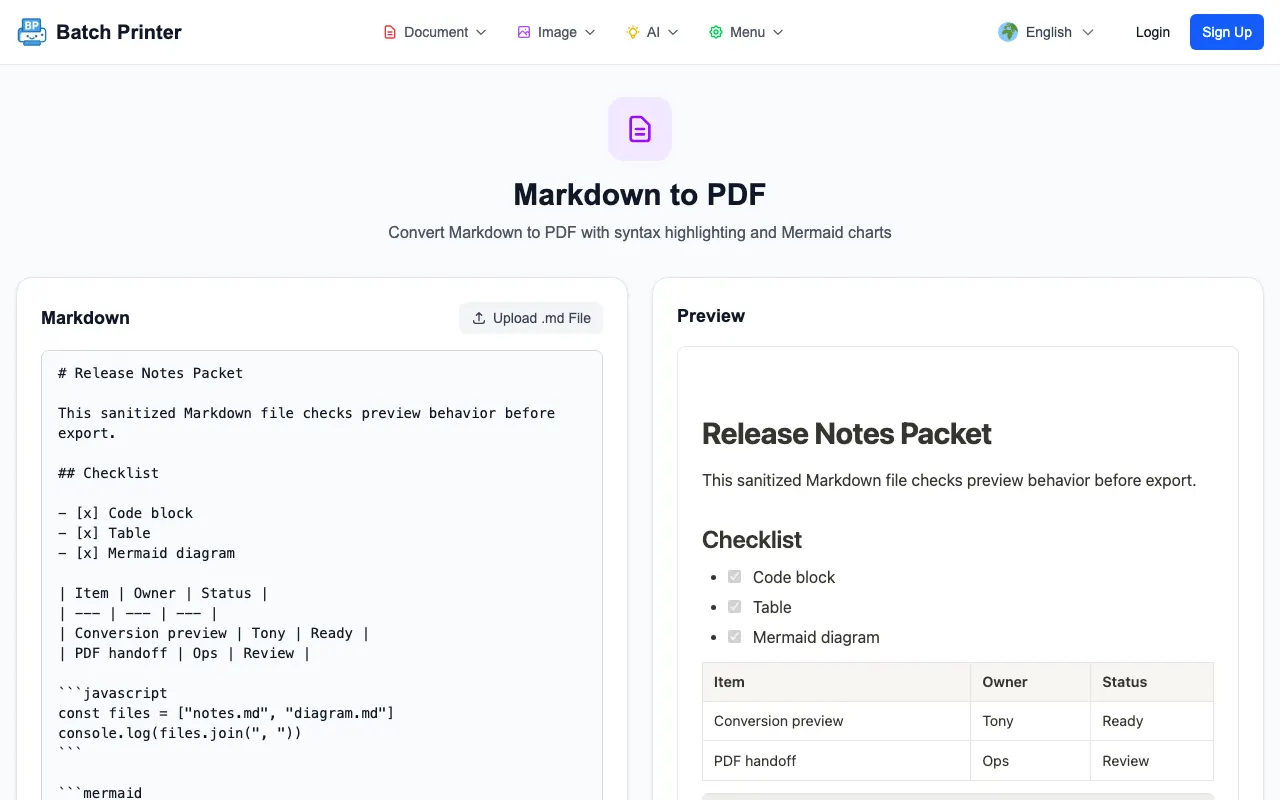
  • Step 1: Open the Markdown to PDF tool and paste your Markdown content into the editor, or drag and drop a .md, .markdown, or .txt file. The live preview on the right side shows exactly how your document will look.
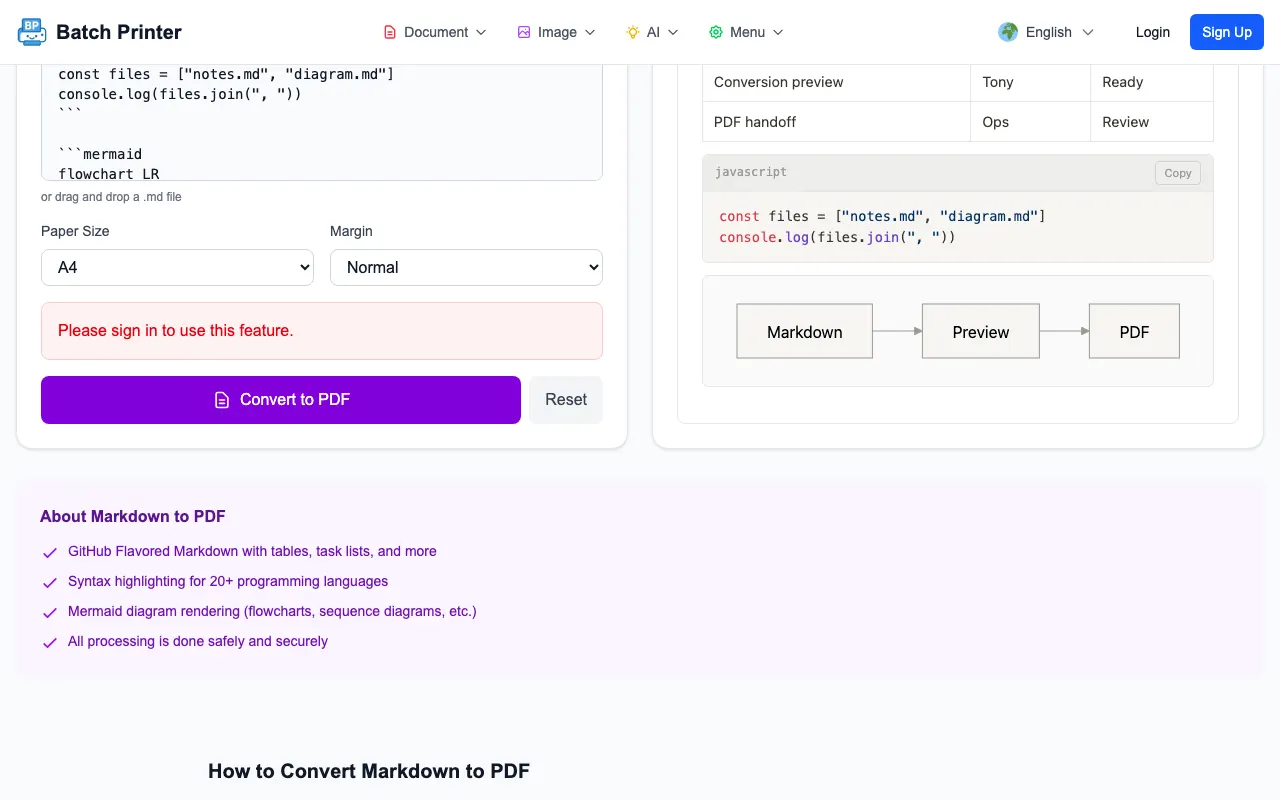
  • Step 2: Choose your paper size (A4, Letter, Legal, or A3) and margin setting (none, small, normal, or large). These options let you match the output format to your specific needs — whether it is a printable manual or a screen-optimized report.
  • Step 3: Click Convert to PDF. The tool renders your Markdown to HTML in the browser, then sends it to a professional-grade conversion engine that produces a pixel-perfect PDF. Download the result instantly.

The conversion uses LibreOffice under the hood — the same engine used by governments and enterprises for document processing. This means your PDF looks exactly like a professionally typeset document, not a browser print-to-PDF with broken layouts and missing styles.

Try it now — convert your Markdown to PDF for free at batch-printer.com/tools/pdf/md-to-pdf. No signup, no watermarks, no file size tricks.

What Makes This Converter Different

Most online Markdown to PDF converters handle basic formatting — headings, bold, italic, links. But real-world Markdown documents contain much more than that. Here is what Batch Printer supports that most competitors do not.

  • GitHub Flavored Markdown (GFM) — Full support for tables with proper border styling, task lists with checkboxes, strikethrough text, and autolinks. Your GitHub README renders exactly as it does on GitHub.
  • Syntax highlighting for 20+ programming languages — Code blocks are rendered with the GitHub color theme using highlight.js. Python, JavaScript, TypeScript, Go, Rust, Java, C++, SQL, and more are all highlighted correctly in the PDF output.
  • Mermaid diagram support — Flowcharts, sequence diagrams, Gantt charts, and ER diagrams written in Mermaid syntax are rendered as crisp SVG graphics in the PDF. This is extremely rare among online converters — most either ignore Mermaid blocks or render them as raw code.
  • Live split-pane preview — See your formatted document in real time as you type or edit. No need to convert and download to check how it looks.
  • Professional rendering engine — The final PDF is generated by LibreOffice, not a browser print dialog. This produces consistent, high-quality output with proper page breaks, margins, and typography.
  • Paper size and margin options — Choose from A4, Letter, Legal, or A3 paper sizes with four margin presets. Most competitors offer A4 only.

How a 12-Person Startup Replaced Google Docs With Markdown

Consider a scenario that plays out at thousands of companies every year. A growing startup has 12 engineers writing technical documentation in Google Docs. Version conflicts are constant — someone overwrites a section, formatting breaks when documents are exported, and there is no integration with the codebase. The engineering lead proposes switching to Markdown files stored in the Git repository alongside the code.

The migration solves the version control problem immediately. Documentation lives in the same repository as the code, pull requests include both code and doc changes, and merge conflicts are handled with standard Git tools. But a new problem emerges: the product team, the sales team, and clients cannot read Markdown files. They need PDFs.

This is where Markdown to PDF conversion becomes a daily workflow tool. Engineers write and review documentation in Markdown, then convert the final version to PDF for distribution. The 2025 State of Docs report found that 56 percent of teams cite keeping documentation up-to-date as their biggest challenge. A Markdown-first workflow with PDF export addresses this by making documentation a natural part of the development process rather than a separate task that falls behind.

Tip: If your team uses GitHub, you can convert any README.md or wiki page directly by copying its content into the converter. The GFM support ensures tables, task lists, and code blocks all render correctly.

Mermaid Diagrams in Your PDF — The Feature Most Converters Miss

Mermaid is a diagramming language that lets you create flowcharts, sequence diagrams, Gantt charts, and entity-relationship diagrams using simple text syntax. It is natively supported by GitHub, GitLab, Notion, and Obsidian. Millions of developers use it to embed diagrams directly in their Markdown documentation.

The problem: when you convert Markdown to PDF, most tools either strip out Mermaid blocks entirely or render them as raw code text. The diagram disappears. Batch Printer solves this by rendering every Mermaid block to SVG before generating the PDF. Your flowchart, sequence diagram, or architecture overview appears in the PDF exactly as it would on GitHub — as a crisp, scalable vector graphic.

  • Flowcharts — Process flows, decision trees, and workflow diagrams
  • Sequence diagrams — API call flows, system interactions, and communication protocols
  • Gantt charts — Project timelines and task scheduling
  • Entity-relationship diagrams — Database schema and data model visualizations
  • State diagrams — System state transitions and lifecycle flows

From University Assignments to Research Papers

The academic world has a long history with document formatting tools. LaTeX has been the gold standard for decades, but its steep learning curve drives many students and researchers to look for simpler alternatives. Markdown offers a middle ground — it is much easier to learn than LaTeX, supports most formatting needs through extensions, and pairs naturally with version control.

Researchers at Columbia University documented this shift in a paper published in The Programming Historian, titled "Sustainable Authorship in Plain Text using Pandoc and Markdown." Their argument: plain text files are durable, portable, and will remain readable decades from now, unlike proprietary formats that may become obsolete. A dissertation written in Markdown today can be converted to PDF for submission, HTML for web publication, and DOCX for collaborators who insist on Word — all from the same source file.

For students, the workflow is even simpler. As one university student wrote in 2025: "We were expected to hand in written assignments in PDF format. The most common tool that comes to mind is a word processor, but I switched to writing in Markdown and converting to PDF. The formatting is consistent every time, and I never lose work to a corrupted .docx file." Batch Printer makes this conversion accessible to anyone — no command-line tools or local installations required.

5 Tips for Better Markdown to PDF Output

  • Use GFM table syntax for data — Pipe-delimited tables render with proper borders and alignment in the PDF. Avoid using spaces or tabs to create visual tables in plain text, as they will not survive the conversion.
  • Choose the right paper size — Use A4 for international documents, Letter for US-standard documents, and A3 for wide tables or diagrams that need more horizontal space.
  • Leverage syntax highlighting — Always specify the language after the opening triple backticks in code blocks (for example, ```python or ```javascript). This triggers proper syntax coloring in the PDF.
  • Test Mermaid diagrams in the preview — The live preview shows exactly how your Mermaid diagrams will render. Check that all nodes and connections are correct before converting.
  • Keep images accessible — If your Markdown references external images via URLs, make sure those URLs are publicly accessible. The converter needs to fetch them during the HTML rendering stage.
If your Markdown contains Mermaid diagrams, always use the live preview to verify they render correctly before converting. Complex diagrams with syntax errors will appear as raw code in the PDF.

Frequently Asked Questions

Is the Markdown to PDF converter really free? Yes. Batch Printer offers Markdown to PDF conversion with no usage limits, no watermarks, and no account required. You can convert as many documents as you need.

Does it support code syntax highlighting? Yes. The converter uses highlight.js with the GitHub color theme to provide syntax highlighting for over 20 programming languages including Python, JavaScript, TypeScript, Go, Rust, Java, C++, Ruby, PHP, SQL, Bash, and more.

Can I convert Mermaid diagrams to PDF? Yes. This is one of the key differentiators. Mermaid blocks are rendered to SVG graphics before the PDF is generated, so flowcharts, sequence diagrams, Gantt charts, and ER diagrams all appear as crisp visuals in the output.

Is my data stored on your servers? The Markdown editing and preview happen entirely in your browser. When you click Convert, the rendered HTML is sent to the conversion server to produce the PDF. The file is not stored permanently — it is processed and returned immediately.

What is the maximum file size? The converter supports files up to 100 megabytes. For typical Markdown documents, even very long ones with embedded images and diagrams, this limit is more than sufficient.

Can I customize the PDF styling? You can choose from four paper sizes (A4, Letter, Legal, A3) and four margin presets (none, small, normal, large). The typography, code highlighting, and table styling are optimized for readability and follow the GitHub visual style.

Convert Your Markdown to PDF Now — It Takes 30 Seconds

Whether you are a developer sharing documentation with your team, a student submitting an assignment, a technical writer producing client deliverables, or an open source maintainer creating downloadable guides — converting Markdown to PDF should be instant, free, and produce professional results.

  • Full GitHub Flavored Markdown support — tables, task lists, strikethrough, and autolinks
  • Syntax highlighting for 20+ programming languages with the GitHub color theme
  • Mermaid diagram rendering — flowcharts, sequence diagrams, Gantt charts, and more as SVG
  • Live split-pane preview — see your formatted document as you type
  • Paper size options — A4, Letter, Legal, A3 with customizable margins
  • No signup, no watermarks, no limits — just paste, preview, and convert
Start converting now — paste your Markdown and get a professional PDF at batch-printer.com/tools/pdf/md-to-pdf

Скористайтеся цими інструментами зараз

Натисніть кнопку, щоб одразу відкрити потрібний інструмент.

Convert Markdown to PDF Online Free — With Code Highlighting & Diagrams