
Extract Text from Scanned PDFs: Tested OCR Workflow and Limits

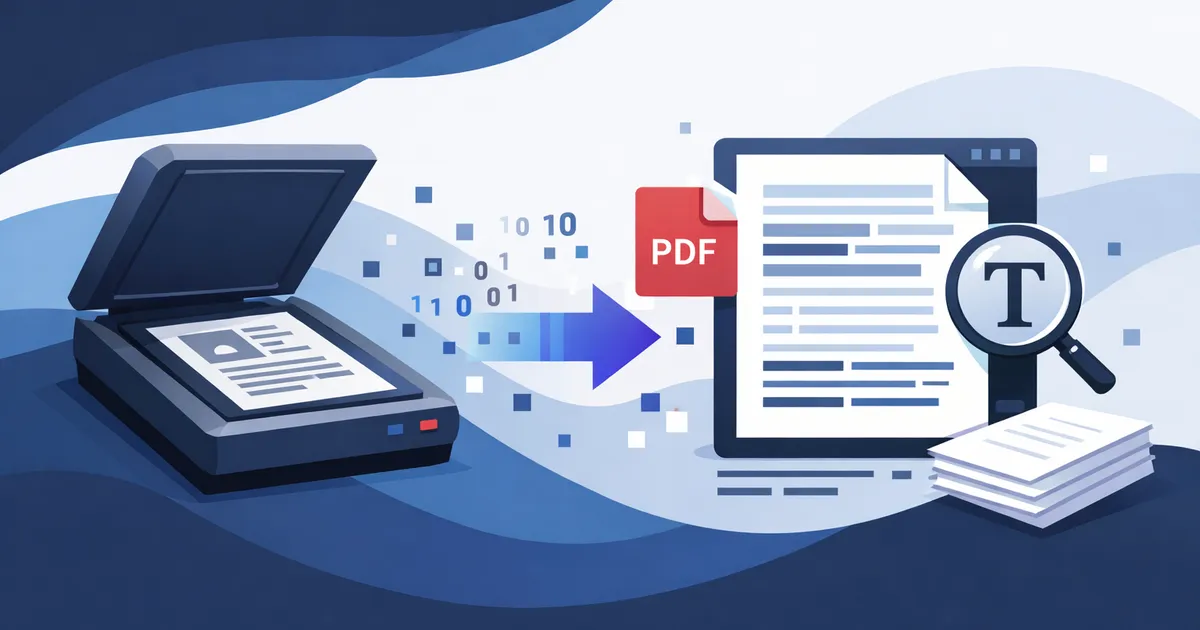
OCR Starts With Scan Quality, Then the Engine Choice
A scanned PDF is often just a picture inside a PDF wrapper. You can look at the words, but the computer cannot search or copy them until OCR has recognized the characters. OCR is useful, but it is not magic. The cleaner the scan, the less correction you will do after extraction.
Скористайтеся цими інструментами зараз
Натисніть кнопку, щоб одразу відкрити потрібний інструмент.
Here is a concrete baseline. A one-page receipt-style PDF went through the Batch Printer OCR page on the standard engine, and the result view reported one page and 218 recognized characters. That number is the useful kind of evidence: it tells you the engine found roughly a receipt's worth of text, and it gives you something to compare against when your own scan comes back suspiciously short.
Confirm the PDF Is an Image Before Running OCR
- Dragging across text selects the whole page image instead of individual words.
- Search cannot find a word you can clearly see on the page.
- Copy and paste produces nothing useful or returns broken characters.
- The PDF came from a scanner, fax, phone photo, or image-only archive.
- You need rough text extraction for review, indexing, or retyping support.
A Receipt Scan, Start to Finish
- receipt-scan.pdf | input type: one-page scanned-style PDF | original size 90.9 KB | result view: 1 page
- receipt-scan.pdf | expected content: invoice lines and totals | result view: 218 characters
- receipt-scan.pdf | engine shown: Standard AI Engine (PP-OCR) | review needed: totals and names still require spot checks
The result view is useful because it confirms that OCR finished and gives a quick page and character count. It does not prove every number is correct. For receipts, invoices, IDs, and forms, manually review totals, dates, names, and account-like strings after extraction.
Walkthrough: Upload, Language, Run OCR
The first screenshot shows the receipt PDF loaded with the automatic language mode visible. Before running OCR, make sure the file name is the intended document and the language choice matches the page - a Korean receipt run through an English-only pass returns confident-looking garbage, not an error.
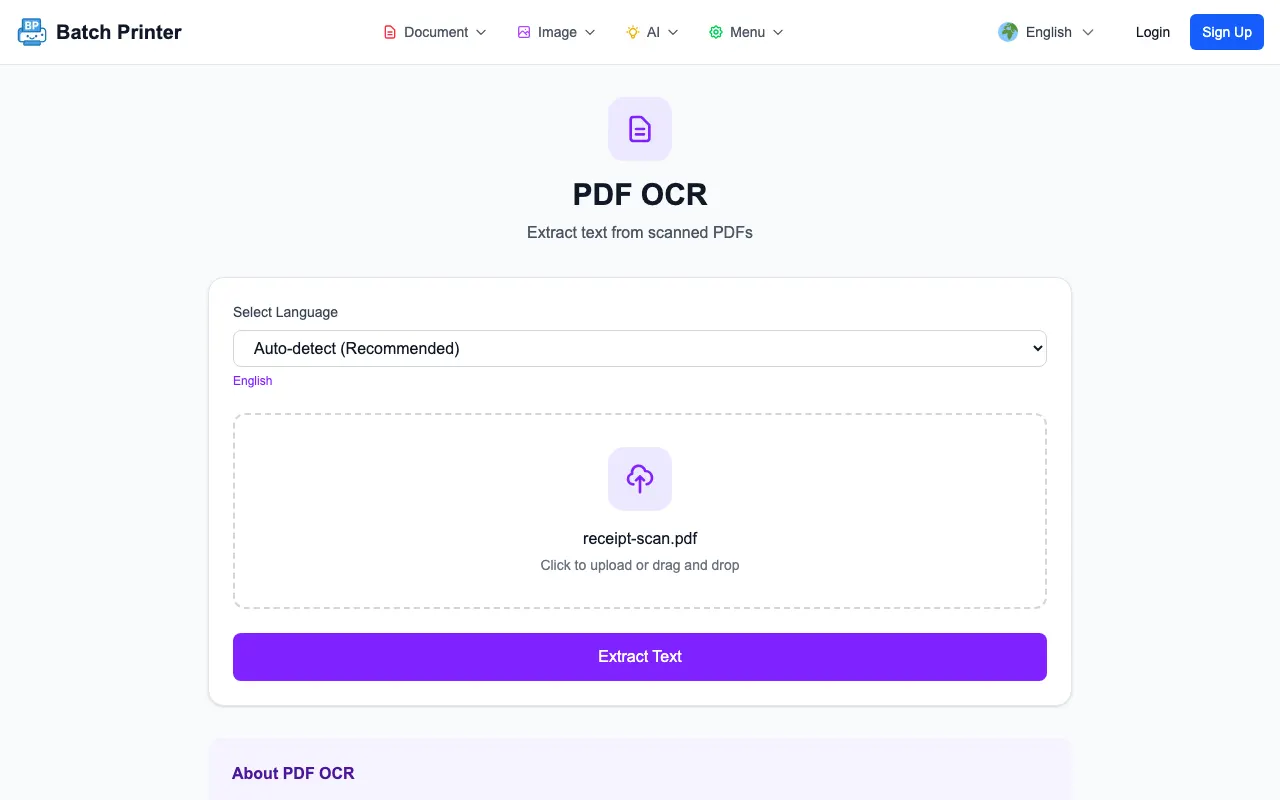
- Step 1: Open /tools/pdf/ocr and load the scanned PDF.
- Step 2: Choose automatic language detection or pick the primary document language.
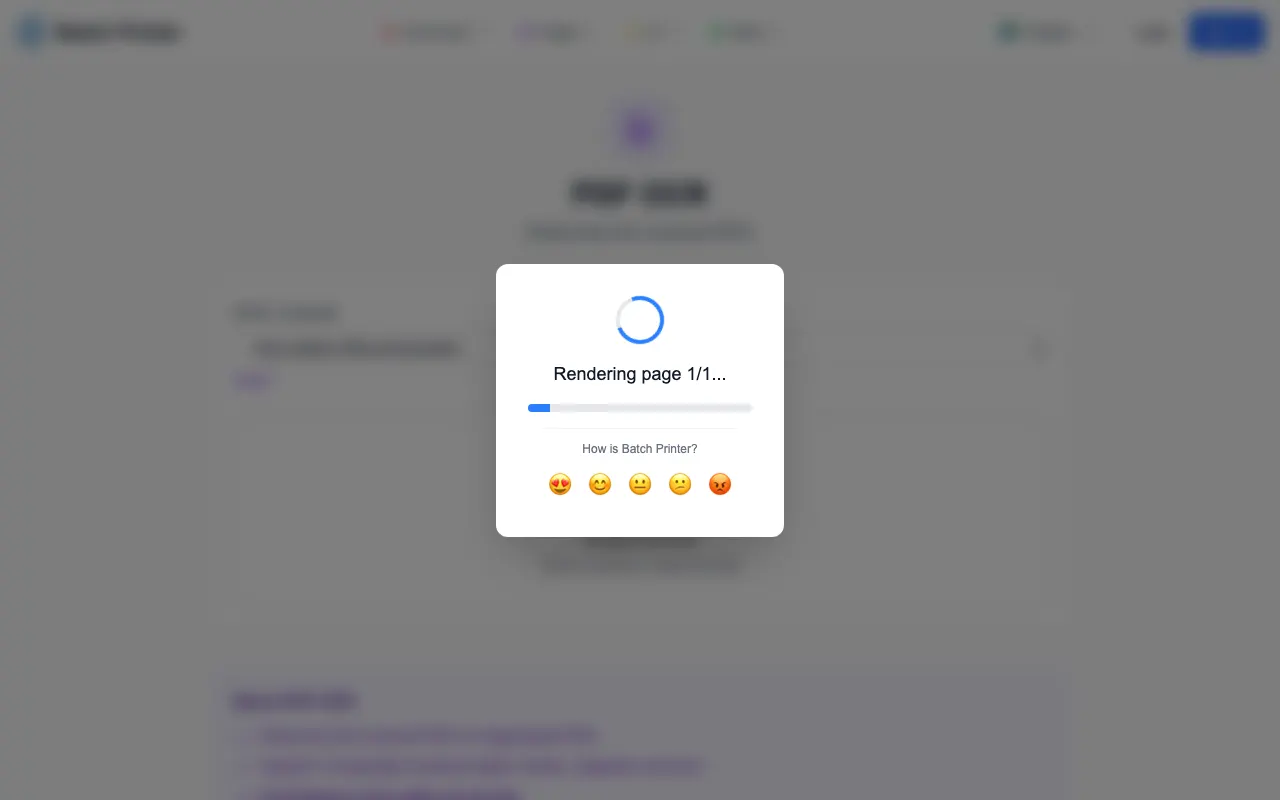
- Step 3: Run OCR and wait for the result view instead of closing the tab during model setup.
- Step 4: Copy or download the text output, then compare key fields against the original scan.
Reading the Result and Fixing It Safely
After OCR finishes, read the extracted text as a draft. OCR can confuse similar characters, drop punctuation, or merge columns when the source scan is skewed. The safest workflow is to compare the result against the original PDF while checking the fields that matter most.
Engine Choice: Standard First, Premium When Layout Is Hard
The receipt run used the Standard AI Engine, and that is the right starting point for clean printed documents. Consider a heavier engine only when the page has complex columns, overlapping stamps, handwriting, or mixed image and table layouts. Heavier models take longer to initialize, so do not switch unless the document actually needs it.
What OCR Will Not Guarantee
- Low contrast, blur, skew, glare, or dark borders from a phone photo.
- Small serial numbers, totals, dates, or names where one wrong character matters.
- Cursive handwriting or decorative fonts.
- Two-column layouts, tables, stamps, signatures, or text over images.
- Regulated or sensitive content that requires an approved handling process.
FAQ for Scanned PDF OCR
Can OCR make a bad scan perfect? No. It can save retyping time, but damaged or blurry scans still need manual correction.
Should I run OCR on a text-based PDF? Usually no. If you can already select and copy text accurately, OCR may add errors instead of value.
What output should I expect? In the tested workflow, the page exposed extracted text with copy and download actions. Always inspect the result before using it operationally.
Скористайтеся цими інструментами зараз
Натисніть кнопку, щоб одразу відкрити потрібний інструмент.