
Batch Image Cleanup Is an Operations Queue Problem


Batch Image Cleanup Is an Operations Queue Problem
The earlier version of this post used precise time-savings numbers that were not backed by a real measurement log. I removed those claims. From an operations point of view, the useful point is simpler: image cleanup becomes slow when a folder of images is handled as many separate micro tasks instead of one controlled queue.
Используйте эти инструменты сейчас
Нажмите кнопку, чтобы сразу открыть нужный инструмент.
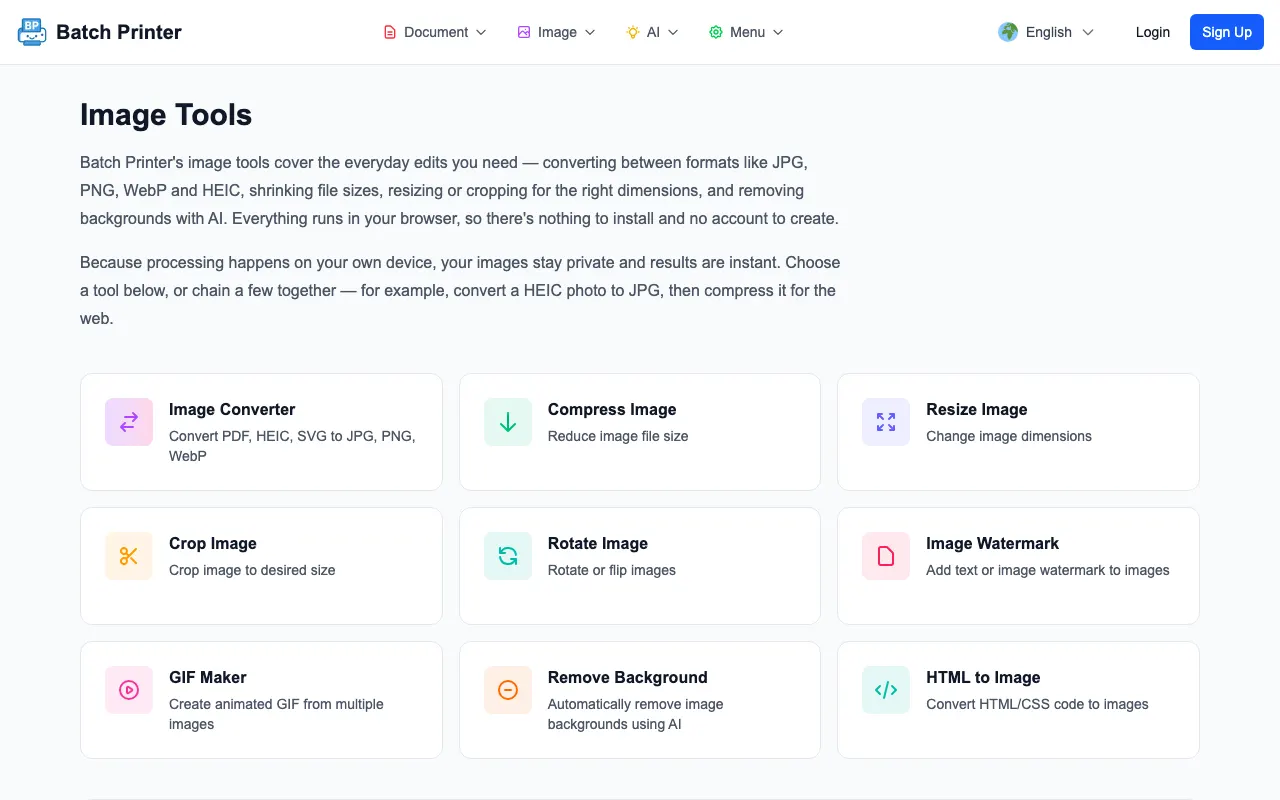
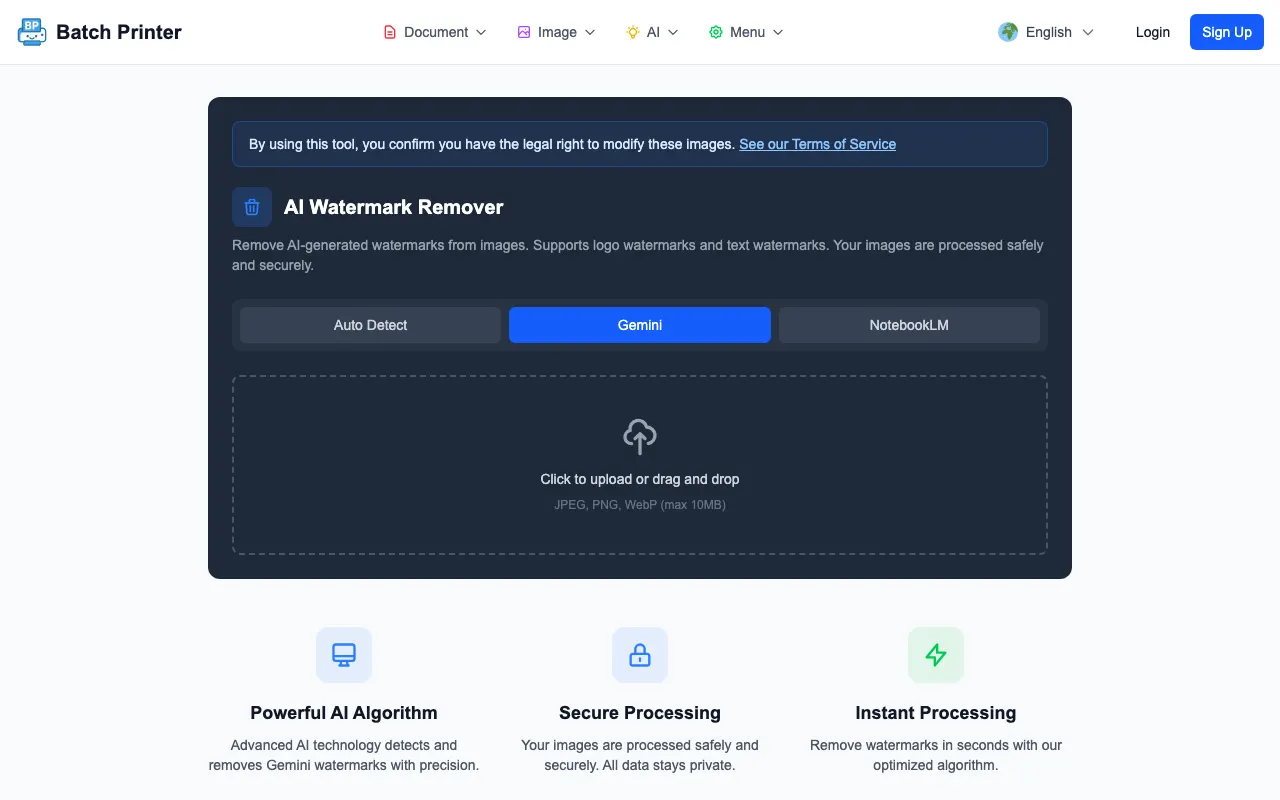
The workflow in this guide was walked end to end with sample images carrying AI-style visual elements: into the AI image cleanup tool, through the review pass, and out to a cleaned folder. Two practical navigation notes up front - the tool lives under the image tools hub, and the cleanup path redirects there if you arrive from an older link.
The Repetition Is the Real Bottleneck
When a team has several AI images to prepare, the painful part is not one removal. It is remembering which file was processed, where the cleaned copy was saved, and whether somebody reviewed the output. That is the work a batch queue is supposed to reduce.
- Collect the candidate images in one working folder.
- Remove duplicates and drafts before processing.
- Process the selected images in the same session when the account and tool limits allow it.
- Review the cleaned results as a set before moving them into the campaign, deck, or article folder.
- Keep originals until the final output has been approved.
My Batch Cleanup Checklist
I treat image cleanup like a small operations handoff. The owner of the folder should decide what enters the queue, what naming pattern the cleaned files use, and who performs the final visual check. Without that, a batch tool can still produce confusion because nobody knows which output is final.
- Name the source folder before processing so originals are not overwritten.
- Open one sample at full size and confirm the mark type is visible and removable.
- Use the advanced AI mode when the visible mark looks like the AI-style sparkle or badge tested here.
- Process only the files that need cleanup, not the entire asset library.
- Review each output against the original and reject results with obvious fill artifacts.
- Move approved files into a separate final folder.
What Happened in the Test Run
Using the Batch Printer AI engine in a browser harness, the tested fixtures with visual elements loaded, decoded, and returned cleaned PNG output. The progress messages moved through image loading, decoding, extracting image data, cleaning the detected visual element, rendering, and encoding the result. The successful outputs used the V24 path and changed the detected mark region.
The limitation was just as important as the success. A fixture labeled as not having a visual element was still processed by the engine in my harness. That is why an operations workflow should include a compare step, not only a download step. The tool can help with the mechanical cleanup, but the queue owner still approves the final visual result.
How to Keep a Batch From Becoming a Mess
The fastest path is not always the cleanest path. If a batch contains mixed crops, screenshots, illustrations, and product mockups, review them by group. Similar backgrounds make it easier to notice whether the fill area looks natural. Mixed files make it easier to miss one bad result.
- Use a source folder, a processed folder, and an approved folder.
- Do not rename approved files until after visual review, or the reviewer may lose track of source-output pairs.
- If one output looks worse than the original, keep the original and regenerate or edit manually.
- Document whether the final images were edited so later team members know why two versions exist.
When Single-File Cleanup Is Better
Single-file cleanup still makes sense when the asset is important, unusual, or likely to need manual editing. A hero image for a landing page deserves more attention than a quick internal draft. If the visual element crosses detailed text, a logo, a face, or a product boundary, one-by-one review is safer than treating the file as routine batch work.
FAQ for Batch Image Cleanup Operations
Does batch cleanup guarantee better results? No. It reduces repeated handling when the inputs are similar, but each output still needs visual review.
Should I process every generated image in a campaign folder? No. Process only the images that are candidates for final use. Cleaning rejected drafts wastes review attention.
What should I check after downloading? Compare the cleaned area, nearby edges, text, and subject boundaries. If the filled region calls attention to itself, do not use that output as a final asset.
Используйте эти инструменты сейчас
Нажмите кнопку, чтобы сразу открыть нужный инструмент.