
Compress Images Online Free: Tested Browser Results and Quality Checks

Image Compression Works Best When You Know What Must Stay Sharp
Image compression is not a contest to make every file as tiny as possible. A product photo still needs clean edges. A receipt scan still needs readable numbers. A UI screenshot still needs sharp text. The right setting is the lightest file that remains useful for the job.
Используйте эти инструменты сейчас
Нажмите кнопку, чтобы сразу открыть нужный инструмент.
The comparison below comes from an actual run, not vendor estimates: a large photo-style JPEG, a flat PNG card, and a receipt-style JPEG all went through the Batch Printer image compressor on the default Medium preset, and each result was downloaded and re-measured. Three file types were chosen deliberately, because they represent the three ways images typically respond to compression.
What I Checked Before Compressing
- The image dimensions match the largest size where the image will be displayed.
- Any small text, face, logo, barcode, or receipt number is readable before processing.
- The file type still fits the destination after compression, especially when PNG becomes WebP.
- You have kept the original source file in case the output looks too soft.
- You know whether the recipient needs maximum compatibility or a modern web format.
Test Run: Medium Compression Results
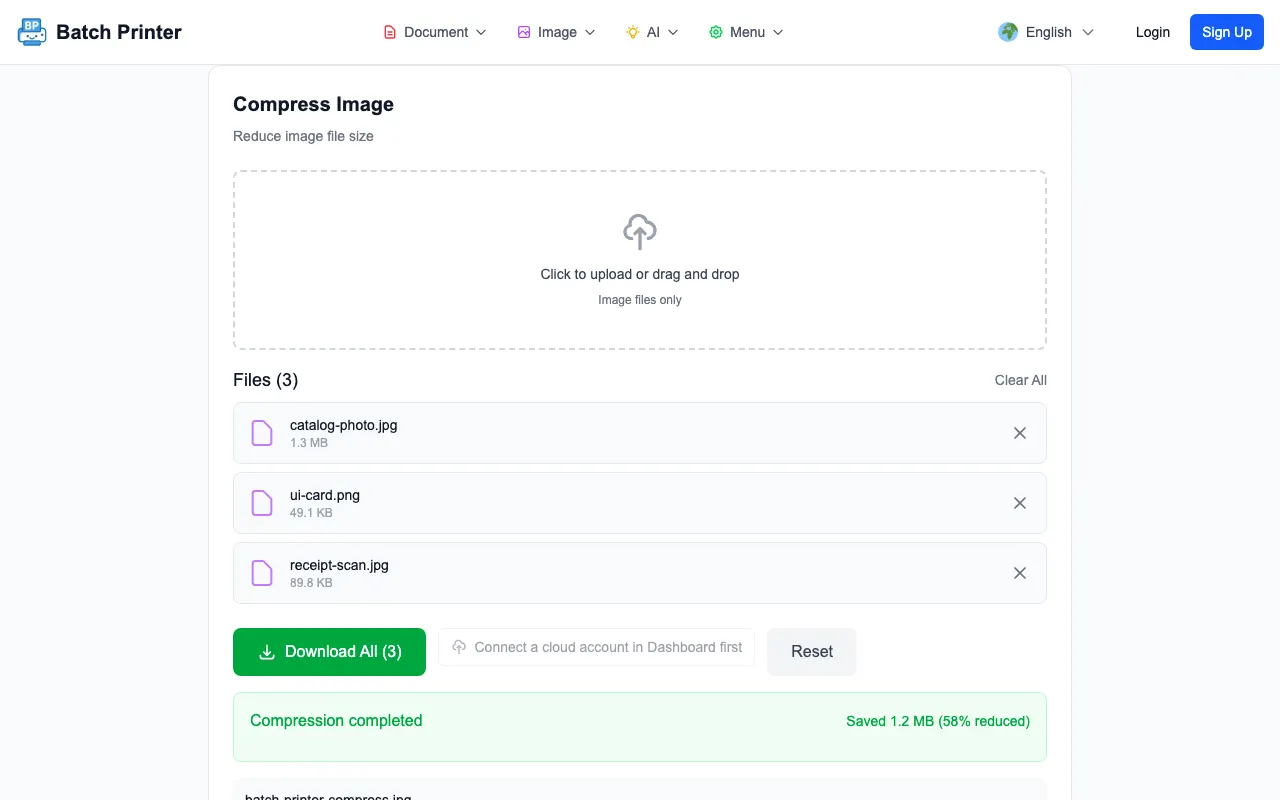
- catalog-photo.jpg | original 1.3 MB | downloaded compressed JPG 162.3 KB
- ui-card.png | original 49.1 KB | downloaded compressed WebP 21.0 KB
- receipt-scan.jpg | original 89.8 KB | downloaded compressed JPG 63.6 KB
The result summary reported 1.2 MB saved across the three files, but the distribution is the real lesson. The large photo gave up the most bytes because photographic noise compresses well. The receipt-style image barely moved - it was already small, and its high-contrast text is exactly the content a compressor should refuse to soften.
Walkthrough: Load Files and Pick a Preset
The first screenshot shows the files loaded with the Medium preset selected. That is the safest first pass when you do not yet know how aggressive the image can tolerate compression.
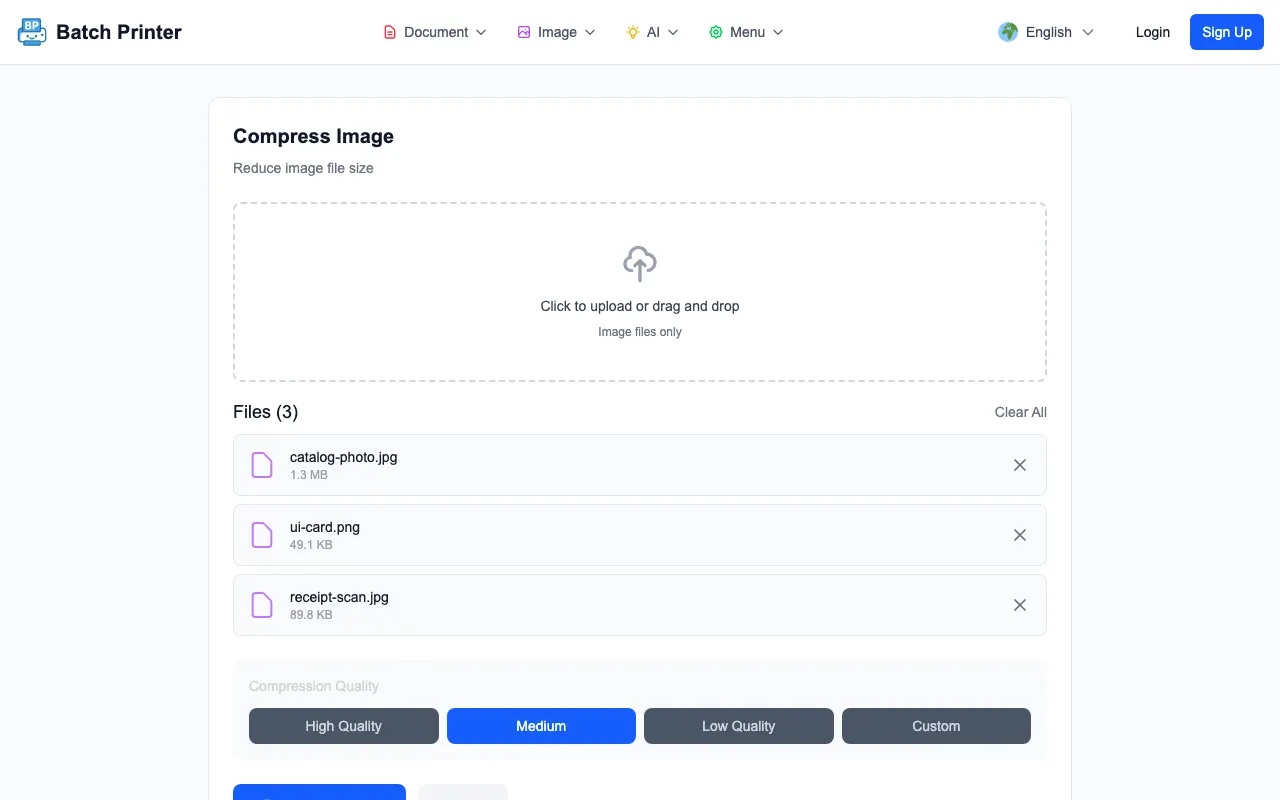
- Step 1: Add the images and confirm the queue shows the expected originals.
- Step 2: Leave Medium selected for the first pass unless you already know quality can be lower.
- Step 3: Compress and read each result row, not just the total saved number.
- Step 4: Download the result and zoom in on text, faces, lines, and product edges.
Reading the Results Without Chasing the Smallest Number
The result table is a decision aid. If a compressed photo still looks clean at the size people will see it, the smaller file is useful. If a receipt or interface screenshot becomes fuzzy, use a higher quality setting or keep the original format. The output can be technically smaller and still be the wrong result.
Format-Specific Notes for JPEG, PNG, and WebP
- JPEG photos usually tolerate moderate compression, but repeated recompression can stack artifacts.
- PNG screenshots may convert to WebP in this workflow, which can be good for web delivery but should be checked for edge clarity.
- Receipt scans and document photos need more caution because small numerals and punctuation matter.
- Images with transparency need a background check after output, especially if the destination is not white.
- Very small originals may not shrink much without visible quality loss.
When Not to Compress Further
Stop compressing when small text, skin tones, product edges, or brand colors change in a way that matters. For legal, finance, education, or support images, readability is more important than shaving off one more small chunk of file size.
FAQ for Browser Image Compression
Which preset should I try first? Medium is a practical first pass because it gives you a balanced output to inspect before trying a lower quality setting.
Will compression always make files smaller? Usually, but not every file benefits equally. Already optimized or tiny files may have little room left to shrink.
Should I resize before compressing? If the image dimensions are much larger than the final display size, resize first. Compression cannot fix unnecessary pixels as cleanly as a correct resize.
Используйте эти инструменты сейчас
Нажмите кнопку, чтобы сразу открыть нужный инструмент.