
Free Online Batch Print: Build One PDF Packet Before Printing

Free Online Batch Print Works Best as a Packet-Building Workflow
A free online batch print workflow should not ask you to babysit file after file. The cleaner approach is to gather the documents that belong together, turn them into one PDF packet, review that packet, and print once from your normal PDF viewer. This guide walks that route screen by screen, including the two places where it goes wrong most often.
Используйте эти инструменты сейчас
Нажмите кнопку, чтобы сразу открыть нужный инструмент.
The screenshots below come from a real run with three PDFs: a base report, a print cover, and a client copy. The merge page queued them, combined them into one three-page PDF, and ended at a download-ready packet. Treat the sequence of checkpoints - not the demo speed - as the takeaway, because those checkpoints are what save a misprinted stack of paper.
What the Free Workflow Actually Does
Batch printing online is easiest to understand as two separate steps. First, Batch Printer creates the packet: it combines the files in the order you choose. Second, your device handles printing: you open the combined PDF and use the printer settings already available in your browser or PDF viewer.
- The queue review confirms that every source file is present and in order.
- The result review confirms that the combined PDF exists and opens normally.
- The print dialog review confirms paper size, copies, color, and destination printer.
- The final paper check confirms the printer output matches the PDF packet.
- The source folder remains available if one document needs replacement later.
Live Test: Queue the Documents in Print Order
After selecting the three PDFs, the merge page listed all of them under Files and showed their order. This is where a free online workflow earns its keep: the page turns a messy folder action into a visible checklist before anything prints.
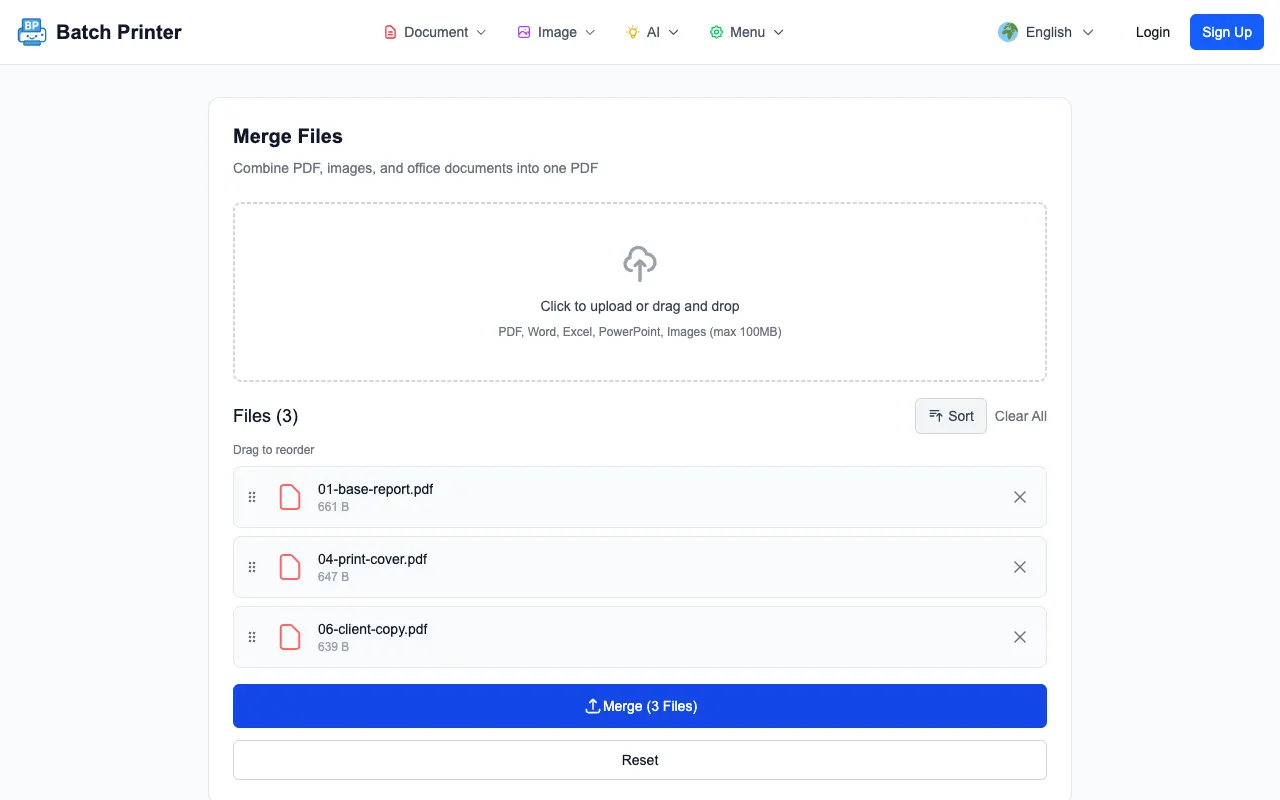
If I were doing this with real files, I would not rely on upload order alone. I would rename documents with short sequence prefixes, check the queue from top to bottom, and remove anything that belongs in a different print job. Free is useful only when the output is still controlled.
From Browser Output to Printer-Ready Packet
After processing, the page showed a Download control and reported a three-page created PDF. That result is the bridge between online preparation and local printing. Downloading the packet does not remove the need for review; it gives you one file that can be reviewed before paper is used.
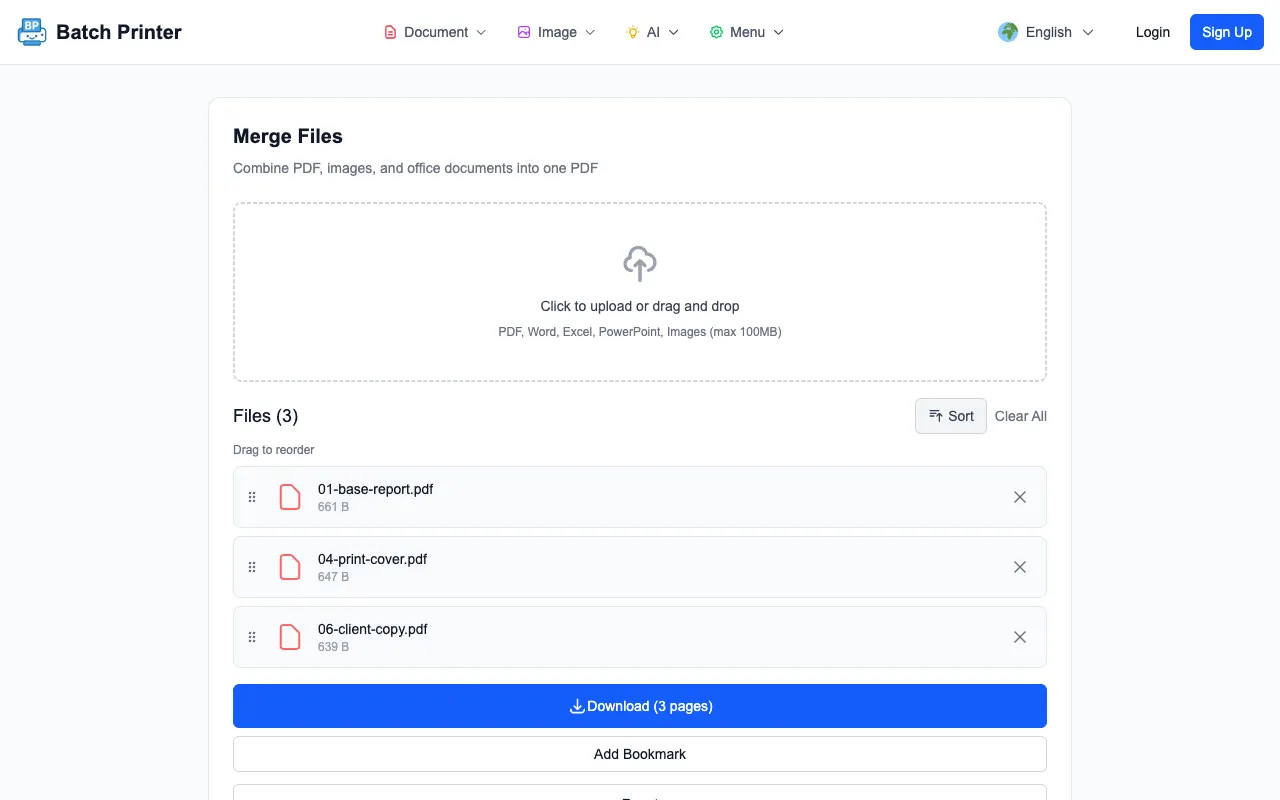
Open the PDF before printing. Check the cover, a middle transition, and the final page. Then choose printer settings in your viewer. If the print job needs duplex, grayscale, a special tray, or multiple copies, those choices happen after the packet is created.
Where Free Browser Tools Fit Well
A browser-based packet workflow fits routine document sets: invoices for a meeting, forms for a client folder, travel paperwork, classroom handouts, or a set of PDFs that need to be archived and printed together. The strongest fit is a same-settings print job where every page can share one printer configuration.
- The files already belong in one printed packet.
- The output needs a single review copy before printing.
- The page order matters more than individual file names.
- The printer settings will be the same for the whole packet.
- You want a digital archive that matches the paper set.
Privacy and Format Limits to Understand
In the PDF-only test, the merge workflow completed from the browser page and produced a local download-ready PDF. That does not mean every possible file type follows the same path. Office documents can require conversion before they become PDF pages, and that path may depend on server-side processing or account state. Sensitive mixed-format work deserves a small test before the real packet.
Also remember that browser tools depend on the device in front of you. Very heavy scans, low-memory phones, or unstable connections can still make a simple workflow feel difficult. If a packet is mission-critical, test the flow with a copy before the deadline.
A Simple Routine for Repeat Print Jobs
For recurring jobs, make a folder pattern rather than improvising every time. Keep incoming files in one folder, rename them in print order, merge them into a dated packet, open the packet, and print after review. The folder then holds both the originals and the exact PDF that was printed.
- Collect source PDFs in one job folder.
- Rename files with short sequence numbers and meaningful labels.
- Create the combined PDF in the browser queue.
- Save the output with the job date or client name.
- Print from the saved output, not from scattered originals.
Free Batch Print FAQ
Is the online step the same as printing? No. The online step creates the combined PDF packet. Printing happens from your browser or PDF viewer afterward.
Can I use the workflow for PDFs from different folders? Yes. Add the files to the queue, but check the order carefully because folder names are not visible in the final packet.
What if every file needs different print settings? Do not combine them into one packet. Group files by print settings or print them separately.
Используйте эти инструменты сейчас
Нажмите кнопку, чтобы сразу открыть нужный инструмент.