
How to Crop a PDF Online Without Cutting Off Important Content

Crop a PDF to Make the Useful Page Area Easier to Read
Cropping a PDF is not only about making a page look tighter. It changes the area a PDF viewer treats as visible, which can make receipts, scanned notes, reports, and presentation handouts easier to read on small screens. It can also create problems if you trim page numbers, signatures, headers, or context that the recipient needs.
Используйте эти инструменты сейчас
Нажмите кнопку, чтобы сразу открыть нужный инструмент.
The walkthrough below uses a one-page field report with a deliberately oversized blank margin around a small content block - the kind of layout a scanner or an export-to-A4 mistake produces. It is the perfect stress case for a crop tool, because the win is obvious if the preview is honest and the damage is obvious if it is not. Each margin control got adjusted separately before exporting the cropped result.
Before Cropping: Decide What Must Stay Visible
A crop should keep the content that proves the document is complete. On a receipt, that might be the merchant name, date, total, and tax line. On a report, it might be page numbers and a section header. On a scan, it might be handwritten notes near the edge. If you crop first and review later, you may not notice that the export hides a detail until after the file has already been sent.
- Headers and footers that identify the source, version, or page number.
- Signature lines, approval stamps, and initials near the page edge.
- Tables with columns close to the left or right margin.
- Scanned book pages where notes or shadows sit near the gutter.
- Any content that must be visible when the recipient prints the cropped copy.
Tested Workflow: Margin Controls and Preview
After upload, the page showed a preview card with four margin controls. The sample needed a modest top and bottom crop and a stronger left and right crop, because its side margins were the wide ones. The preview displayed the crop area before export - the single most important checkpoint in this tool, since a crop you cannot see is a crop you cannot trust.
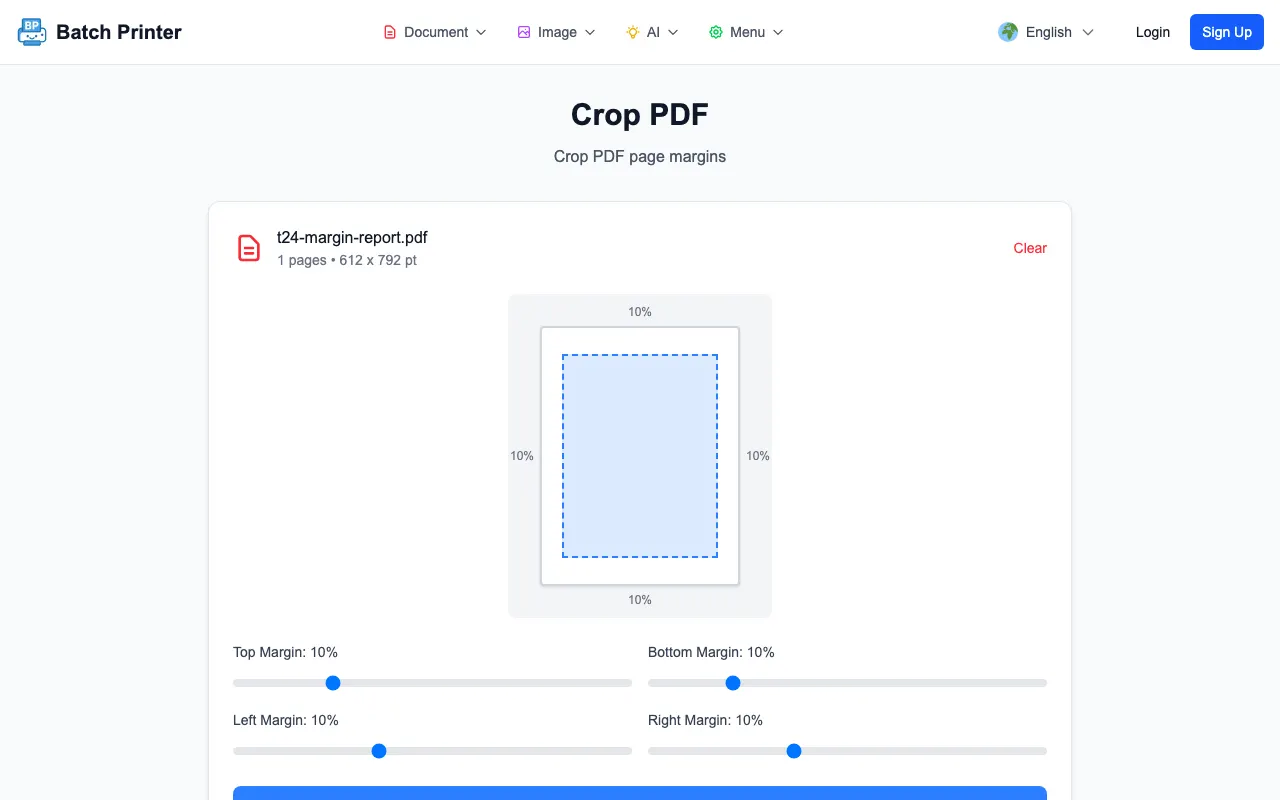
- Step 1: Upload a copy of the PDF to /en/tools/pdf/crop.
- Step 2: Start with small margin values rather than jumping to an aggressive crop.
- Step 3: Adjust top, bottom, left, and right separately based on the actual page.
- Step 4: Check the preview for clipped text, page numbers, and signatures.
- Step 5: Crop, download, and open the result in a PDF viewer before sharing.
What Changed in the Cropped Output
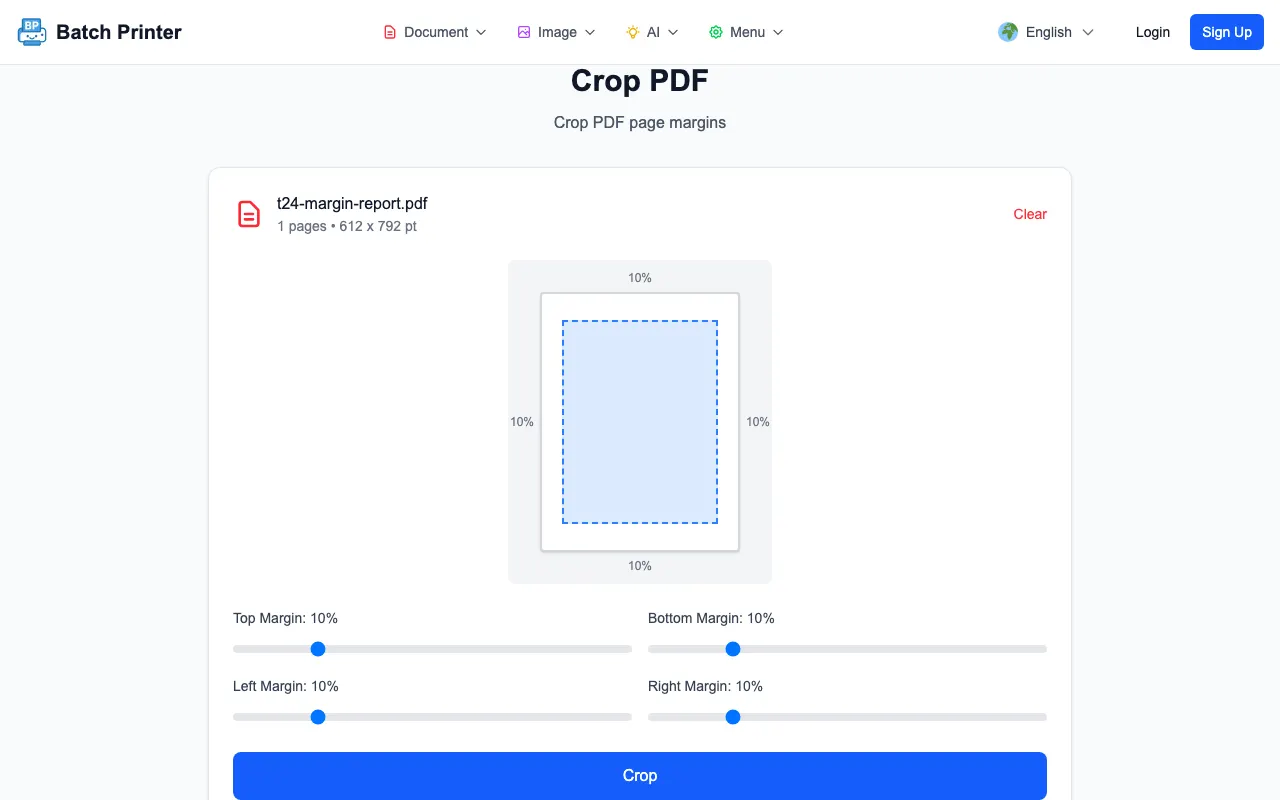
The test run produced a cropped PDF result and kept the workflow on the same page with a download action. The preview did not edit the words inside the PDF. It adjusted the visible page area. That distinction matters: crop is a layout tool. It can make a page easier to read, but it should not be used to remove confidential information because cropped-away content is not the same as redacted content.
When I checked the result state, the tool reported the page count and a downloadable output. For a real document, the next step would be to open the exported file and move through multiple pages, not just the first one. A setting that looks right on page one may be too tight for a later page with a wider table or footer.
Good Fits for PDF Cropping
- Scanned handouts with dark scanner edges or desk background around the page.
- Receipts where the important totals are surrounded by blank space.
- Slide exports where notes or white borders make the slide appear small.
- Reports prepared for tablet review where margins crowd the readable content.
- Book or manual scans where each page needs a consistent visible frame.
Cases Where Cropping Can Mislead
Cropping can make a document look cleaner while hiding context the recipient needs. It is a poor choice when you are trying to remove private data, change the meaning of a page, or make a partial record look complete. Use redaction for sensitive information and source editing for content changes. Use cropping when the page is correct but the visible frame is inefficient.
Be especially careful with mixed page sizes. A crop setting that works on a portrait page can clip a landscape appendix. If the document combines scans, exported slides, and tables, preview representative pages before exporting the final copy.
FAQ for Cropping PDF Pages
Does cropping delete content permanently? No. Treat crop as changing the visible page area. If information must be removed from the shared copy, use redaction instead.
Should I crop before compressing? Usually yes. Crop first to set the visible area, then compress if you also need a smaller file.
Can I crop every page the same way? Yes, when the pages share a consistent layout. Check mixed layouts before applying one setting to the whole file.
Используйте эти инструменты сейчас
Нажмите кнопку, чтобы сразу открыть нужный инструмент.