
JPG to PDF Online Free: Make One Ordered PDF From Photos


Turn JPG Pages Into One PDF You Can Actually Review
A folder of JPGs is fine for photos and awkward for documents. Page order is easy to lose, a sideways image can slip through, and the recipient has to open separate attachments. A PDF gives those loose images one container, one reading order, and one file to print or archive.
Используйте эти инструменты сейчас
Нажмите кнопку, чтобы сразу открыть нужный инструмент.
Why JPG-to-PDF Is Really an Order Problem
The conversion itself is only one part of the job. The bigger risk is sending the pages in the wrong sequence. Receipt photos, application pages, handwritten notes, and product images all need a human check before the output is trusted.
For the screenshots in this guide, I queued two receipt photos from an expense claim in the merge tool at /en/tools/pdf/merge. Batch Printer listed each file with its name and size before anything was converted, so the wrong-order problem could be caught while it was still free to fix.
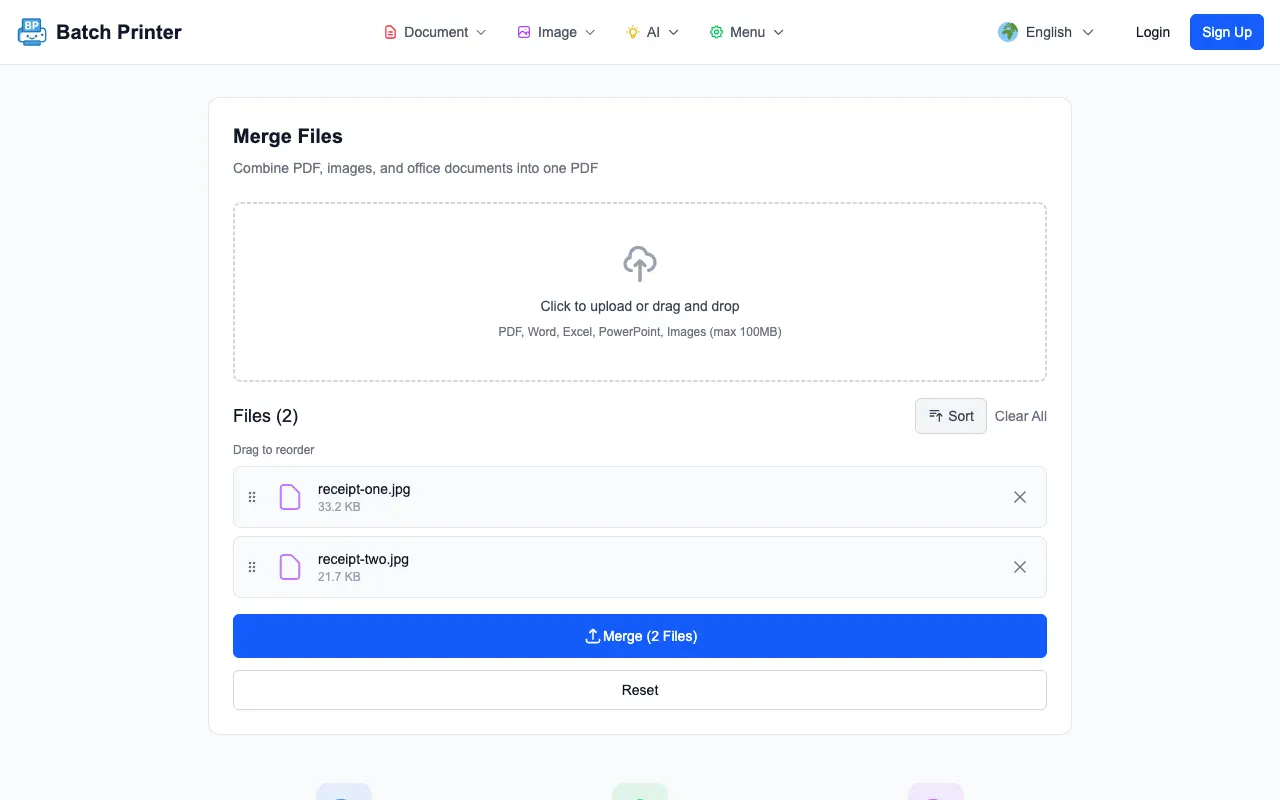
Image Quality Checks Before You Merge
- Use the original JPGs rather than screenshots of the JPGs.
- Open any photo that contains text and confirm the words are readable at normal zoom.
- Rotate sideways pages before sending the final PDF if the source image is wrong.
- Remove accidental duplicates from the queue.
- Put cover pages, forms, and receipts in the sequence a reader expects.
Step-by-Step: Build the PDF
- Open the merge tool and add the JPG files.
- Read the queue from top to bottom and confirm each file belongs in the document.
- Drag files if the visible order is not the reading order.
- Click Merge and wait for the output state.
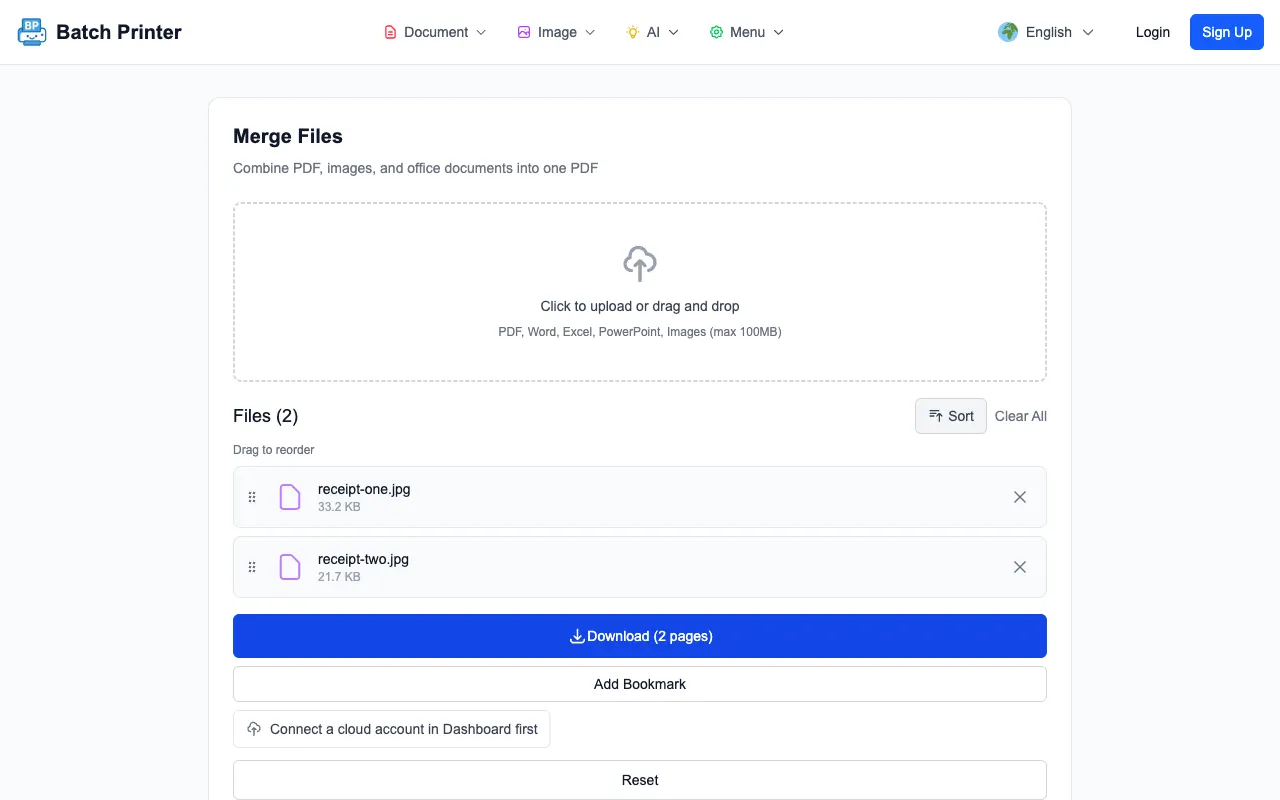
- Download the PDF, then open it once to check page count and orientation.
Review the Output Before You Share It
In the tested run, the result state said the PDF had two pages. That is the first check: the page count should match the image count unless you intentionally removed something. The second check is visual. Open the downloaded PDF and scan for sideways pages, cropped edges, and images that look too soft for the intended use.
FAQ for JPG-to-PDF Workflows
- Can I add more than JPG files? The merge tool also accepts PDFs and several image formats, but keep this workflow simple when the goal is a clean JPG packet.
- Should I compress first? Usually no. Merge first, then compress the finished PDF if the destination has a size limit.
- Can I fix order after downloading? It is easier to fix order in the queue and merge again than to repair a finished PDF later.
- Does the image quality drop inside the PDF? No re-editing happens during this kind of conversion - each JPG is placed onto its own page as-is, so a sharp source photo stays sharp and a blurry one stays blurry.
Используйте эти инструменты сейчас
Нажмите кнопку, чтобы сразу открыть нужный инструмент.