
Office to PDF Conversion: A Practical Print-Ready Workflow

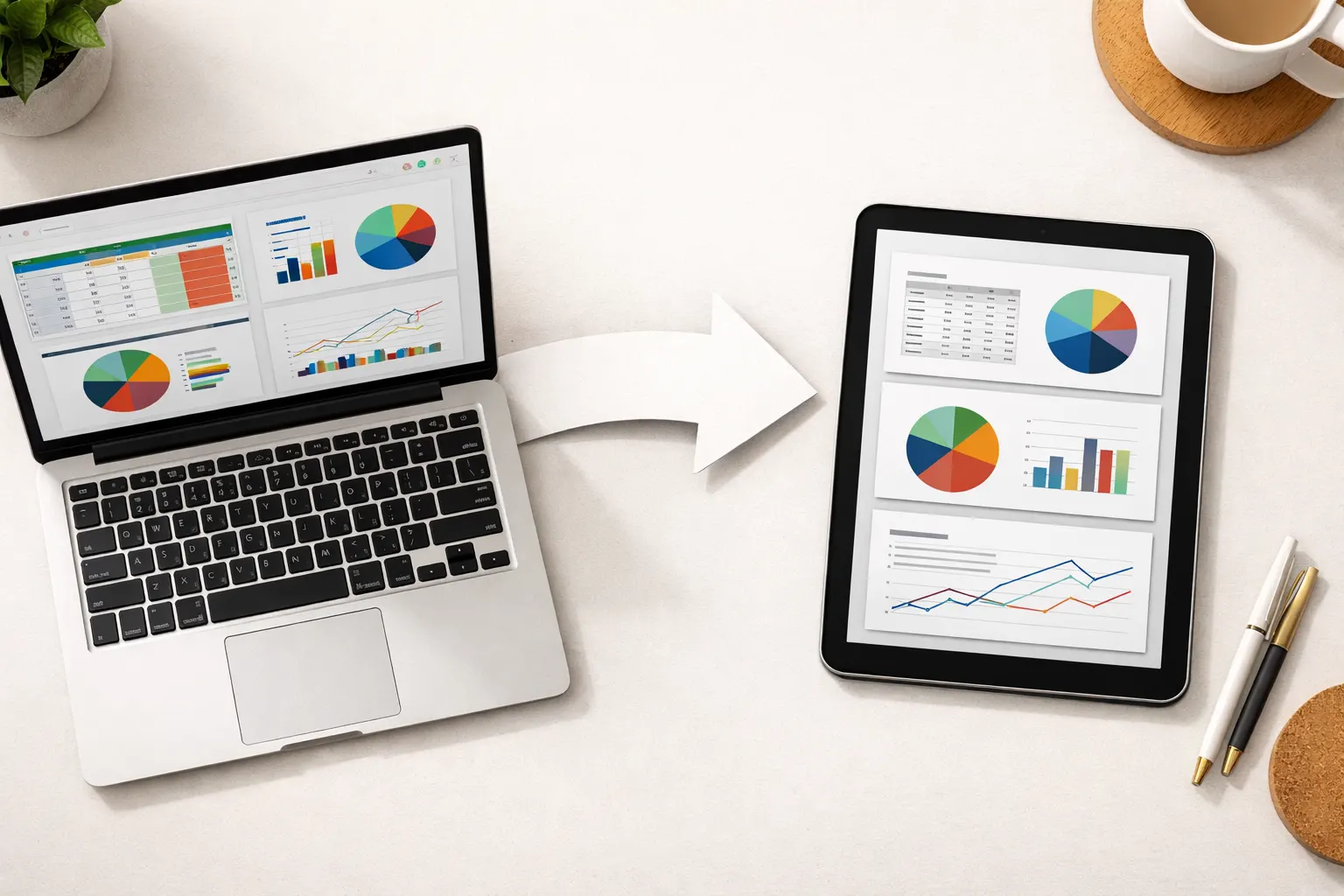
Convert Office Documents to PDF Before the Print Queue Gets Involved
Office files are working files. A report in DOCX, a budget in XLSX, and a deck in PPTX can still depend on fonts, page setup, print areas, and app-specific rendering. A PDF is usually the better format when the next person needs to review, print, archive, or forward the document without changing the layout.
Используйте эти инструменты сейчас
Нажмите кнопку, чтобы сразу открыть нужный инструмент.
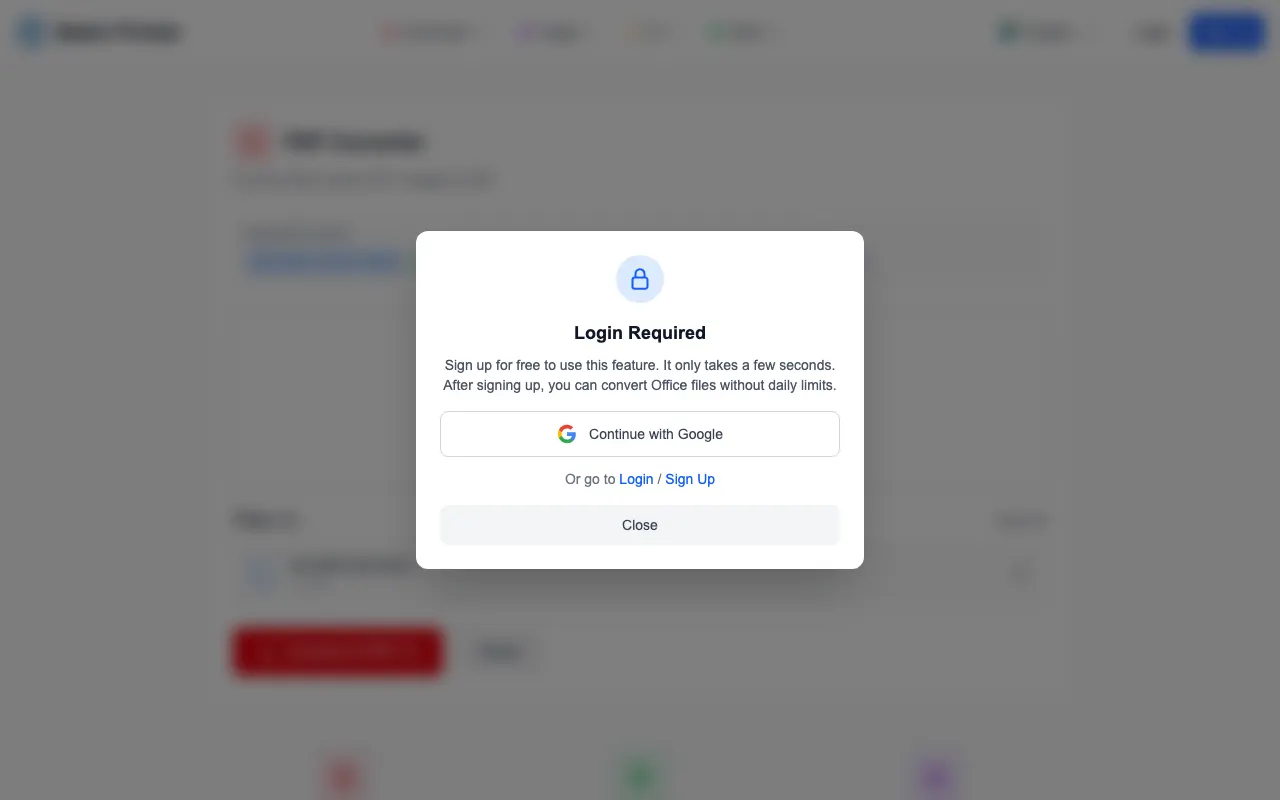
One behavior is worth knowing before you plan a deadline around this tool. When a DOCX brief goes into the PDF Converter upload queue while logged out, the queue accepts it - but starting the actual Office conversion brings up a sign-in prompt. The reason is architectural: Office formats need a full layout engine on the server side, unlike images, which convert directly in your browser. Budget one minute for the account step and the rest of the workflow is smooth.
Why Office Files Shift Between Screens and Printers
A document can look finished on the author's computer and still change somewhere else. Fonts may not be available. A spreadsheet may have a print area that clips the last column. A slide deck may rely on speaker notes or hidden elements. Even when the words are correct, the output can look different after another device or app handles the file.
- The recipient should see a stable layout rather than an editable draft.
- A file will be printed by someone who may not have the same office app or fonts.
- A spreadsheet needs defined page breaks and readable columns.
- A deck should be reviewed as final slides rather than a presentation project.
- A mixed packet will later be merged with existing PDFs.
Tested Workflow: Prepare the Source, Queue the File, Sign In
The first useful step is preparation before upload. In a DOCX, update fields, accept or hide comments as appropriate, and check page breaks. In a spreadsheet, set print areas and orientation. In a slide deck, confirm whether notes and hidden slides should be excluded. Then upload the prepared file to the converter queue.
- Step 1: Clean up the Office source file and save a final working copy.
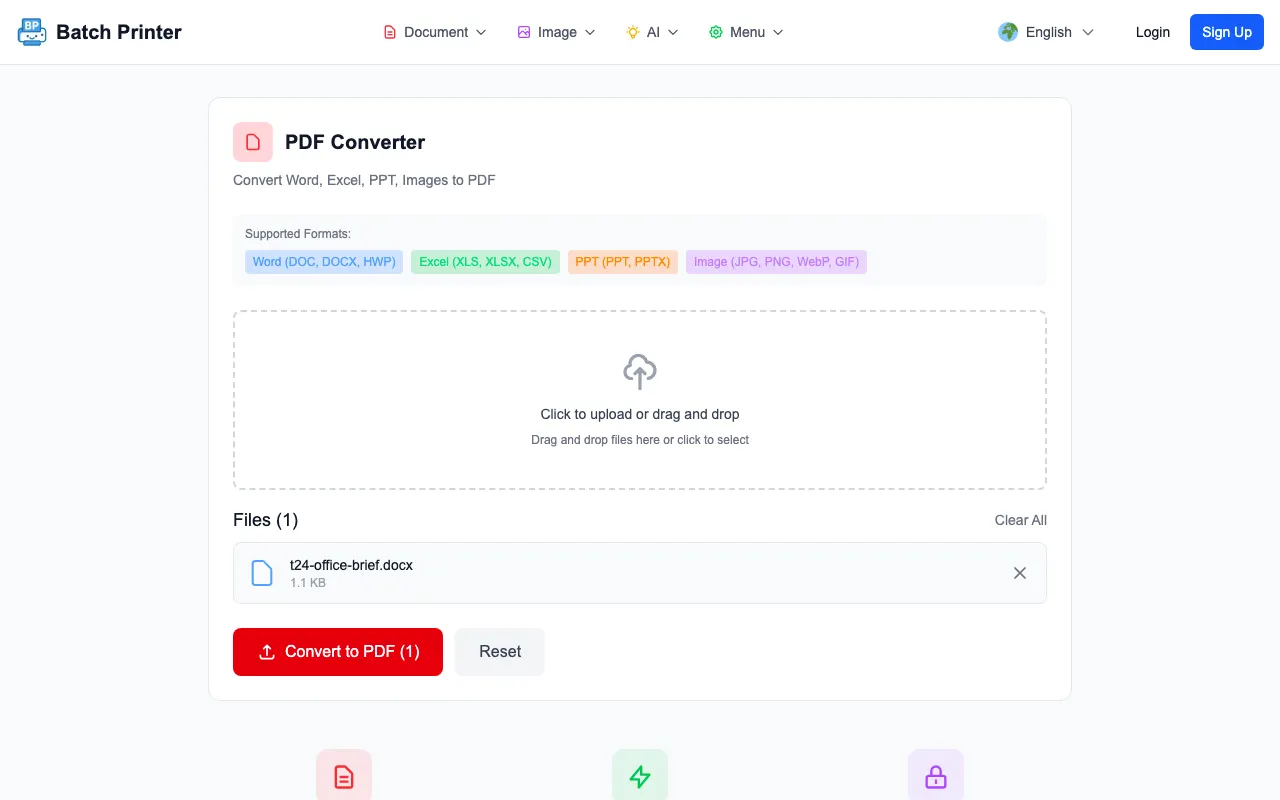
- Step 2: Open /en/tools/pdf-converter and upload the DOCX, XLSX, PPTX, or supported Office file.
- Step 3: Confirm the queued file name before conversion.
- Step 4: Sign in when the page asks for an account before server-side Office conversion.
- Step 5: Download the PDF and inspect the pages before printing, merging, or sending.
What the Converter Shows at Each Stage
The upload queue was clear: the DOCX file name appeared before conversion, and the Convert to PDF action showed the file count. When I clicked the conversion action while logged out, the login prompt appeared instead of silently failing. That is better than a confusing error, but it changes the workflow for guests. If you need Office conversion, sign in first and then run a small representative file before uploading a critical batch.
This is also why Office-to-PDF guidance should not promise a no-sign-up workflow for every file type. Image-to-PDF conversion runs directly in the browser, but DOCX, XLSX, and PPTX need a server-side layout engine to render fonts, tables, and slide geometry correctly. The account gate and upload path exist because of that difference, and they are part of the real workflow.
File Types and Layout Details Worth Checking
- DOCX: check headings, tables, page breaks, footers, comments, and tracked changes before upload.
- XLSX: set print areas, page orientation, scaling, and repeated header rows before conversion.
- PPTX: confirm slide size, hidden slides, notes, and embedded media expectations.
- CSV or text: decide whether a spreadsheet or document editor should format the file before PDF export.
- HWP or other regional office files: run a sample first because fonts and layout can vary by source file.
After download, do not only check the first page. Look at the last row of wide tables, the first page after each section break, and any page with embedded images. Print-ready means the PDF is visually checked, not just successfully created.
When PDF Export From the Office App Is Enough
If you already have the original app installed and only one file to export, the built-in Save as PDF or Export to PDF option may be enough. Batch Printer is more useful when you are working from a browser, handling supported formats across devices, or preparing files that will later join a PDF workflow. Choose the simplest path that lets you verify the result.
For confidential or policy-controlled documents, also decide whether the file is allowed to use a server-side conversion path. If not, export locally inside your approved office software and then use browser-side PDF tools for tasks such as crop, merge, or redaction where appropriate.
FAQ for Office to PDF Conversion
Why convert before printing? PDF gives the printer a fixed page representation. That reduces surprises from missing fonts, app versions, or print area settings.
Does the converter require sign-in? For Office files, yes - a logged-out session can queue a DOCX but a sign-in prompt appears before the conversion itself starts.
Should I merge Office files before conversion? Convert each Office file to PDF first, inspect the outputs, and then merge the PDFs. That makes it easier to isolate a layout problem.
Используйте эти инструменты сейчас
Нажмите кнопку, чтобы сразу открыть нужный инструмент.