
Batch PDF Compression Planning: Tested Sizes for Faster Document Delivery

A Batch Compression Routine for Deadline-Heavy PDF Delivery
Picture an operations team preparing a folder of signed forms, scan packets, and visual reports near a deadline. The delay is rarely one dramatic failure. It is the repeated work of checking size, compressing, downloading, renaming, and confirming that each file still looks acceptable - five small steps multiplied by every file in the folder.
One expectation to set upfront: the Batch Printer PDF compressor processes one PDF per run. The batch part of the routine is discipline, not simultaneity - apply the same preset across the folder, record original and new sizes as you go, and review the outputs in order. Done that way, ten files take ten short passes and zero re-work.
Scenario: A Friday Document Packet, Not a Named Customer Story
The scenario is simple: a team has several PDFs that need to be sent together. Some are image-heavy. Some are clean screenshots. Some are scanned receipt-style documents. The goal is not to make every file tiny. The goal is to make the packet easier to send while keeping the documents readable.
The Bottleneck: Repeating One PDF at a Time
- Someone compresses one file but forgets to review the downloaded output.
- The team mixes original and compressed copies in the same folder without a naming rule.
- A file with small text is compressed too aggressively and becomes harder to read.
- A reviewer cannot tell which preset was used for each file.
- The team waits until the deadline before discovering which files are still too large.
Measured: Medium Compression on Three Different PDF Types
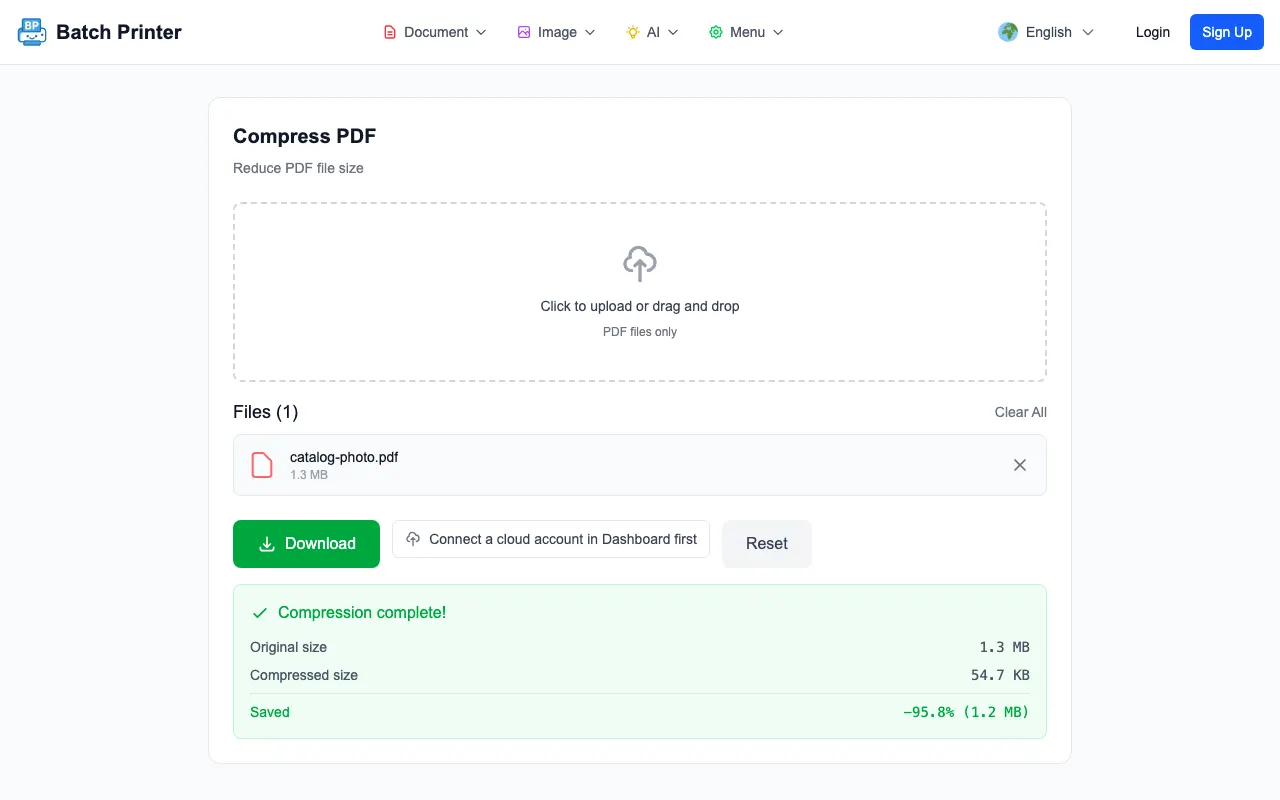
- catalog-photo.pdf | original 1.3 MB | downloaded compressed PDF 54.7 KB
- ui-card.pdf | original 87.6 KB | downloaded compressed PDF 33.4 KB
- receipt-scan.pdf | original 90.9 KB | downloaded compressed PDF 45.7 KB
The photo-style PDF reduced the most because the page was dominated by image data, which is where compression has room to work. The receipt-style sample reduced less because it was already small and text readability set a floor. That is the pattern to internalize: compression ratios follow content type, so a folder of scans and a folder of exported reports will behave very differently under the same preset.
Browser Walkthrough: Options, Result, Download
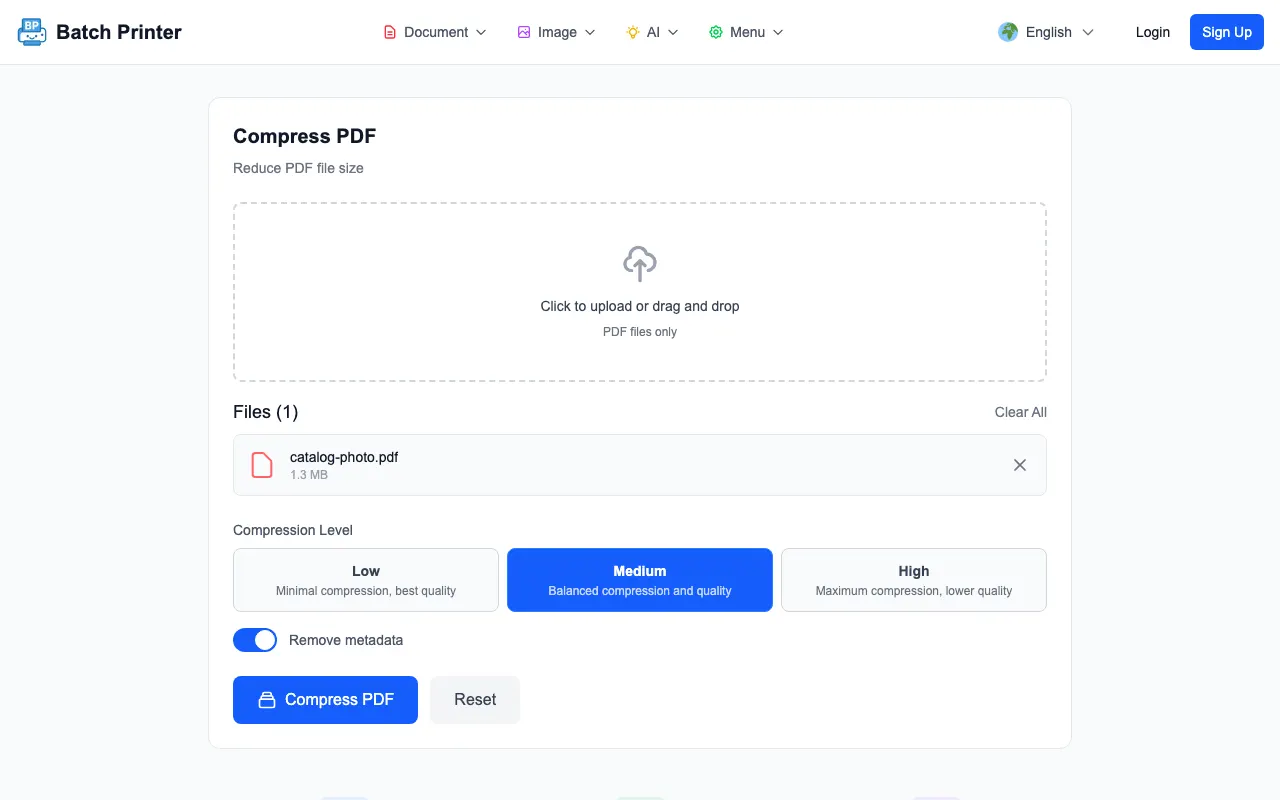
The first screenshot shows a PDF loaded with Low, Medium, and High compression choices. I used Medium for the measured run because it is a practical first setting for business documents that still need visual review.
- Step 1: Duplicate the source folder so the originals remain untouched.
- Step 2: Compress one representative file at Medium and inspect the output.
- Step 3: If the result is readable, process the rest of the folder with the same preset.
- Step 4: Record original size, new size, preset, and reviewer initials for each file.
- Step 5: Send only the reviewed compressed copies, not a mix of originals and outputs.
What the Measurements Mean for Delivery
A smaller PDF is useful only if it remains readable and fits the delivery channel. In the test run, the compressed files were downloaded from the browser and the result page exposed the before and after sizes. That makes it easy to keep a simple tracking sheet for a folder instead of guessing which files changed.
Privacy and Sensitive-Document Boundaries
Browser-local processing reduces unnecessary upload exposure, which is genuinely useful - but it is a transport detail, not a compliance program. If documents contain regulated or sensitive data, your organization's handling, retention, access, and review rules still decide what tools are appropriate. Check those rules first; the compression step will still be there afterward.
Operational Checklist for Batch Compression
- Keep originals in a locked source folder and write compressed copies to a separate output folder.
- Pick one preset per document type unless a reviewer asks for a different setting.
- Open every compressed output that contains signatures, small text, stamps, or form fields.
- Use consistent filenames such as client-packet-01-compressed.pdf.
- Do not claim compliance or data integrity from compression alone; review the actual output.
FAQ for PDF Compression Operations
Can I process a whole folder at once? The compressor accepts one PDF at a time. For a folder, use a consistent repeatable routine - same preset, recorded sizes, ordered review - and track each output.
Which preset should I start with? Start with Medium, then inspect a representative output. Use High only when size pressure matters more than visual fidelity.
Does compression prove a document is legally or medically compliant? No. Compression changes file size; it does not certify a compliance workflow.