
Batch Print PDFs When Right-Click Printing Stops Scaling

When Right-Click Printing Stops Scaling, Merge the Packet First
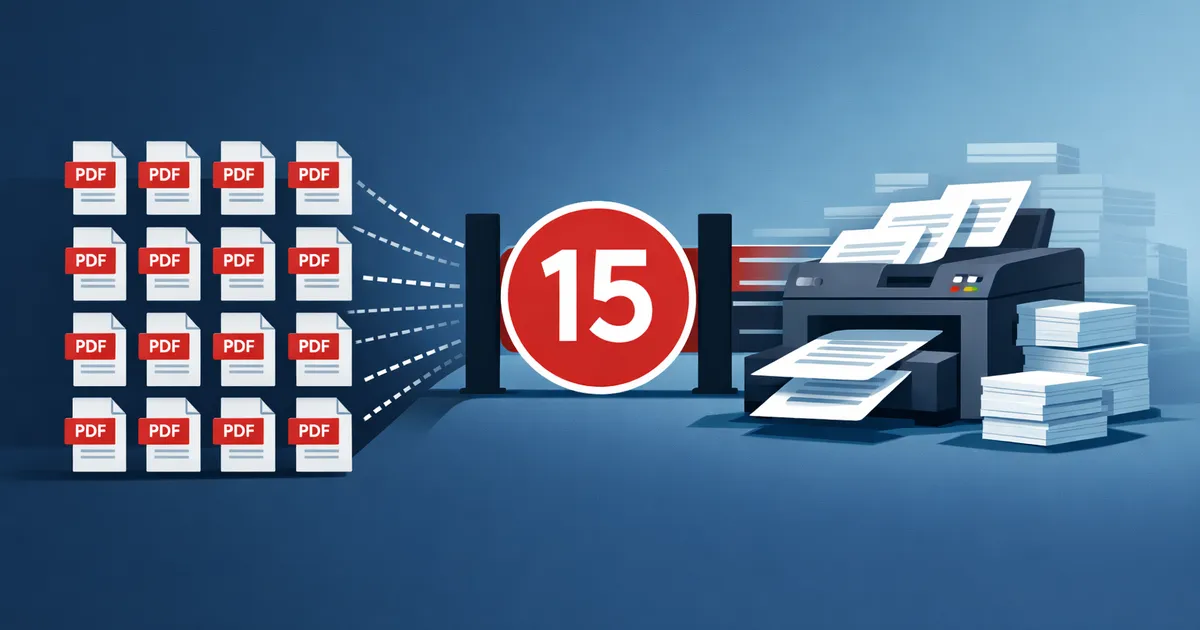
Printing one PDF is easy. Printing a folder of PDFs is where the workflow becomes fragile: separate windows open, dialogs steal focus, files reach the printer in a confusing sequence, and one prompt can pause the whole job. The practical fix is often to create one print packet first, then print that one packet after review.
Try These Tools
Open the related tool now and finish faster.
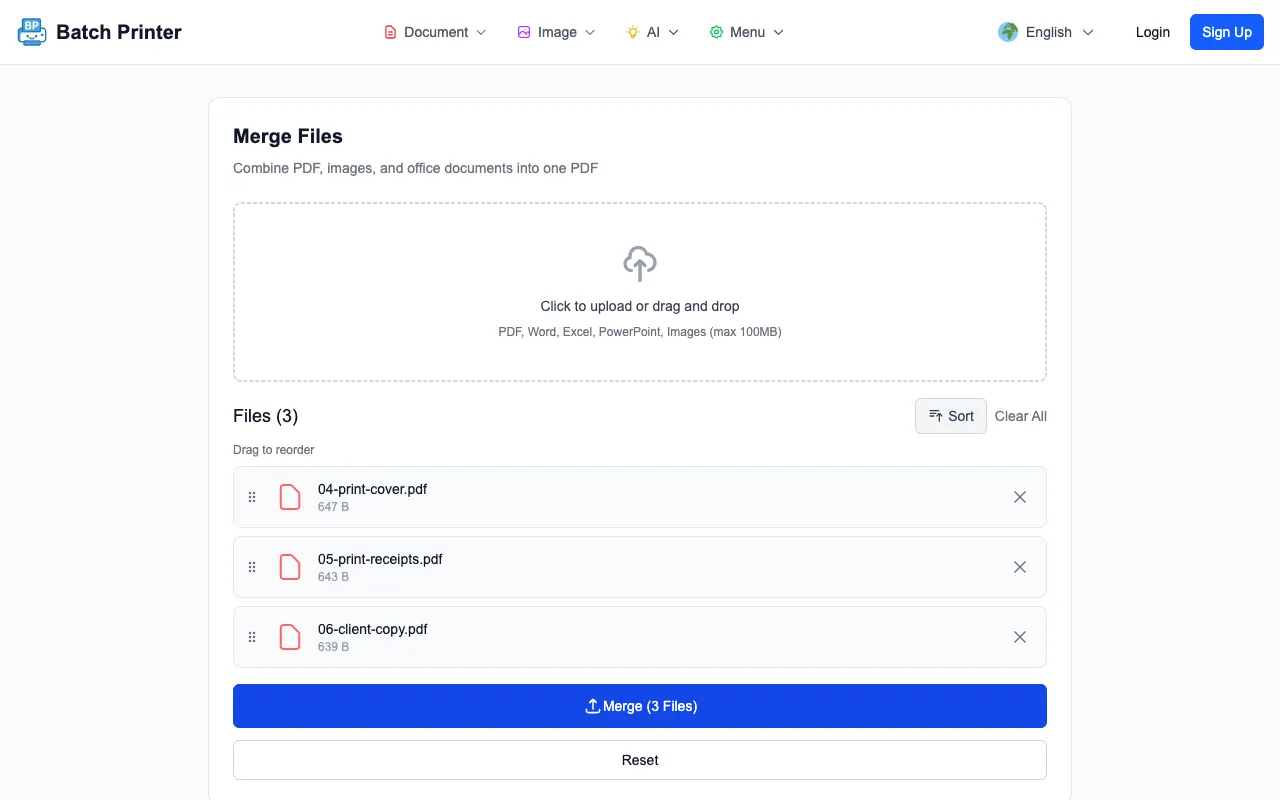
The merge-then-print preparation is simple to verify: a cover, a receipt bundle, and a client copy went into the Batch Printer merge queue, came out as one three-page result, and opened in a normal print dialog as a single job. One dialog instead of three is the entire point - and the gap only widens as the file count climbs past the point where right-click printing gives up.
The Problem I See in Multi-File Print Jobs
The cost of one-at-a-time printing is mostly attention. You open a file, confirm the printer, wait for the next app, and repeat. When many files are involved, the workflow becomes easy to interrupt. A printer warning, a default app update, or a file that opens slowly can leave you unsure which documents already entered the queue.
A merged print packet changes that pattern. Instead of asking the operating system to coordinate separate print actions, you create one PDF in the intended order. Then the print dialog receives one file. That does not make the printer faster, but it makes the human workflow easier to verify.
Tested Workflow: Turn Several PDFs Into One Print Packet
After the three print files were selected, the queue displayed each filename, which made the print order checkable before processing. In a real office job, this is where I would confirm that cover sheets, invoices, receipts, and supporting documents are grouped in the sequence the recipient expects.
- Collect the PDFs that belong in the same printed packet.
- Name them so the intended order is readable in the queue.
- Upload the files to the merge tool and check the queue top to bottom.
- Merge only after the queue matches the print order.
- Download the combined PDF, open it, then print from that reviewed file.
Result Check Before Opening the Print Dialog
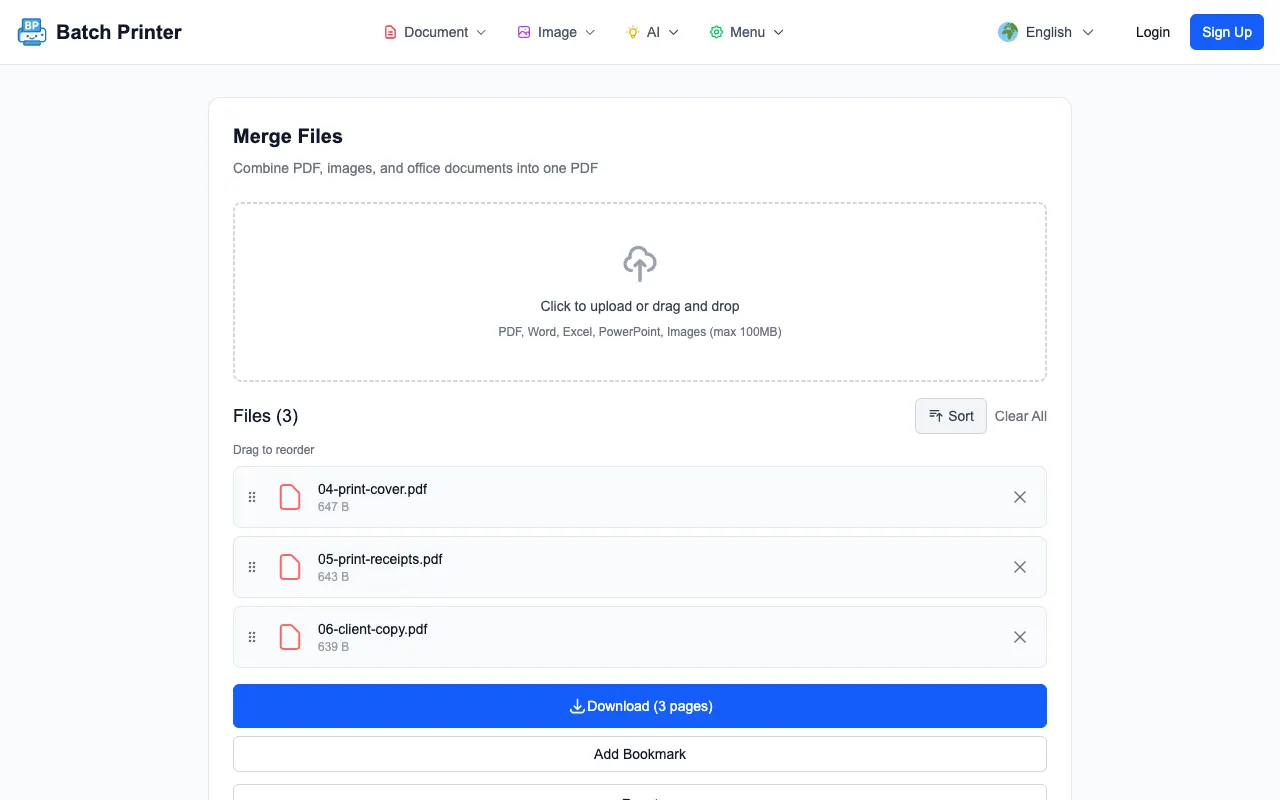
After processing, the result screen showed a download-ready PDF with three pages. That was the expected output for the test set. Before printing, I would open the PDF and check the first page, the transition between documents, and the last page. This catches the human errors that printers cannot detect.
That first-hand check replaces the old habit of estimating print-work cost with unsupported outside statistics. The observed problem is simple enough: when many files are printed separately, the operator has to babysit dialogs and file order. When the files are merged first, the operator reviews one packet and prints one file.
What Happens When You Print Many Files One by One
In day-to-day office work, one-by-one printing creates uncertainty. You may not know whether the third file printed before the second, whether a viewer paused on a warning, or whether a file opened in an unexpected application. Those problems are not paper or ink statistics; they are workflow interruptions you can see while doing the task.
- The packet needs a stable reading order.
- Several people share the same printer and jobs can interleave.
- You need one archive copy that matches the printed set.
- The files come from different folders or naming conventions.
- You want to review the packet once before using paper.
Mixed Formats and Office Documents Need Extra Care
If the packet includes Word, spreadsheet, slide, or image files, test the conversion path before relying on it for an urgent print run. PDF-only merging is straightforward in the browser. Office conversion can involve a server-side conversion step and may have different account or network requirements. For sensitive work, convert and review non-PDF sources before the final merge.
Images also need visual review. A photo scan may become a PDF page with a different margin than exported documents. If consistent paper layout matters, rotate, crop, or re-export the source before building the final print packet.
When Merge-Then-Print Is Not Enough
Do not merge first when each file needs a different printer tray, paper size, color setting, or approval stamp. A single packet is excellent for one continuous print job, but it is less helpful when every file needs its own print settings. In that case, group files by print setting, not by folder.
Batch Print FAQ
Does merging automatically send files to my printer? No. The tested workflow created one PDF first. You still open that PDF and use your normal print dialog.
Why not print every file directly from the folder? Direct folder printing can be hard to supervise when many files are involved. A merged packet gives you one file to review and one print action to start.
Should I keep the separate originals? Yes. Keep the source files until the printed packet and the downloaded PDF have both been checked.
Try These Tools
Open the related tool now and finish faster.