
Combine Files Into One PDF: Word, Excel, Images, and Scans

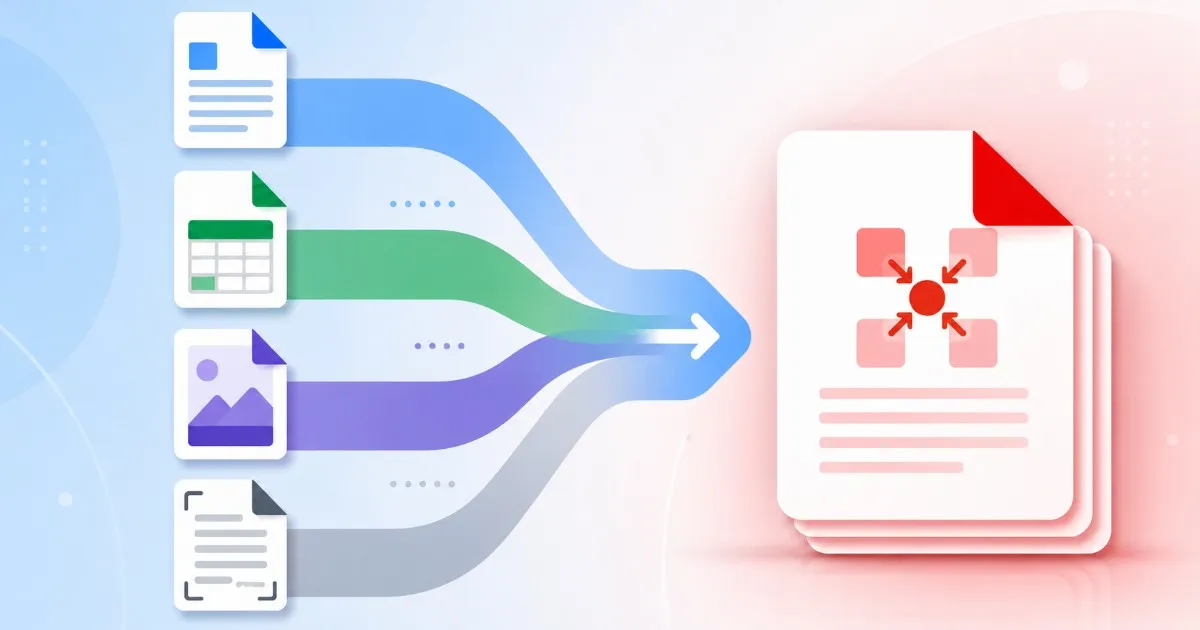
Turn a Pile of Mixed Files Into One Clean PDF
Most documents that need to go out as one PDF start life scattered: a Word draft here, a spreadsheet of numbers there, two phone photos of a signed page, and a PDF someone emailed you. Combining files into one PDF should not mean opening four different apps first.
Try These Tools
Open the related tool now and finish faster.
Batch Printer’s merge tool is built for exactly this mix. The uploader at /tools/pdf/merge accepts nine formats at once — PDF, Word (.doc/.docx), Excel (.xls/.xlsx), PowerPoint (.ppt/.pptx), Korean HWP, and JPG, PNG, GIF, or WebP images — so the whole pile goes in together instead of one converter tab at a time.
One Uploader, Not Just PDFs
Most merge tools only take PDFs, so a Word file forces a detour: convert it somewhere else, download the result, then come back and upload again. The merge tool skips that loop. Drop the Word draft, the Excel sheet, the JPGs, and the PDF into the same window and it works out what each one needs.
- PDF files that are already final
- Word and PowerPoint documents that still need a layout engine
- Excel or CSV sheets, with a fit-to-width option for wide tables
- JPG, PNG, GIF, or WebP images of scanned or signed pages
- Korean HWP and HWPX office files
What Happens to Word and Excel Files
Images and existing PDFs are assembled right in your browser with pdf-lib, which is why they finish quickly. Office files take a different route: they need a full layout engine, so they are converted on the server first and then folded into the merge. That server pass is why Word, Excel, and PowerPoint files ask you to sign in — the conversion runs against your account rather than anonymously.
- PDFs and images: merged in the browser, with a server fallback if a file is stubborn
- Office and HWP files: converted on the server, then added in place
- Wide spreadsheets: choose fit-to-width so columns are not clipped
- Won and yen documents: Korean and Japanese merges add a currency option
- On a phone: the whole job runs on the server for stability
Arrange Once and the Order Holds
The order you set in the file list is the order of the finished PDF — even when the types are mixed. Behind the scenes the tool groups neighboring PDFs and images into one lane and each Office file into its own, then reassembles every piece back in your original sequence. Rename with number prefixes and the arrangement becomes obvious at a glance.
- 01-cover.jpg — a photo of the signed cover page becomes page one
- 02-proposal.docx — the Word body is converted and slotted in second
- 03-budget.xlsx — the spreadsheet follows, fit to page width
- 04-contract.pdf — the existing PDF closes the packet unchanged
- The download, merged.pdf, reads in that exact order
Know the Limits Before You Start
A few numbers keep the run predictable. The uploader takes up to 20 files at once, and needs at least two before the merge button turns on. Signed out, the combined upload can reach 100 MB; sign in and that ceiling rises to 1 GB, which matters when scanned images are involved. Knowing these before you start saves a second attempt.
- Two files minimum, twenty maximum per merge
- 100 MB total for guests, 1 GB once you sign in
- Signing in is also required for Word, Excel, and PowerPoint conversion
- Large photos are compressed before merging to keep the file reasonable
- The result page shows the final page count so you can sanity-check it
When Converting First Is the Better Call
Dropping everything into the merge tool is the fastest path, but not always the right one. If you need to eyeball each Office conversion — a resume with a fragile layout, a spreadsheet with a dozen tabs — convert those files on their own at /tools/pdf-converter first, check each result, then bring the finished PDFs into the merge. Use direct merge for speed; convert first when a single page really has to look perfect.
Try These Tools
Open the related tool now and finish faster.