
Combine JPG and PDF Into One File — Free Online

Combine JPG and PDF Into One File — Free Online
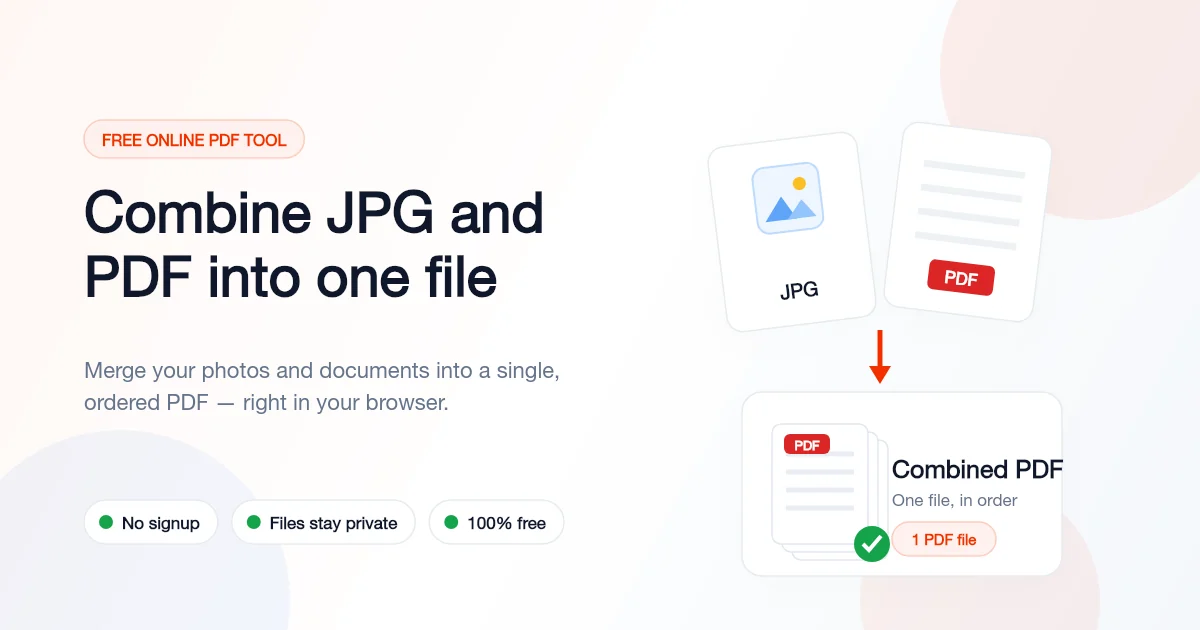
You have a signed contract saved as a PDF, and three photos of receipts your phone just took as JPGs. They all belong in the same submission. Or maybe you exported a report to PDF, then realized the scanned signature page is sitting in your camera roll as an image. The recipient wants one file, not a PDF plus a messy pile of attachments. This is the exact moment people start searching for a way to combine JPG and PDF into a single document — and it should take seconds, not a detour through three different apps.
Try These Tools
Open the related tool now and finish faster.
Why Mixing JPG and PDF Is Trickier Than It Looks
Most online tools are built for one direction only. Some convert several images into a PDF. Others merge a PDF with another PDF. Very few let you drop a real-world mix — a PDF here, two JPGs there, maybe a PNG screenshot — and hand back one ordered file. So people end up chaining tools together: convert the JPGs to PDF in one place, then merge those with the original PDF somewhere else. Every extra hop is another upload, another chance for the page order to scramble, and another website that wants your sensitive scans.
- Converting each JPG to its own PDF first, then merging — two tools, twice the uploads, double the waiting
- The photo lands sideways because the tool ignores the orientation tag your phone camera wrote into the image
- A 12-megapixel photo turns a 200 KB report into a 20 MB file that bounces off the email size limit
- Pages come out in the wrong order because the tool sorts by filename instead of letting you arrange them
- Uploading a scanned ID or contract to an unknown server just because it was the first search result
How to Combine JPG and PDF in 3 Steps
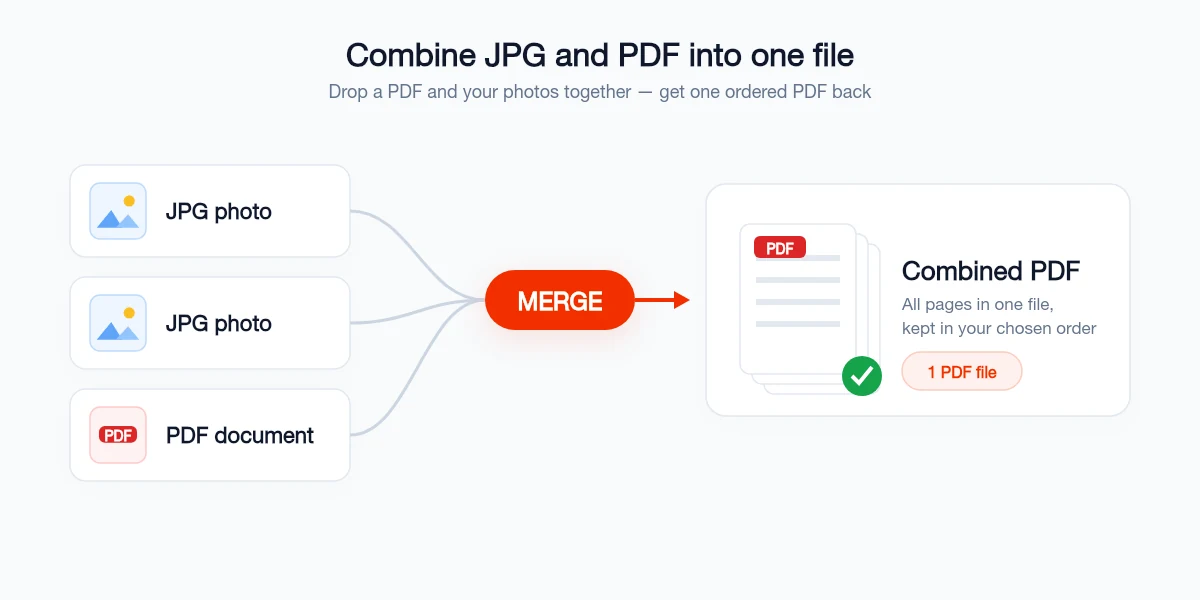
You do not need to install anything or convert your images first. Batch Printer reads PDFs and images in the same step, so you can drop the whole mix at once and get back a single, correctly ordered PDF.
- Step 1: Open the merge tool at batch-printer.com/tools/pdf/merge and drag in your PDF together with every JPG or PNG you want to include — all at the same time
- Step 2: Drag the thumbnails to set the exact order. The PDF can go first, the photos can go between specific pages, or the images can sit at the very end — your choice
- Step 3: Click Merge. Each image becomes a full page, the PDF pages stay intact, and one combined PDF downloads instantly — processed in your browser, so the files never leave your device
Which File Types You Can Mix Together
The point of a real pdf and image combiner is that you stop sorting files by type before you start. Drop them in as they are and let the tool handle the conversion as part of the merge.
- PDF files — merged as-is, with page order and text preserved
- JPG and JPEG photos — each becomes a full page, orientation respected
- PNG and WebP images — screenshots and exports drop straight in
- Word documents (.docx) — converted and placed inline with the rest
- PowerPoint and Excel files — each slide or sheet becomes a page
Keep the Combined File Small and Fast to Open
This is the step most guides skip. The moment you add full-resolution phone photos to a PDF, the file size jumps — a handful of camera images can push a document past the 20 to 25 MB limit most email providers enforce. A heavy file is also slow to open on a phone and frustrating for whoever you sent it to. A few seconds of trimming keeps the result light without making anything look worse.
- Resize oversized photos toward roughly 1500 to 2000 pixels on the long edge before merging — plenty sharp for screen and print, far smaller in bytes
- Run the finished PDF through a compressor if it still feels heavy — readable quality stays, the megabytes drop
- Avoid stacking ten full-resolution images into one file when a clear scan would do the same job at a fraction of the size
Common Mistakes to Avoid
Combining JPG and PDF is simple once you use the right tool. Most of the wasted time comes from detours people take before they find it.
- Converting every image to PDF in a separate tool first — you do not need to. A proper combiner accepts images and PDFs together.
- Using print-to-PDF to staple files together — it flattens form fields and can drop bookmarks from the original PDF
- Trusting a random free site with sensitive scans — a contract or ID does not belong on an unknown server in an unknown country
- Ignoring orientation — check that a landscape photo did not get forced into a portrait page before you send it
- Forgetting to confirm the order — a two-second scroll through the result catches a misplaced page every time
"My expense reports are always a PDF cover sheet plus a dozen receipt photos from my phone. Being able to drop the PDF and the JPGs into one tool and get a single ordered file back — without converting anything first — saves me ten minutes every week."
Your Pre-Send Checklist
Before the combined PDF goes out, run through this quick check so the recipient gets a clean, professional file.
- Open the merged file and scroll end to end — confirm every page and photo is present and in the right order
- Check that each image is upright and readable, not rotated or cut off at the edges
- Confirm the file size is reasonable for email — compress it if the photos pushed it over the limit
- Make sure no page was duplicated during drag-and-drop
- For anything formal, verify the appended images match the orientation of the document pages around them
Try These Tools
Open the related tool now and finish faster.