
Convert Markdown to PDF Online: Preview, Page Setup, and Honest Limits

Markdown to PDF Is About Handoff, Not Rewriting Your Docs
Markdown is useful because it keeps writing close to plain text. It works well for READMEs, release notes, runbooks, lightweight specs, and technical handoffs. PDF enters the workflow when the reader needs a fixed document that can be shared, reviewed, archived, or printed without asking them to open a Markdown renderer.
Try These Tools
Open the related tool now and finish faster.
To see what actually renders, I fed the Batch Printer Markdown tool a release-notes file that deliberately packed the four elements people worry about: a GFM checklist, a table, a JavaScript code block, and a Mermaid diagram. The sections below describe what the editor and preview did with each one, so you know what to double-check in your own file before exporting.
Use Markdown When Drafting, Use PDF When Sharing
- A developer writes release notes in Markdown and needs a fixed handoff copy for non-technical readers.
- A support team keeps a runbook in version control but wants a printable snapshot for an incident review.
- A student drafts notes in plain text and needs a stable submission format after checking layout.
- A product team wants a PDF copy of a short spec without moving the source into a word processor.
- An open-source maintainer wants a readable offline copy of a README or contributor guide.
What the Editor and Preview Did With Each Element
- Input file: markdown-demo.md, 437 bytes of release-notes content.
- Preview rendered headings, checklist items, a table, and a JavaScript code block in the browser.
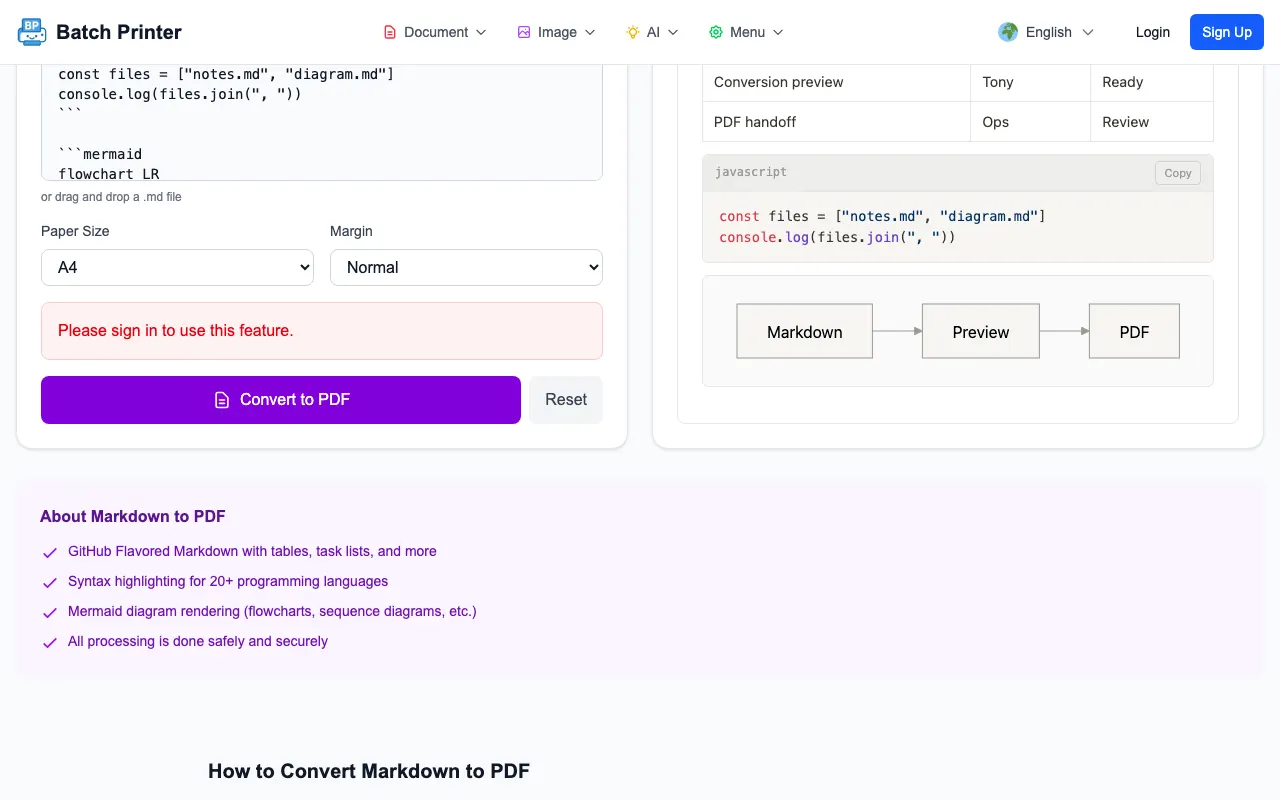
- Paper size controls showed A4, Letter, Legal, and A3 options.
- Margin controls showed none, small, normal, and large options.
- Without signing in, the editor and preview were fully available before final export.
Screenshot Walkthrough: Editor, Preview, and Page Options
The first screenshot shows the Markdown source beside the rendered preview. This is the most important review step because it catches table alignment, code block readability, and diagram syntax before you create a handoff file.
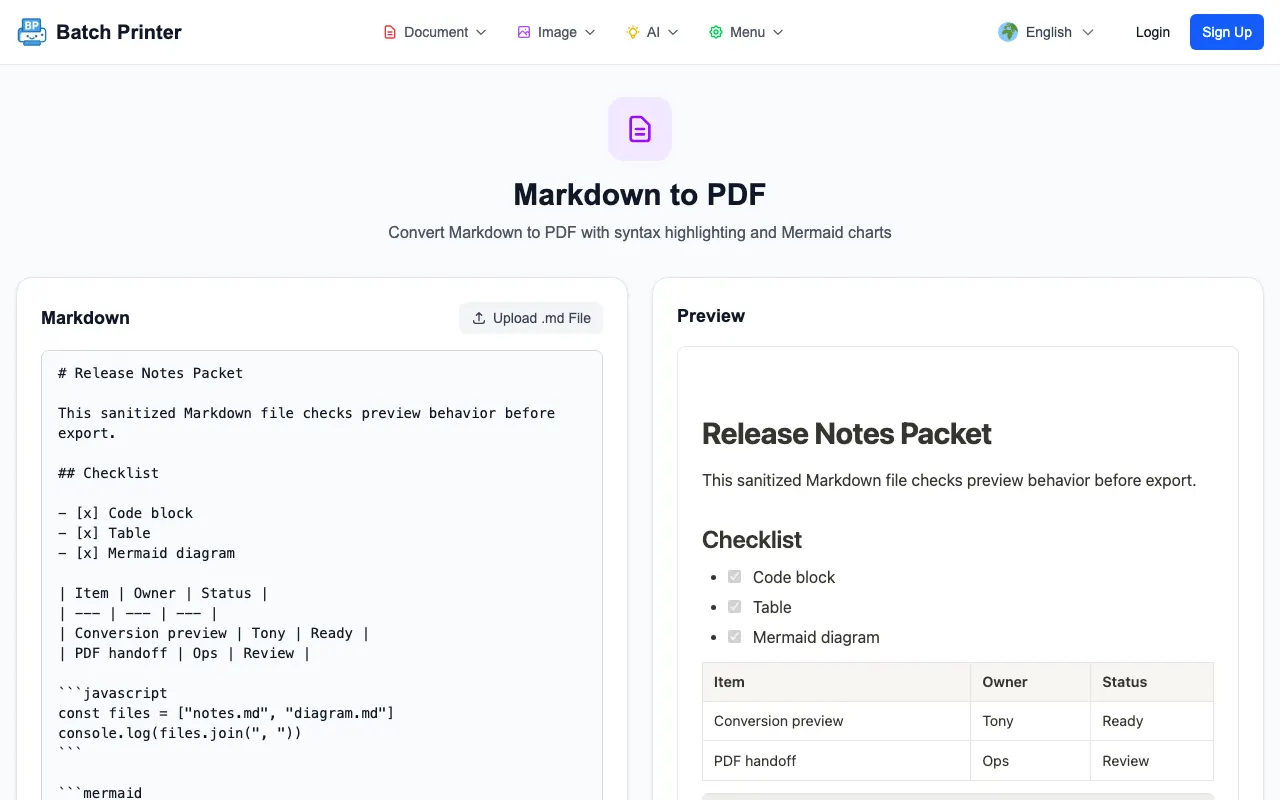
- Step 1: Paste Markdown or load a .md file and confirm the preview updates.
- Step 2: Scan tables, code blocks, checklists, and diagrams for obvious rendering issues.
- Step 3: Pick the paper size and margin before export rather than fixing layout after download.
- Step 4: If the page asks you to sign in before conversion, do that before the final PDF step - and never assume the export completed from the preview alone.
Markdown Features Worth Checking Before Export
- Tables: make sure columns remain readable at the chosen page width.
- Code blocks: specify a language when highlighting matters, then check line wrapping in preview.
- Task lists: confirm checked and unchecked items still communicate status clearly.
- Mermaid diagrams: verify the preview renders the diagram instead of raw code.
- External images: use stable, accessible image paths when the document depends on them.
Plain-Text Authorship Without the False Citation
Plain-text authorship earns its keep in three specific ways: the source stays readable in any editor, changes show up cleanly in version control diffs, and the same file can become a PDF today and a web page next month without rework. Markdown lets you keep one plain-text source and produce whatever handoff format the moment requires.
Where Preview and Final PDF Can Disagree
Preview is not the same as final export. Logged out, the browser accepted the sample and showed every preview control, but the final conversion step required a signed-in session - plan for that before a deadline. Complex diagrams, remote images, and very wide tables also deserve a final PDF inspection, because a browser preview does not have to make page-break decisions and the PDF does.
FAQ for Markdown to PDF
Do I need to rewrite Markdown in a word processor first? No. Start from the Markdown source, preview it, then export only after the layout looks right.
What should I check before export? Tables, code blocks, diagrams, links, images, paper size, and margins.
Is a preview enough for formal submission? No. Open the final PDF and inspect page breaks, code wrapping, and table width before sending it.
Try These Tools
Open the related tool now and finish faster.