Batch Printer Logo
blog.category.tutorial

Convert Multiple Images to One PDF — Free, In Your Browser

Batch Printer Team5 min read
Convert Multiple Images to One PDF — Free, In Your Browser

Convert Multiple Images to One PDF — Free, In Your Browser

You have 20 product photos that need to go into a single document. Or a stack of receipts you scanned with your phone. Or slides from a whiteboard session. Whatever the reason, you need multiple images in one PDF — and you need it done now, not after a 15-minute detour through some clunky tool.

Try These Tools

Open the related tool now and finish faster.

Most online converters make this process slower than it needs to be. Upload your files, wait for processing on their server, worry about where your images end up, then download the result. For something that should take five seconds, the whole ordeal can eat ten minutes and your patience.

Why Image-to-PDF Conversion Still Frustrates People

The tools exist. Hundreds of them. So why does this still feel harder than it should? Because most converters were not designed with your actual workflow in mind.

  • File limits — many free tools cap you at 5 or 10 images per conversion, forcing multiple rounds
  • Slow uploads — each image gets sent to a remote server, even if you are on a slow connection
  • Privacy concerns — your personal photos, ID scans, or business documents pass through someone else's servers
  • Format restrictions — some tools only accept JPG, rejecting PNG, WebP, or other formats you actually have
  • Quality loss — images get compressed during conversion, producing blurry PDFs
  • Wrong page order — you spend extra time rearranging pages because the tool ignores your file order

If even one of these sounds familiar, you are not alone. These are the exact problems that made us build a better approach.

How to Convert Multiple Images to One PDF in 3 Steps

With Batch Printer, converting images to PDF happens entirely in your browser. Nothing gets uploaded to an external server. Here is the process — it takes about five seconds.

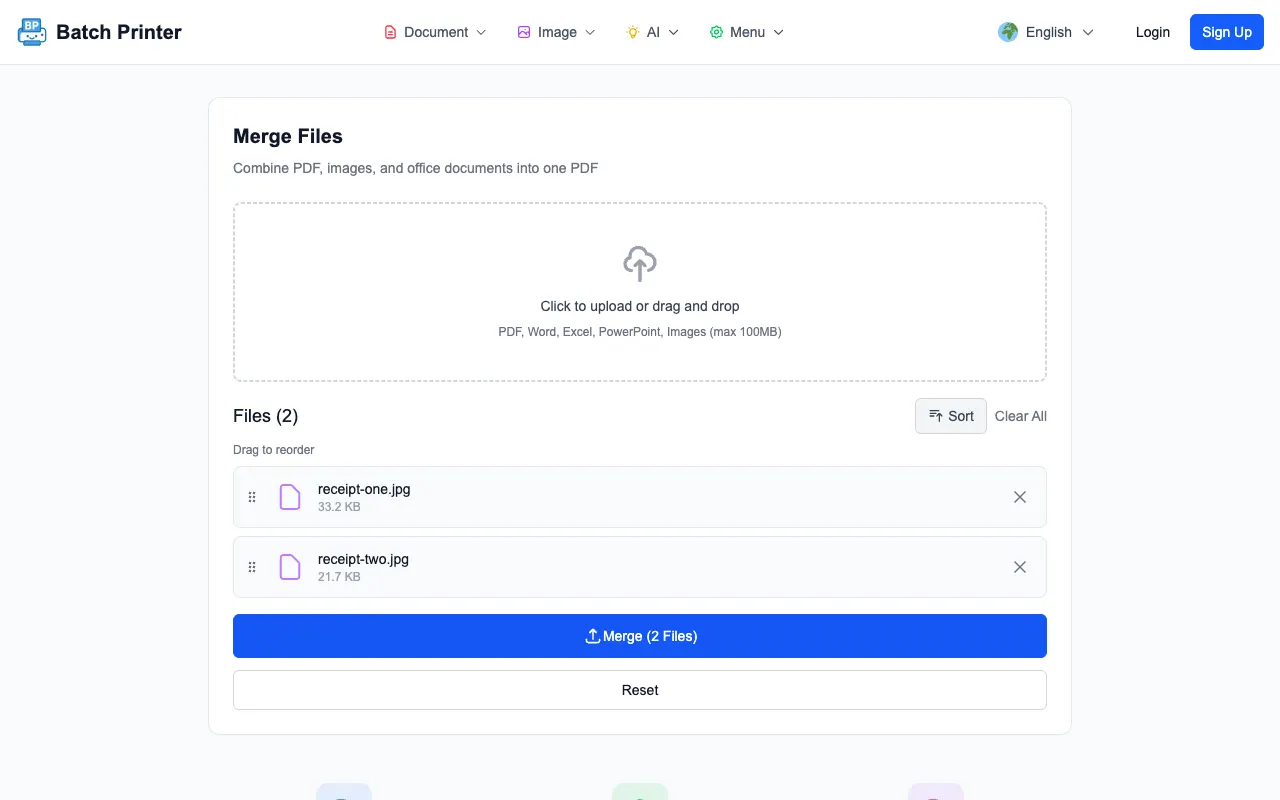
  • Step 1: Open batch-printer.com and drag your image files into the upload area. JPG, PNG, WebP, BMP, GIF, and TIFF are all supported.
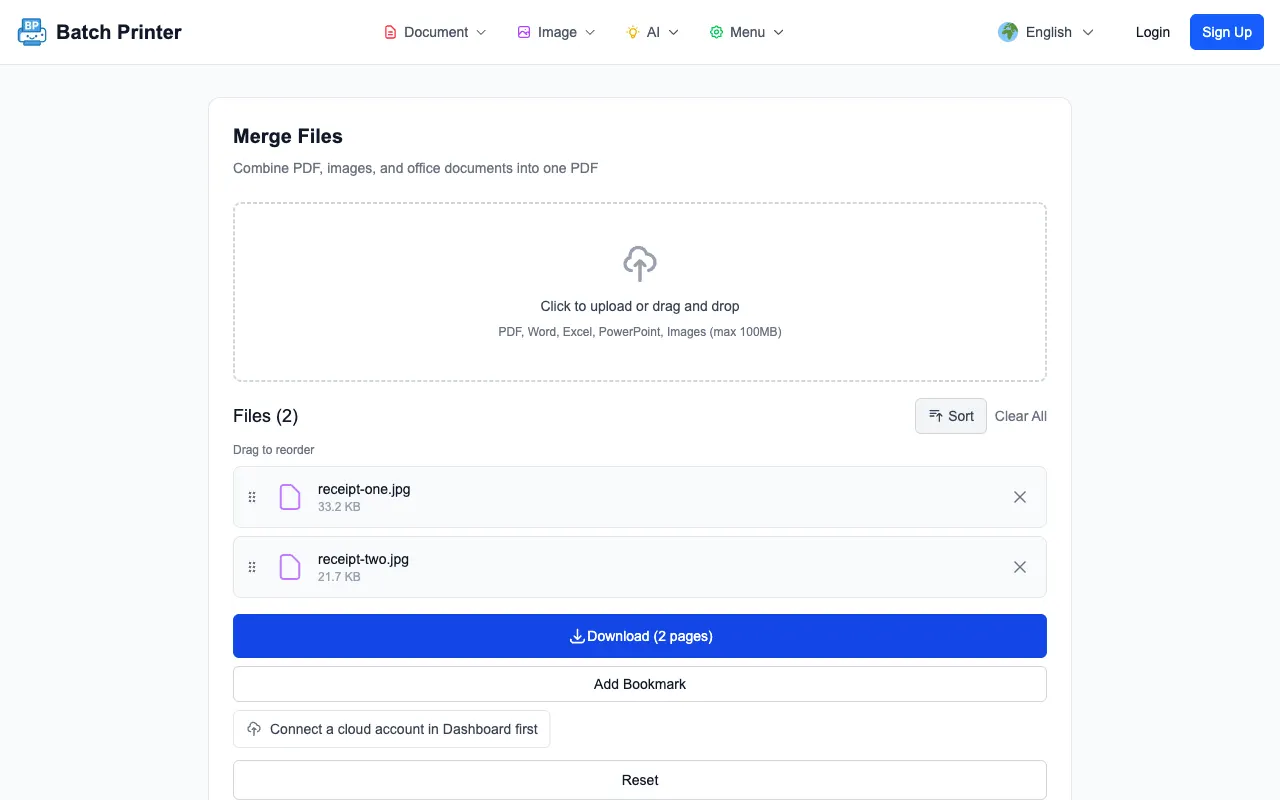
  • Step 2: Arrange the file order by dragging items in the list. The order you see is the order they appear in the final PDF.
  • Step 3: Click Merge and your browser combines everything into a single PDF. Download it or print it directly — no waiting for a server.
Your images never leave your device. Batch Printer processes everything locally using your browser — no uploads, no external servers, no privacy risks.

Not Just JPG — Every Image Format You Actually Use

One of the most common headaches with image-to-PDF tools is format support. You have a mix of JPGs from your camera, PNGs from screenshots, and maybe a few WebP files from the web. Most converters force you to convert these to a single format first. Batch Printer does not.

  • JPG / JPEG — photos from cameras and phones
  • PNG — screenshots, graphics with transparency
  • WebP — modern web images
  • BMP — legacy bitmap files
  • GIF — static images (first frame of animated GIFs)
  • TIFF — high-quality scans and professional images

You can even mix image files with existing PDFs and Office documents in the same merge. Need three photos, a Word document, and two existing PDFs in one file? Drop them all in and let Batch Printer sort out the conversion automatically.

5 Mistakes People Make When Combining Images to PDF

Even with a good tool, a few common mistakes can trip you up. Here is what to watch for.

  • Using images that are too small — a 200×150 pixel thumbnail will look terrible on a full PDF page. Use images at least 1000 pixels wide for decent quality.
  • Ignoring file order before merging — check the sequence in the file list before you hit merge. Reordering a finished PDF is harder than getting it right the first time.
  • Compressing images before converting — if you compress your JPGs to save space before conversion, the quality loss is permanent. Start with the originals.
  • Mixing portrait and landscape without thinking — your PDF will have pages in different orientations. This is fine for viewing but can look odd when printed. Group similar orientations together.
  • Forgetting to check the final PDF — always open the result and scroll through it. Catching a missing page or wrong order takes five seconds now versus an embarrassing email later.

When You Need More Than Just Conversion

Converting images to PDF is often just the first step. Maybe you need to add page numbers, compress the result, or print 30 copies for a meeting. Batch Printer handles the full workflow — not just the conversion part.

  • Merge your new PDF with other existing documents
  • Compress the result if the file size is too large for email
  • Print multiple copies directly from the browser without downloading first
  • Split the PDF later if you need to extract specific pages
"I photograph all my receipts and convert them to monthly PDF files. Before, it took me 20 minutes with a desktop app. Now I drop 30 photos in and have my PDF in under 10 seconds. The fact that nothing leaves my phone makes me feel much better about it."

Quick Checklist: Before You Convert

  • Are all your images in the upload area? Double-check that none were skipped.
  • Is the file order correct? Drag to rearrange if needed.
  • Are your images high enough resolution? Low-res thumbnails will produce blurry pages.
  • Do you need to include any non-image files? PDFs and Office documents can go in the same merge.
  • Did you check if the tool respects your privacy? Batch Printer processes everything locally — but not every tool does.
Ready to convert your images? Head to batch-printer.com — drag in your files, click merge, and your PDF is ready in seconds. Free, private, and no signup required.

Try These Tools

Open the related tool now and finish faster.

Convert Multiple Images to One PDF — Free, In Your Browser