
How to Convert PDF to Word Online: A Tested DOCX Workflow

Turn a PDF Back Into an Editable Draft Without Rebuilding It
A PDF is convenient when you need a fixed document. It is less convenient when a contract clause, invoice note, school handout, or policy draft needs one more round of edits. Copying text out of the PDF often breaks line endings, table columns, bullets, and spacing. Rebuilding the document from scratch wastes time and creates another place for mistakes.
Try These Tools
Open the related tool now and finish faster.
The screenshots in this guide come from converting a one-page agreement PDF that deliberately mixed a title, paragraph text, a clause number, and a simple table-style line - the four elements that stress a DOCX conversion in different ways. The page used was /en/tools/pdf/to-word, which is the dedicated PDF-to-DOCX path. The separate /en/tools/pdf-converter page handles Office and image files going the other direction, so it plays no part in this workflow.
Start With the Kind of PDF You Actually Have
The most important question is whether your PDF already contains selectable text. A text-based PDF, such as an exported report or contract, gives a converter real text objects to map into DOCX paragraphs. A scanned PDF is different: it is usually a page image inside a PDF wrapper. Converting that directly can produce image blocks rather than editable sentences unless OCR has created a text layer first.
- Open the PDF and try selecting a sentence. If the text can be highlighted, the conversion has a better starting point.
- Look for multi-column layouts, footnotes, sidebars, or dense tables. These are the areas most likely to need manual cleanup in Word.
- Confirm the PDF is not password protected. A locked file may need to be unlocked with permission before conversion.
- Keep the original PDF beside the converted DOCX. It is your reference for layout, numbers, and page breaks.
- Try the workflow with a non-sensitive copy first when the real document is confidential.
Tested Workflow: PDF Queue to DOCX Download
The upload step is the boring part, and that is a compliment. The agreement PDF appeared in the queue with its file name and a Convert to Word button. That queue state matters because it gives you one last chance to verify you uploaded the correct PDF before sending it through the server conversion path.
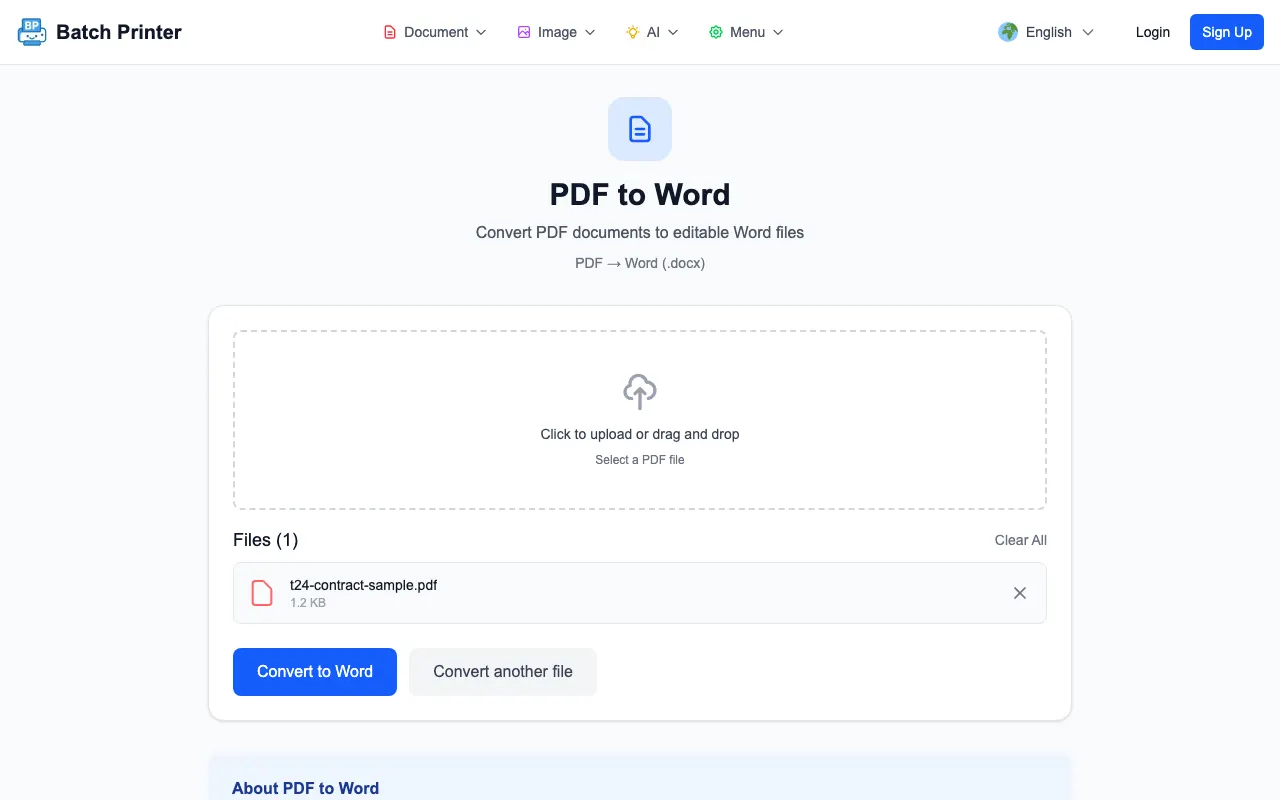
- Step 1: Open /en/tools/pdf/to-word and upload the PDF you want to edit.
- Step 2: Confirm the queued file name and remove the file if it is the wrong version.
- Step 3: Run Convert to Word and wait for the server-side conversion to finish.
- Step 4: Download the DOCX result when the success state appears.
- Step 5: Open the DOCX in Word, LibreOffice, or another editor and compare it against the original PDF before editing.
What the DOCX Output Looked Like
In the test run, Batch Printer returned a DOCX result card using the same base file name as the PDF. That is useful for document control because the converted file is easy to match back to the source. The output should be treated as an editable draft, not as a finished replica. Normal paragraphs are the safest part of the workflow. Tables, spacing, headers, footers, and page breaks deserve a visual check.
The practical goal is to avoid retyping the document. After conversion, you can edit clauses, copy reusable sections, run comments, or update wording in an actual word processor. Before sending the DOCX to another person, check any numbers, table rows, signature blocks, and references that must stay exact.
Where Conversion Needs Human Review
- Scanned PDFs may need OCR first. If the source is only a page image, the DOCX may not contain editable paragraphs.
- Complex tables can shift column widths, especially when the original PDF used tight margins.
- Two-column brochures and resumes may convert into text boxes or unusual ordering.
- Custom fonts can be substituted in the editor you use to open the DOCX.
- Legal or financial documents should be checked line by line before the converted draft becomes the working copy.
Practical Cleanup Checklist After Download
Open the DOCX next to the original PDF and move through the document in the same order a reviewer would read it. Check the title, the first paragraph, every table, the transition between pages, and the final page. If the file is a contract or policy, turn on tracked changes only after this cleanup pass so your actual edits are not mixed with conversion cleanup.
- Remove accidental line breaks created by the PDF layout.
- Adjust table widths before entering new data.
- Rebuild bullets or numbering if the list became plain text.
- Check headers, footers, and page numbers before printing.
- Save the edited file under a new name so the source PDF remains untouched.
FAQ for PDF to Word Conversion
Will the converted file be fully editable? Text-based PDFs usually produce editable DOCX content, but scanned PDFs may need OCR first. Always open the output and try editing a real paragraph before relying on it.
Does conversion replace document review? No. It gives you a working draft. Important documents still need a comparison pass against the source PDF.
Can I convert several PDFs? The uploader accepts multiple PDFs, but convert one representative file first when layout quality matters - it tells you in two minutes whether the rest of the batch is worth converting the same way.
Try These Tools
Open the related tool now and finish faster.