
How to Password Protect a PDF Online Without Overstating Security

Password Protect a PDF When Access Needs a Gate
A PDF password is useful when a file should not open casually after it leaves your device. Salary letters, draft contracts, tax worksheets, client notes, and internal reports often move through email or chat. If the file is forwarded by mistake, a password prompt gives you one more access gate. That does not make the workflow immune to every risk, but it is better than sending an open file when the document should be restricted.
PDF protection actually involves two different passwords, and knowing the difference changes how you use the tool. An open password gates who can view the file at all. A permissions password controls what viewers can do - copy text, print, edit - after the file is open. The Batch Printer Protect PDF page exposes both: a password field pair plus permission checkboxes, ending in a protected PDF result you can download and test immediately.
What a PDF Password Can and Cannot Do
Password protection is document-level access control. The tool uses standard PDF encryption when you set a password and the protection endpoint completes successfully. A recipient needs the password to open the file in a compatible PDF reader. Permission settings can also ask PDF readers to limit actions such as copying, editing, printing, or annotating.
Do not treat those settings as a complete security program. They do not decide who is allowed to receive the password, stop someone from taking a photo of the screen, repair a weak password, or prove that a workflow satisfies a law or industry rule. If your organization has formal security requirements, follow that policy and use this tool only where it fits.
- Sending a draft to a known recipient when the document should not be readable by anyone who receives the email accidentally.
- Adding an extra gate before sharing financial worksheets or HR paperwork internally.
- Restricting casual copying or printing for review-only files.
- Preparing a temporary protected copy while keeping the original in a secure location.
- Separating access to the file from the channel used to send the attachment.
Tested Workflow: Upload, Password, Permissions, Download
The Protect PDF page uses a single-file upload flow. Once a PDF is selected, the page displays password and confirmation fields plus permission checkboxes. For the screenshots here, the run used a temporary password with copying turned off - a sensible default combination for a document that people should read but not lift text from.
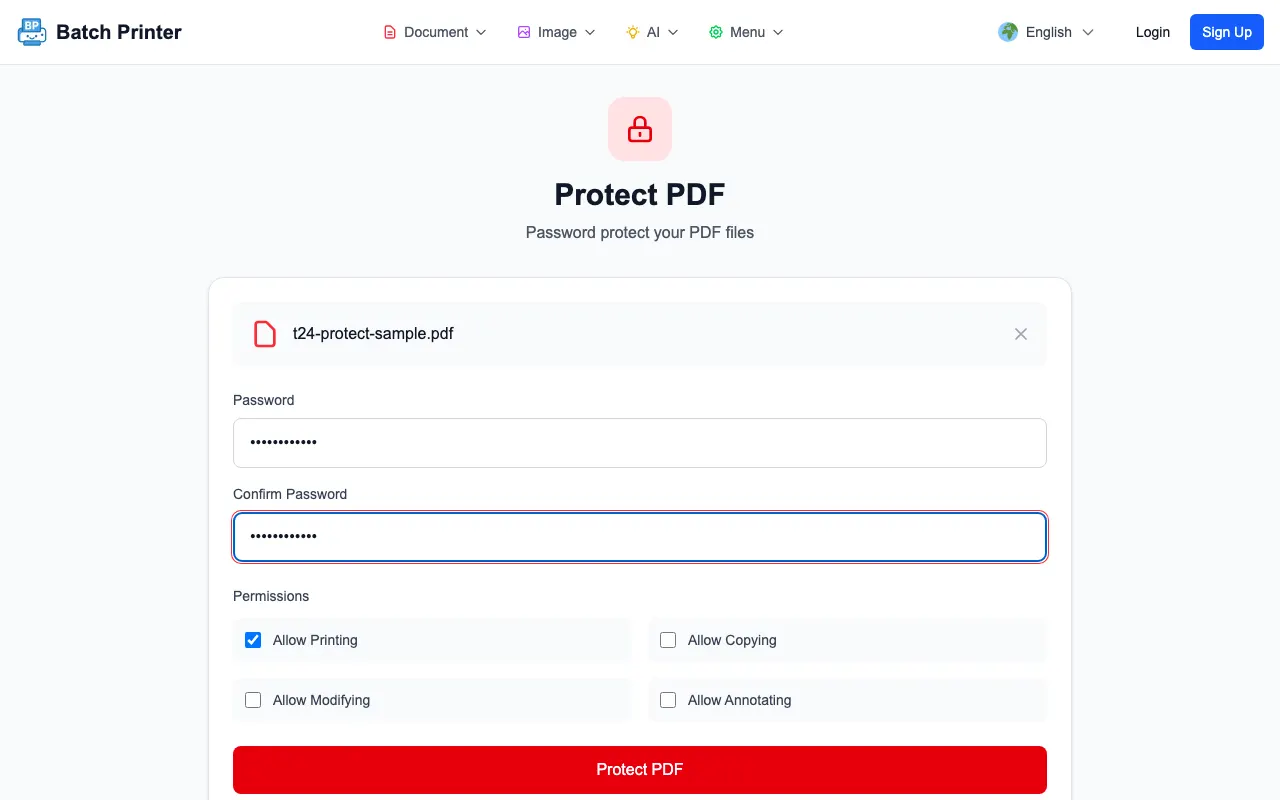
- Step 1: Open /en/tools/pdf/protect and upload a PDF copy, not the only original.
- Step 2: Enter the password and confirm it. If the fields do not match, stop and fix them before processing.
- Step 3: Review permission checkboxes for printing, copying, modifying, and annotating.
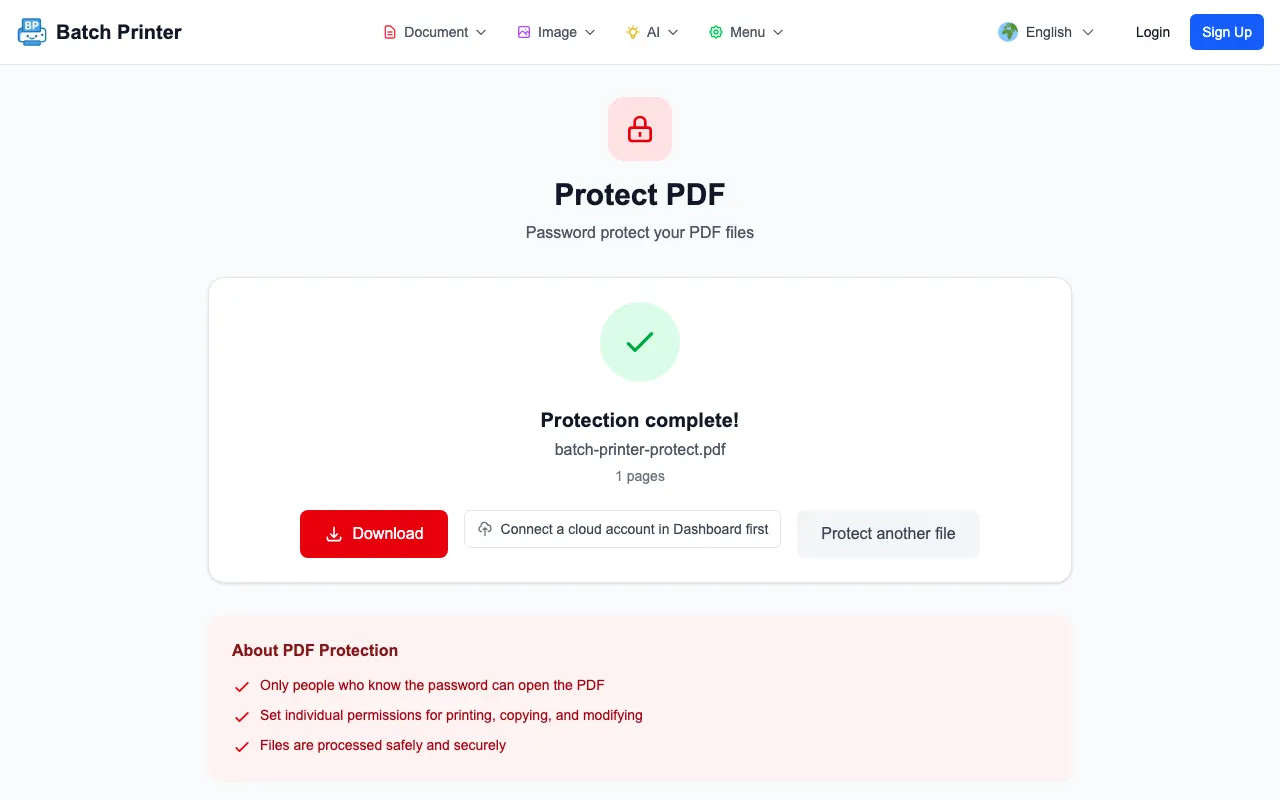
- Step 4: Protect the PDF and wait for the completed result state.
- Step 5: Download the file, open it in a PDF reader, and confirm it asks for the password you set.
Choosing Passwords and Permission Settings
The password is the part of the workflow you control most directly. Avoid names, birthdays, company names, project codes, or reused account passwords. A longer phrase that you can store safely is usually better than a short clever word. If the PDF is temporary, set a reminder to replace or remove it when the review period ends.
- Use a unique password for this document or document set.
- Store the password in your approved password manager or secure internal process.
- Disable copying when the recipient only needs to read the file.
- Disable modifying and annotating when you do not want marked-up versions returned as if they were originals.
- Test the downloaded file in the PDF reader your recipient is likely to use.
How to Share the Protected File Safely
A protected PDF can still be mishandled. Send the file only to the intended recipients, then share the password through a separate trusted path. For example, send the PDF by email and provide the password through an internal chat or phone call. If the recipient no longer needs access, replace the file with a new copy and a new password rather than reusing the old one.
Keep the unprotected original somewhere controlled. If you lose the password to the protected copy, the safe recovery path is usually the original file, not attempting to bypass protection. If the original contains information that should not be shared at all, redact that information before password protecting the copy.
When You Need More Than Password Protection
Use redaction when information should be removed from the shared copy. Use access-controlled storage when only certain people should be able to download the file. Use internal review or legal approval when the document falls under your organization's policies. Password protection is one layer, not a promise that every downstream handling problem is solved.
FAQ for Protected PDFs
Can I claim a protected PDF satisfies a formal rule? No. This post does not make legal or security-assurance claims. Treat the tool as a PDF password workflow and follow your organization's requirements separately.
Will every PDF reader respect permissions? Most modern readers understand protected PDFs, but behavior can vary. Always test the file in the reader your recipient uses.
What if I need to edit the file later? Keep the original unprotected file in a secure location, edit that source, then create a new protected copy.