
How to Split a PDF Into Separate Files: Tested Range Workflow

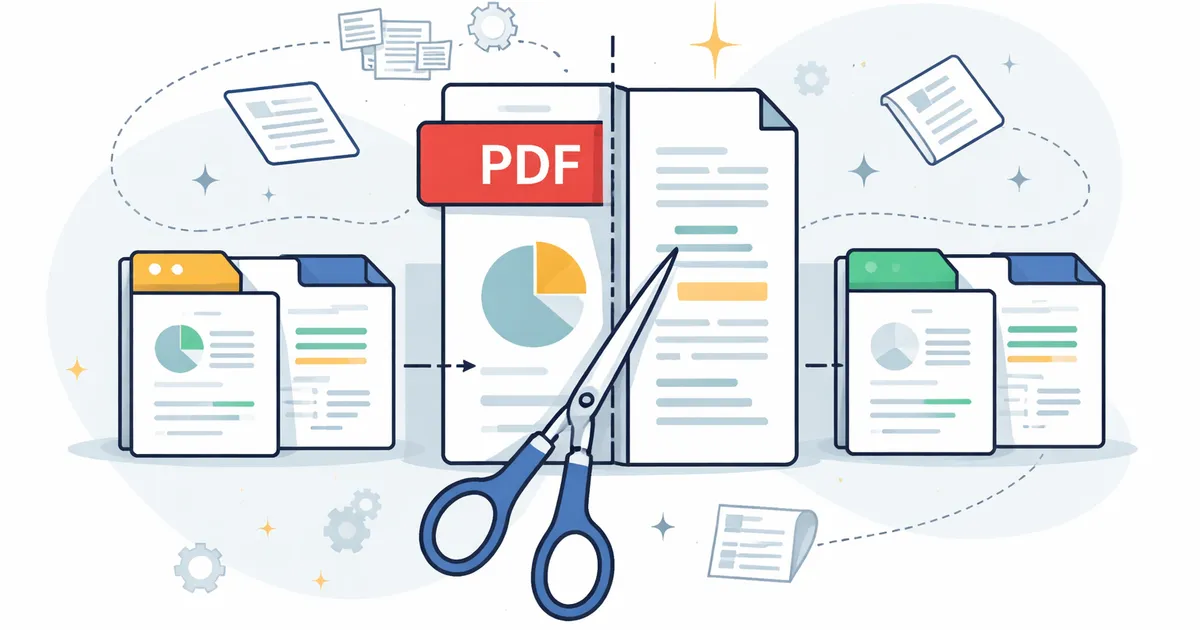
Split One PDF Into Working Files You Can Actually Share
Splitting a PDF is usually a routing task. One packet contains a cover page, a client section, an appendix, or a signed page, but the next person only needs part of it. The goal is not to make more files for its own sake. The goal is to create smaller PDFs that match how the work will be reviewed, filed, or uploaded.
A concrete example makes range syntax click faster than any definition. Take a three-page PDF where pages 1-2 are the contract and page 3 is the signature sheet: entering 1-2, 3 in By Range mode produces exactly two output files - the contract pair and the lone signature page. The split tool showed the uploaded source, accepted that range entry, and listed both created outputs, which is the full loop you will repeat on bigger documents.
Start With the Pages You Need, Not the Button
Before opening any split tool, decide what each output file should contain. Page numbers in a PDF viewer may not match printed page labels inside the document, so use the viewer page position when entering ranges. If the PDF starts with a cover page labeled i or has an unnumbered title page, confirm the actual page positions first.
- Pages 1-2 go to the reviewer as the summary packet.
- Page 3 is filed as the appendix copy.
- The signed page is extracted for records while the full packet stays archived.
- The confidential page is removed from the external share copy.
- Each output gets a filename that explains what it contains.
Observed Split Workflow on the Live Tool
On the live page, the uploaded source displayed its page count - three pages - next to a Page Range field. Entering 1-2, 3 tells the tool where each output begins and ends: first output gets pages one and two, second output gets the final page. Commas separate outputs; hyphens define spans inside one output. That is the entire syntax.
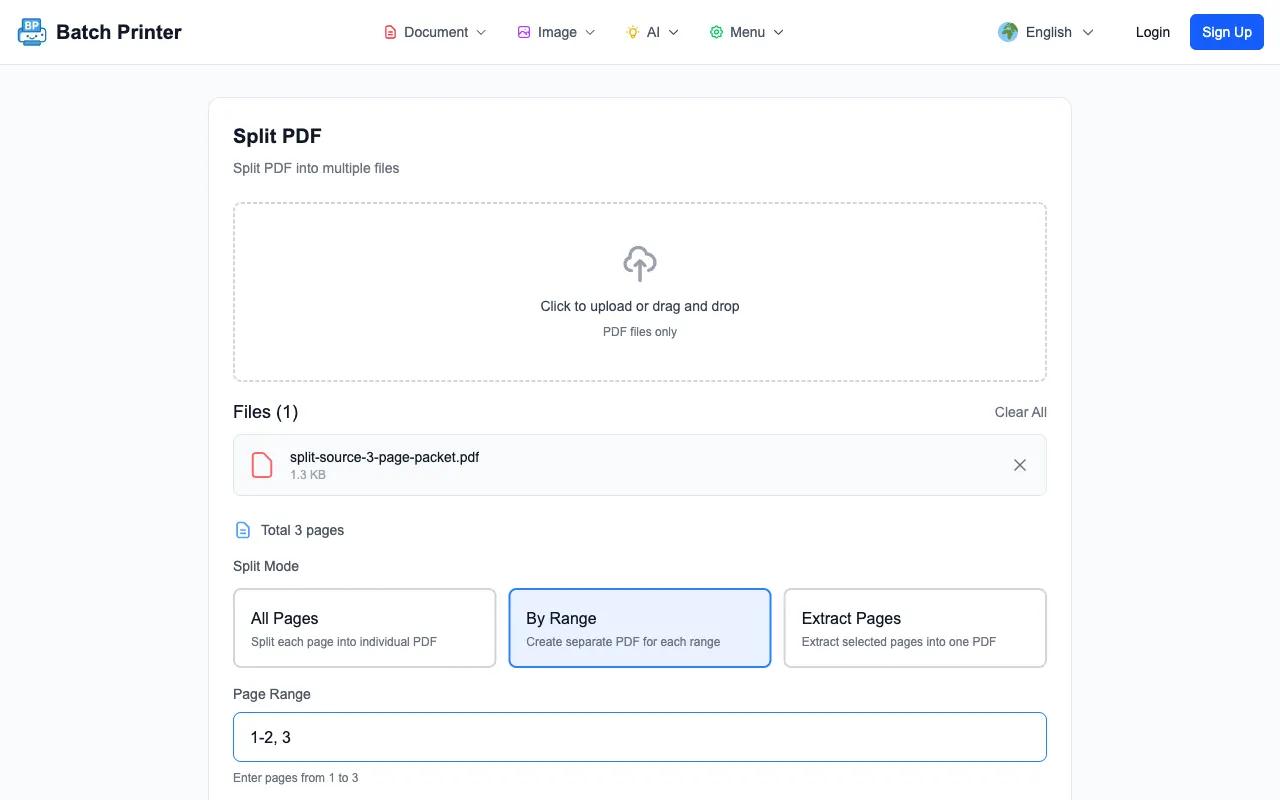
This is the point where mistakes are easiest to fix. If I had typed 1-3 instead, the output would be one file instead of two. If I had typed the same page twice, I would expect duplicate content in the outputs. A small pause at the range field is worth it.
Choosing Ranges Without Losing Track
Range syntax is simple, but the human context matters. A comma separates groups or pages. A hyphen keeps a continuous run together. For a source with three pages, 1-2, 3 means the first output gets pages one and two, while the second output gets page three. That is different from extracting only page two or splitting every page separately.
- Read the range out loud as document sections, not just numbers.
- Check whether the first page is a cover page that shifts the visible labels.
- Avoid overlapping ranges unless you intentionally need the same page in two outputs.
- Use shorter filenames for outputs so they stay readable after download.
- Keep the original PDF unchanged until the split files have been checked.
Download Check: Two Outputs From One Source
After I clicked Split, the page changed to a result state with Download All and listed two created PDF files. The first result represented pages 1-2, and the second represented page 3. That matched the range entry and made it clear which files needed review.
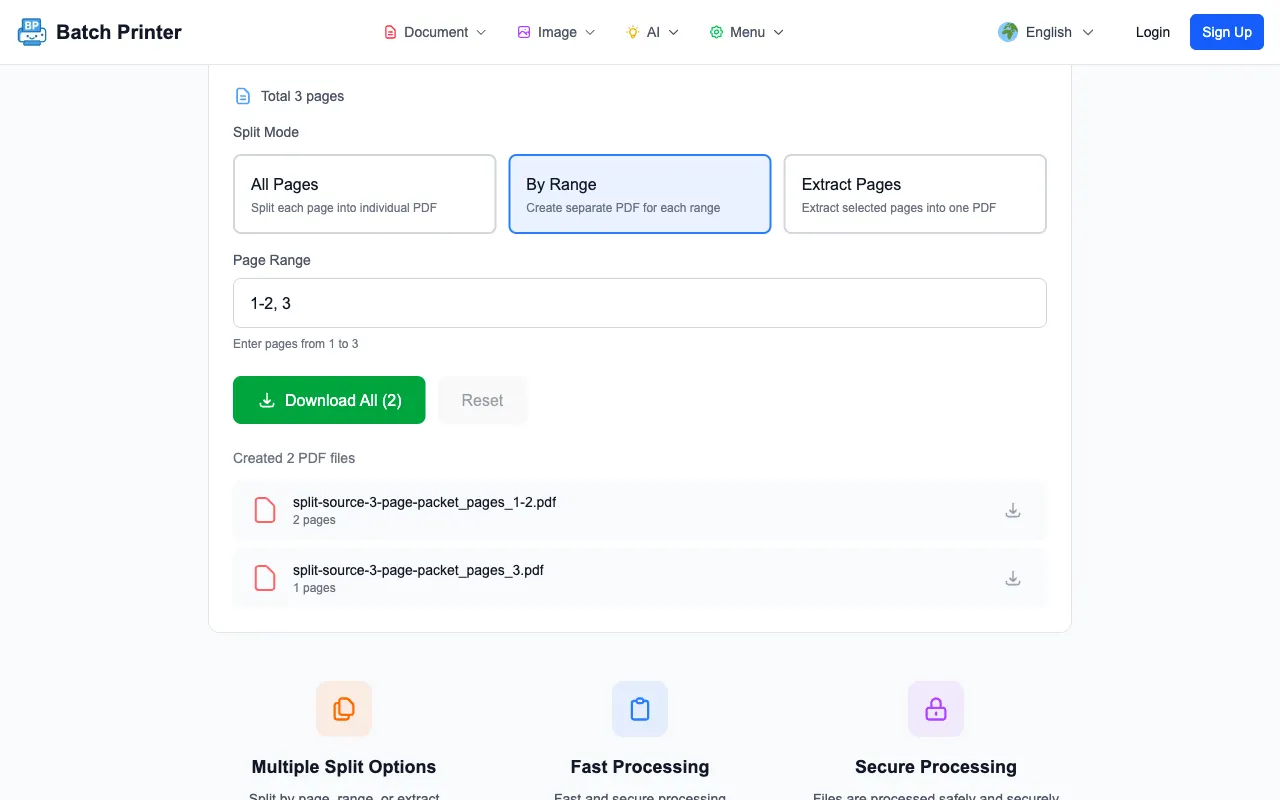
The result list is not a substitute for opening the files. Download the outputs, open each one, and verify the first and last page of every file. If the split is for a client or filing system, rename the outputs immediately so page-range names become human-readable names.
Mistakes That Make Split Files Confusing
The common split problems are easy to miss: using printed page labels instead of PDF page positions, forgetting that the cover page counts, and sending a range output with a vague filename. Another mistake is deleting the original too soon. The source PDF is your fallback if a reviewer asks for a different range.
- An output starts one page too early or too late.
- A required attachment is missing from the extracted range.
- A confidential page appears in a file meant for external sharing.
- The output filenames do not explain their contents.
- The receiving portal asks for a different grouping than the one you created.
Limits I Would Plan Around
Splitting copies pages into new PDFs. It does not rewrite text, repair scans, or rebuild bookmarks into a custom filing system. Password-protected documents should be unlocked only when you have permission, and very large scanned packets may still depend on your browser and device memory.
Split PDF FAQ
Can I split every page into its own file? Yes. The live tool includes an All Pages mode for that workflow.
Can I keep pages 1-2 together and page 3 separate? Yes. In the test run, the range 1-2, 3 created two outputs from one three-page source.
Does splitting remove pages from my original PDF? No. The workflow creates new output PDFs while the original source file remains separate.