
Merge PDFs in the Right Order: Stop Pages Landing Out of Sequence


Put Your Pages Back in Order Before You Hit Merge
A finished packet that opens with the signature page before the cover looks careless, even when every file inside is correct. The pages are all there; they are just in the wrong sequence. Nine times out of ten that is not the merge tool misbehaving — it is the order the files went in.
Most tools decide order the moment you drop files in, and the default is rarely what you want: alphabetical by filename, or the semi-random order your file picker hands over. Knowing where the sequence is set — and where you can change it — turns a frustrating reshuffle into a five-second arrangement.
The File List Is the Source of Truth
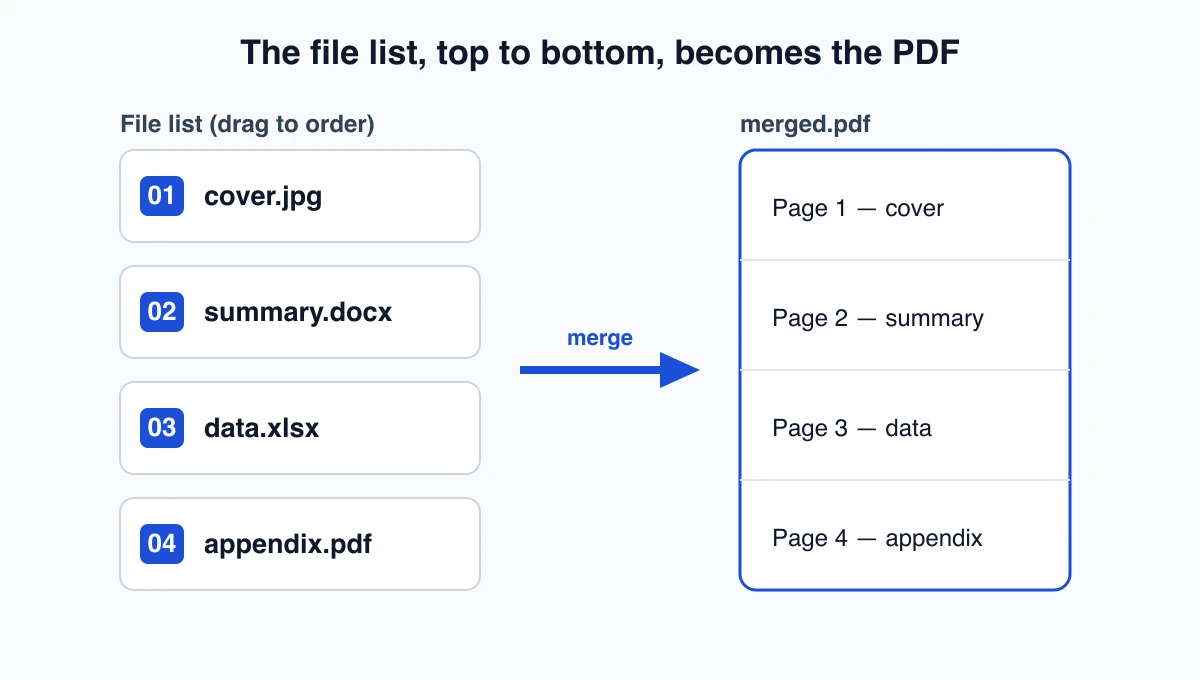
On Batch Printer’s merge tool at /tools/pdf/merge, the order of the finished PDF is the order of the list on screen — top to bottom, nothing hidden. There is no separate sort step second-guessing you. Whatever sits at the top becomes page one, the next item follows, and the last row closes the document. Change the list and you change the output; the two never drift apart.
- Neighboring PDFs and images are grouped into one lane and merged together in the browser
- Each Office file (Word, Excel, PowerPoint) becomes its own lane, converted on the server
- After both lanes finish, every piece is slotted back into your original top-to-bottom order
- The result screen shows the final page count, so a missing or extra file shows up immediately
- Reordering the list before you start is always cheaper than fixing a merged file afterward
Reordering a Four-Part Report
Say four files land in your picker as data.xlsx, appendix.pdf, cover.jpg, summary.docx — the wrong sequence entirely. Instead of renaming anything, drag them into reading order in the list: cover first, summary second, data third, appendix last. The merge honors that arrangement without touching the files themselves.
- cover.jpg — the signed title photo becomes page one
- summary.docx — the Word overview is converted and follows second
- data.xlsx — the spreadsheet lands third, fit to page width
- appendix.pdf — the existing PDF closes the report unchanged
- The download reads cover, summary, data, appendix, exactly as listed
Rename With Numbers or Drag by Hand
Two habits keep order predictable, and they suit different situations. Number-prefixing filenames — 01-cover, 02-summary, 03-data — makes the sequence obvious before you upload and survives re-uploading later. Dragging inside the list is faster for a one-off job where renaming twenty files would be busywork. For a report you rebuild every month, prefix the names once; for a quick send, drag and go.
- Number prefixes (01-, 02-, 03-): best for recurring packets you assemble again and again
- Drag-to-reorder in the list: best for a one-time merge you will not repeat
- Mixed file types: prefixes make the intended order readable across Word, Excel, and images
- Shared folders: prefixes stop a teammate’s file picker from reshuffling your sequence
- Either way, confirm the top item is truly page one before the merge button lights up
Two Quick Checks and the File Limits
Before you commit, two glances save a re-run. Confirm the top row is the page you want first, and confirm the file count matches what you dropped in. The merge needs at least two files and takes up to twenty at once; signed out, the combined upload can reach 100 MB, and signing in raises that ceiling to 1 GB for heavier scans. When everything finishes, the page count on the result screen is your final proof the order and the contents both survived.
- Top row first: the item on top is page one of the download
- Count matches: as many rows as files you added, nothing dropped
- Two to twenty files per merge, 100 MB as a guest or 1 GB signed in
- Office files (Word, Excel, PowerPoint) need a sign-in for their server conversion
- Page count on the result screen confirms the finished sequence at a glance