
PDF Compare Online Free: What the Tool Shows and What It Misses

PDF Comparison Is a Draft-Control Tool, Not a Legal Decision Maker
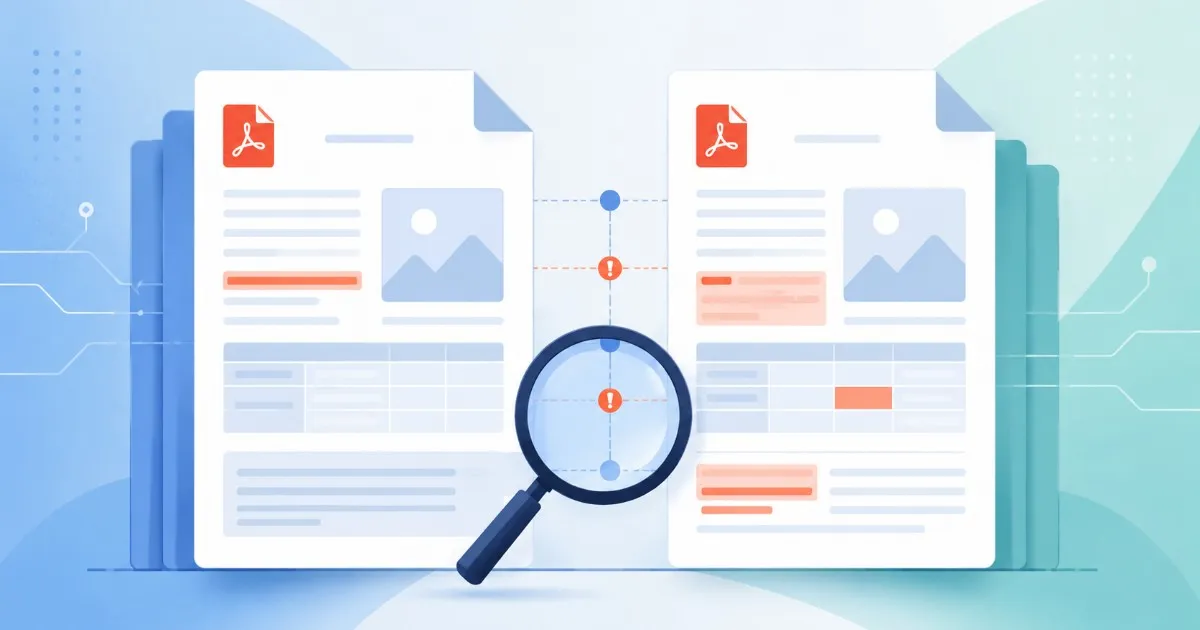
A PDF compare tool helps when two files look almost the same but you do not trust your eyes to catch every visible change. That happens with contract drafts, policy packets, approval copies, design handoffs, and archive checks. The point is not to replace judgment. The point is to narrow the review from an entire document to the pages and areas that deserve attention.
There are two common meanings of PDF comparison. A text diff tries to compare extracted words. A visual diff compares rendered pages as images. The Batch Printer compare workflow is closer to the visual side: you load two PDFs, run the comparison, and inspect the page summary and viewing controls. That makes it useful for layout shifts, missing pages, changed page images, and obvious visual edits. It is less suited to subtle wording review inside scanned or low-quality files.
When Comparing Two PDFs Saves Real Review Time
- Contract drafts where a clause, date, signature block, or attachment may have moved.
- Version history checks before sending a final packet to a client or teammate.
- Audit preparation where a file must match a previously saved copy.
- Design or layout review where a page shift is easier to see visually than through copied text.
- Pre-print checks where missing pages, blank pages, or changed page order would waste time.
How the Batch Printer Compare Workflow Works
The workflow starts with two file slots: one for the original and one for the revised PDF. In the test run, both sample PDFs loaded into the compare interface before the comparison started, which matters because a reversed original and revised file can make the result harder to reason about.
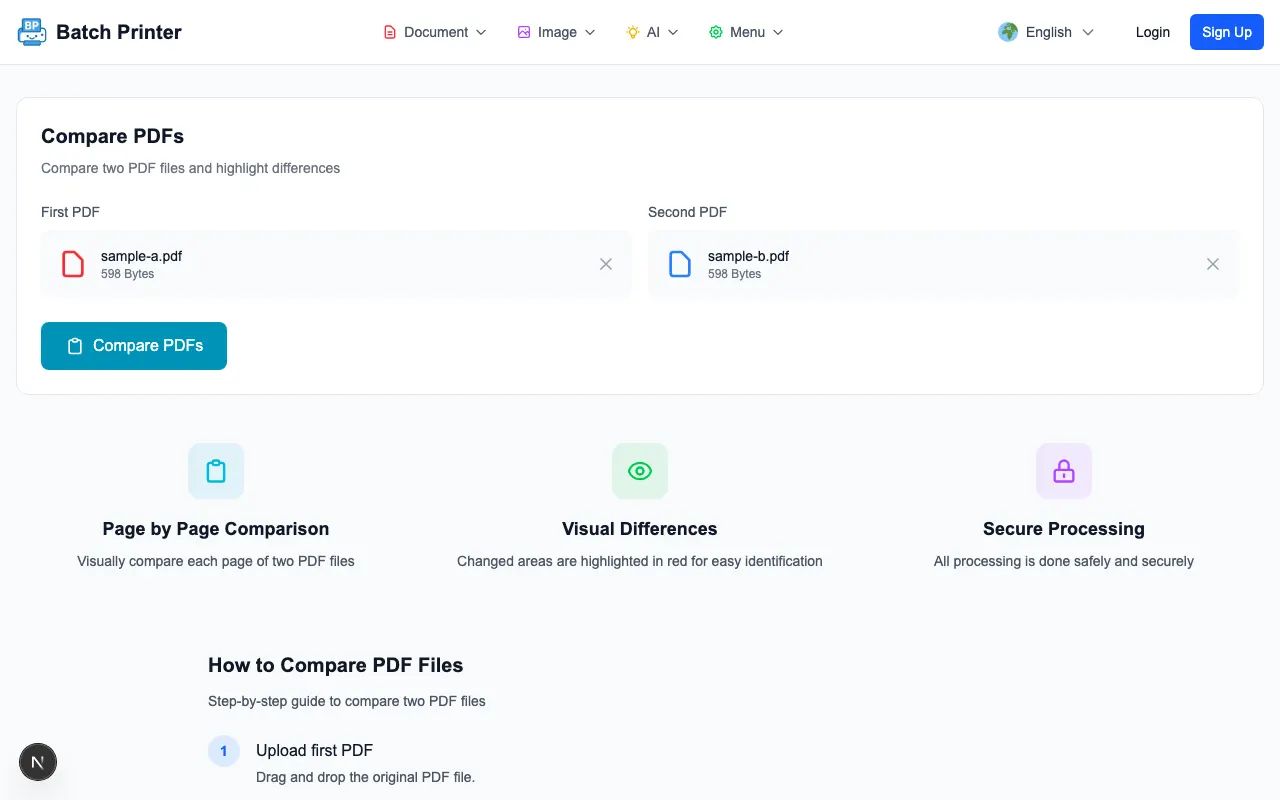
- Load the original PDF in the first slot and the revised PDF in the second slot.
- Check the file names before running the comparison so you do not compare the same draft twice.
- Run the comparison and wait for the result area to appear.
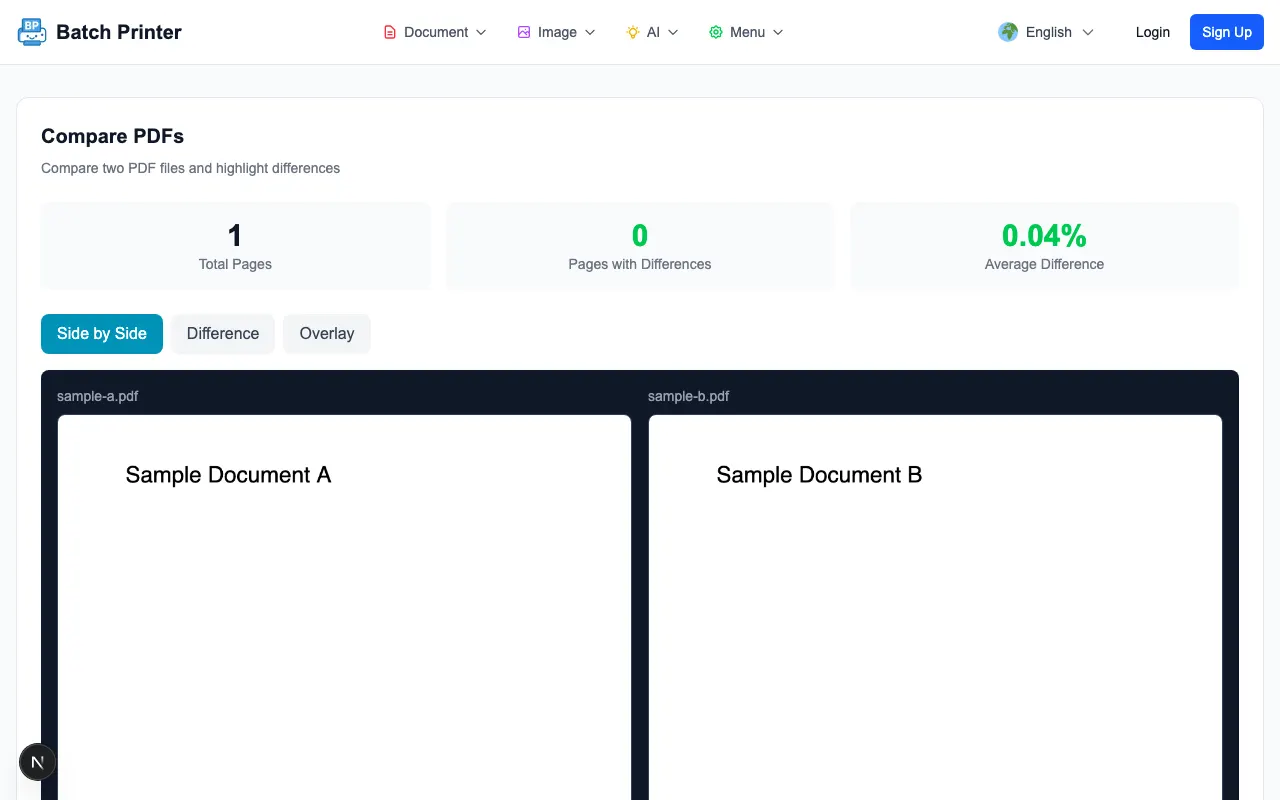
- Use the page summary to see whether the files have the same page structure.
- Switch view modes when needed so you can inspect the changed area rather than only the file-level result.
What We Observed While Testing the Compare Tool
The clearest value appeared at the page level. The result screen made it obvious that the tool had moved beyond upload and into a comparison state, with a page summary and controls for how to view the result. That is useful for reviewers who need a quick answer to a practical question: are these PDFs visually the same enough to continue, or should I inspect a particular page?
The second useful detail was orientation. Because the interface keeps the two-file setup visible before comparison, it encourages a clean original-versus-revised mental model. That sounds minor, but it prevents a frequent mistake in version review: finding a difference and then forgetting which file introduced it.
Limitations: Where Manual Review Still Wins
- A visual comparison can flag layout changes but may not explain the business meaning of a wording edit.
- Scanned PDFs depend on image quality. Faint text, shadows, or skew can create confusing visual differences.
- Small font changes or anti-aliasing differences may appear even when the document meaning has not changed.
- If page counts differ, inspect the insertion or deletion point manually before relying on any summary.
- For contracts or regulated files, use comparison to focus attention, then read the important clauses yourself.
Compared With Copy-Paste Review
Copying text out of two PDFs into a document editor can help when the PDFs contain clean selectable text. It breaks down when layout matters, when a signature block moves, when page breaks change, or when the text extraction order is strange. Visual comparison keeps the file in its page form, which is closer to how recipients will read and print it.
- Use Batch Printer comparison for visible page changes, moved sections, missing pages, layout review, and quick draft triage.
- Use manual reading for legal meaning, negotiated clauses, numbers that must be approved, and any decision with consequences.
- Use text extraction only when both PDFs are clean, selectable, and the wording itself is the only thing that matters.
- Use a full document editor when you need to accept, reject, or rewrite tracked changes rather than simply find differences.
Best-Fit Scenarios for This Tool
The Batch Printer compare tool is best when you need fast visual confidence before a human review. It fits contract draft checks, proposal version checks, policy packet updates, design proofs, and pre-print inspections. It is not the right final authority for legal acceptance, clinical judgment, financial approval, or any case where the meaning of a single sentence must be interpreted by a responsible person.