
Print Multiple PDFs at Once Online Free: Prepare One Clean Queue

Prepare Multiple PDFs for Printing Without Babysitting Every File
Printing one PDF is simple. Printing a folder of PDFs becomes a queue problem: wrong order, repeated dialogs, mixed paper needs, and missed files. Batch Printer's browser tools help prepare the files into a controlled workflow before you hand the job to your local printer.
Try These Tools
Open the related tool now and finish faster.
The Batch Print Problem
A printer can only follow the job it receives. If the folder is messy, the printed stack will be messy too. The safest approach is to decide whether the PDFs should become one packet or remain separate jobs before you click print.
- The pages form one packet, such as a cover note plus supporting PDFs.
- The same printer settings apply to the whole stack.
- You want one print dialog and one page count to check.
- The output tray should contain one continuous document.
Queue Strategy Before the Print Dialog
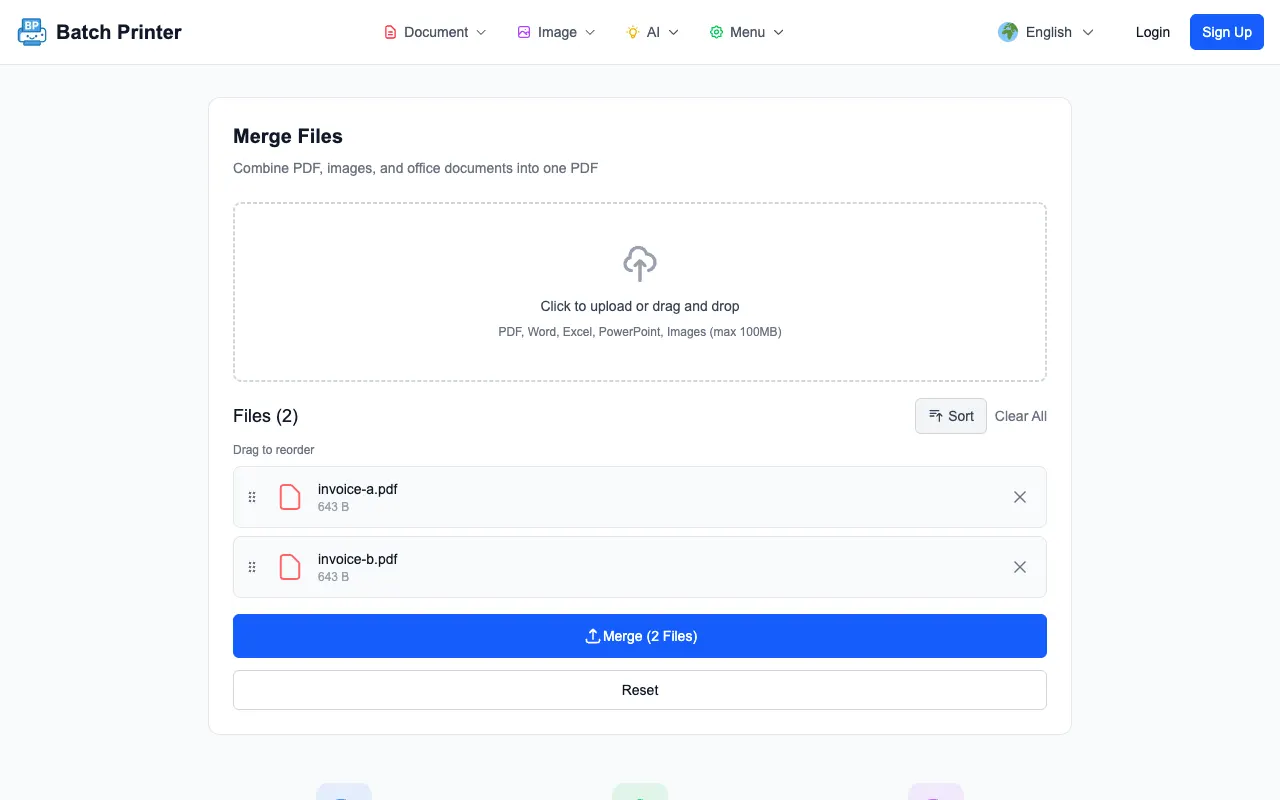
For the screenshots below, I built a small print packet from invoice-a.pdf and invoice-b.pdf in the merge tool. Both names stayed visible in the queue, in the order I added them, before anything was combined. That queue is the moment to catch a wrong file - not after paper starts moving.
Step-by-Step: Build a Printable Packet
- Collect only the PDFs that belong in this print run.
- Open the merge tool and add the files.
- Read the queue in print order, not alphabetic order.
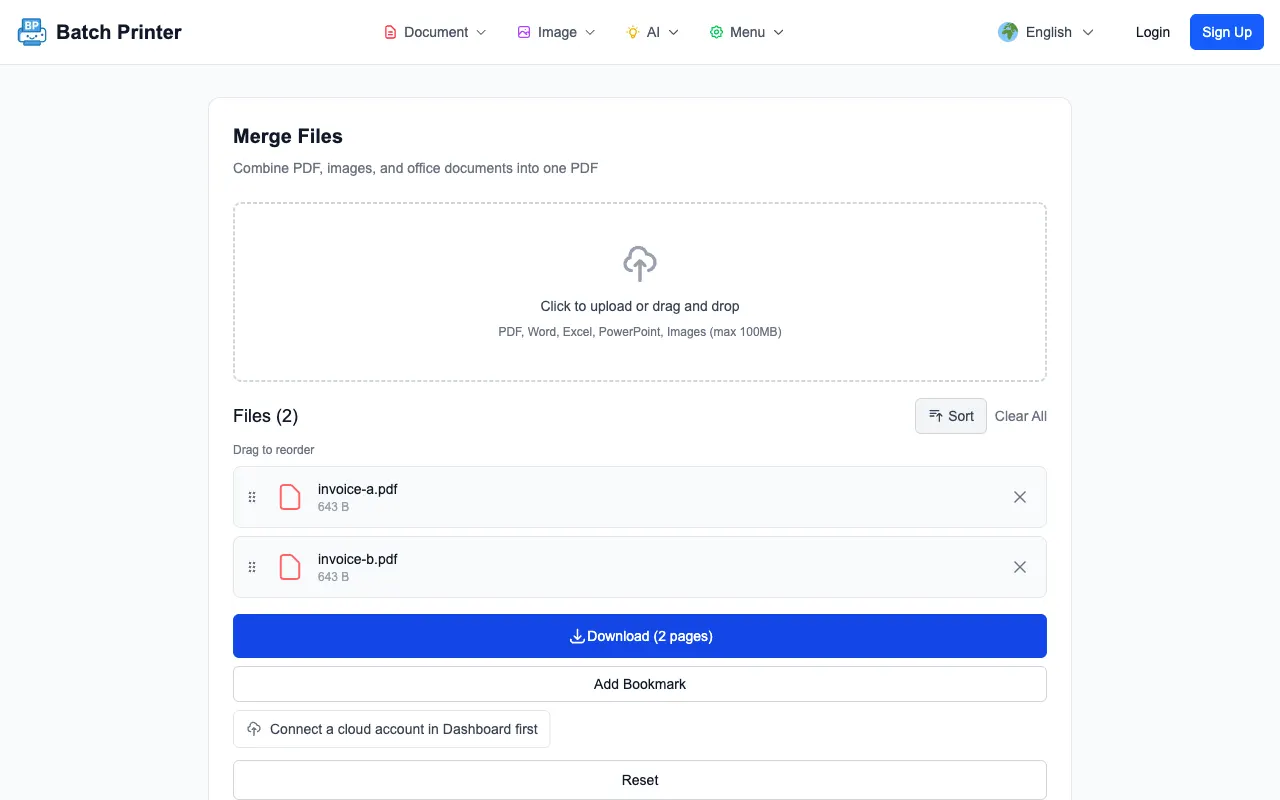
- Merge the PDFs when the stack should print as one continuous document.
- Open the result, confirm the page count, then use your browser or PDF viewer print dialog.
Real Limitations Before You Print
The merge tool prepares a PDF. It does not silently control your physical printer, choose trays, or override device settings. If invoices, labels, and letters need different paper, split them into separate runs. If one source PDF is password protected or damaged, fix that source before building the print packet.
Alternatives When Merging Is the Wrong Move
- Each PDF needs different printer settings.
- Labels and letters use different trays or paper sizes.
- Each file has to be logged as a separate job.
- Only one failed document should be reprinted later.
- A local desktop batch print tool is required by your operating system workflow.
Final Queue Check
- The queue contains only final PDFs.
- The merged output page count matches the expected stack.
- Files with special paper needs are split out.
- The printer has the correct paper loaded.
- You have saved the merged packet if it needs to be printed again later.
Try These Tools
Open the related tool now and finish faster.