
How to Rotate a PDF and Save It So the Rotation Sticks

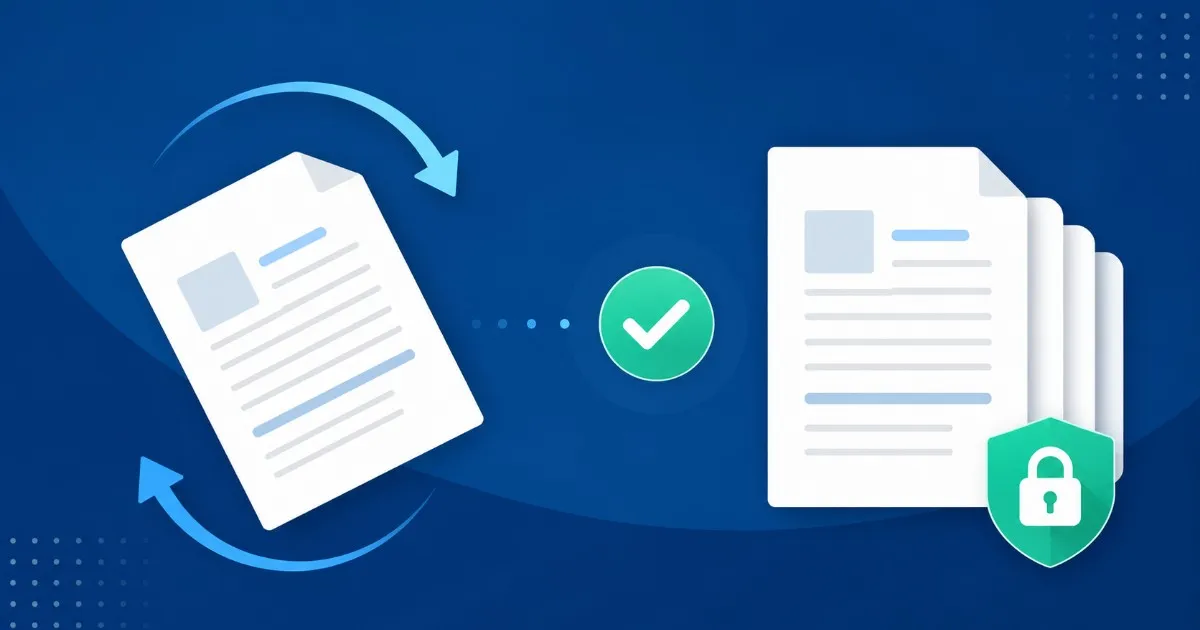
Rotate a PDF and Save It So the Rotation Actually Sticks
Rotating a PDF should be the simplest edit there is. A page came in sideways, you turn it upright, you save. Yet this is the one edit people redo more than any other, because it does not stay. You rotate the page, it looks perfect, you close the file - and the next time you open it, or the moment a colleague opens it in a different app, the page is lying on its side again. The rotation was never wrong. Where it was stored was.
To pin down exactly why this happens, I did not want to theorize about the PDF specification. I took a real file with one sideways page, rotated it through the same browser-side engine our rotate tool uses, saved the result, and reopened it in three different viewers - including one on another operating system - to see what actually persisted. This article reports what those files contained afterward: the orientation each viewer showed, and the single value inside the page that decided all of it.
Rotation in a PDF Is One Number, Not a Redrawn Page
Here is the part almost every rotation guide skips. When you rotate a page in a PDF, the page content is not redrawn. The text, lines, and images keep their original coordinates exactly as they were. What changes is a single entry in the page dictionary that the PDF standard calls Rotate - a number that is 0, 90, 180, or 270. That number tells any viewer: draw this page, then turn it this many degrees clockwise before showing it. The page is not physically turned; it is tagged with an instruction to turn it on display.
That design is elegant, and it is also the source of every rotation headache. Because the rotation lives in one small attribute, whether your fix survives comes down to a single question: did the tool write that number into the saved file, or did it only tilt what you were looking at? Two tools can both show the page upright and produce completely different files - one with Rotate set and saved, one with nothing changed on disk at all.
What Actually Happened When I Rotated a Page and Saved It
The test file was a four-page document with page two scanned sideways - landscape content trapped in a portrait page, turned ninety degrees the wrong way. I rotated page two by ninety degrees clockwise using the browser tool, which sets the page Rotate value with the pdf-lib library, downloaded the new file, and then opened that downloaded file - not the live preview - in each viewer.
- Page two Rotate value: changed from 0 to 90 and written into the file. The instruction to display the page upright was now part of the document itself, not a temporary setting in one app.
- Every viewer agreed: the downloaded file opened with page two upright in the browser, in a desktop PDF reader, and on a second operating system. Nothing reverted, because there was a saved value for each of them to read.
- Page content: untouched. The text on page two was still selectable and searchable, sitting at its original coordinates - the rotation is applied on top of the content, not baked into a flattened image.
- The other three pages: unchanged. Rotation is stored per page, so fixing the sideways page left every correctly oriented page exactly as it was.
- File quality: no re-compression. Because nothing was re-rendered, there was no second-generation quality loss - the page content was untouched, with only the rotation value changed.
The contrast came when I deliberately used the Rotate View command in a viewer instead - the kind you find under a View menu - and closed the file without an explicit save. That rotation vanished immediately, because Rotate View never touches the saved Rotate value; it only turns the picture on your screen for the current session. If you have ever rotated a PDF, been sure you saved it, and watched it revert anyway, this is almost always the reason.
Why Your Rotation Keeps Reverting
Nearly every story that begins with a rotation refusing to save traces back to one of a few specific causes, and once you can name them they stop happening.
- View-only rotation. Commands named Rotate View or Rotate Clockwise inside a viewer often change the display for the current session only and never write to the file. Close the document and the setting is gone.
- The file was rotated but never re-saved or re-downloaded. Some tools rotate in a preview pane and wait for you to export the result. If you close without downloading the new copy, you kept the original.
- You saved over the wrong file. The rotated version downloaded to one place while you reopened the untouched original from another - a surprisingly common mix-up when the filenames match.
- A cached thumbnail. File explorers and some apps show an old preview image for a while. The page is fixed; the little thumbnail is just stale. Open the file itself to check.
- A genuinely non-compliant viewer. Rare, but some very old or broken readers ignore the Rotate attribute. If one obscure app shows the page sideways while everything else is correct, the file is fine and the app is the problem.
A Rotation Workflow That Survives Being Reopened
The reliable approach is short, and every step exists to close one of the gaps above.
- Note which pages are wrong and which way each needs to turn. Sideways scans can be off by ninety degrees in either direction, so decide clockwise or counter-clockwise before you start.
- Use a tool that writes rotation into the file, not a view toggle. If the change is meant to be permanent, it has to be saved into the page, not applied to your screen.
- Rotate only the pages that need it. Because rotation is per page, there is no reason to spin a whole document to fix a single page.
- Download the new file and open that copy. Do not judge the result from the preview - open the downloaded document itself, ideally in a different app than the one you rotated in.
- Confirm on screen and in print preview. The Rotate value drives printing too, so a quick print preview confirms the page will come out of the printer the right way up.
Sideways Scans and Mixed-Orientation Documents
The messiest real files are scans. A stack fed through a scanner at different angles produces a PDF where some pages are upright, some are ninety degrees off, and one is upside down. Because the Rotate value is stored separately on each page, you can correct every page independently in a single pass - turn page two clockwise, page five counter-clockwise, page eight a full one hundred and eighty degrees - and each keeps its own saved orientation. You are not forced to pick one rotation for the entire document, which is exactly what makes per-page rotation the right tool for scanned paperwork.
There is a bonus for anyone who plans to run text recognition later. Since rotating a page changes only its display attribute and leaves the content untouched, straightening the pages first gives an OCR pass a properly oriented image to read, without altering or degrading the underlying content you are about to extract.
Where Your File Is Processed While You Rotate It
Rotation sounds harmless, but the files that most often need it - scanned contracts, signed forms, identity documents, medical paperwork - are some of the most sensitive you will handle. Our rotate tool runs in your browser: the file is read, rotated, and saved on your own device, and the new PDF is produced locally rather than uploaded to a server to be processed. You do not have to take that on faith. Open your browser developer tools, watch the Network panel while you rotate and download, and confirm that the document itself is never sent anywhere.
A Quick Checklist Before You Rotate a PDF
- Do you know which pages are wrong, and which direction each should turn? Decide before you start.
- Are you using a tool that saves rotation into the file, not a view-only toggle?
- Did you rotate only the pages that needed it, and leave the rest alone?
- Did you download the new file and reopen that copy, ideally in a second app?
- Did you check print preview, so the page prints the right way up as well?
FAQ
Why does my PDF rotation keep reverting when I reopen the file? Almost always because the rotation was applied to your view rather than saved into the document. A command like Rotate View changes only what you see in that session; a permanent rotation writes a value into the page and travels with the file. Rotate with a tool that saves, download the new copy, and reopen that copy to confirm.
Does rotating a PDF reduce its quality? No. Rotation sets a single display attribute on the page; the text and images are not re-rendered or re-compressed, so there is no loss. The rotated file is essentially the original with one number changed.
Can I rotate just one page and leave the others alone? Yes. Rotation is stored on each page separately, so you can turn a single sideways page ninety degrees while every other page keeps its own orientation untouched.
Will text selection and search still work after I rotate? Yes. Because rotating changes only how the page is displayed and not the content underneath, the text layer stays intact - you can still select, search, and copy exactly as before.
Will the PDF print in the rotated orientation? It should. The saved rotation value drives printing as well as on-screen display, so a page that shows upright will print upright on a compliant printer. Check print preview once to be sure before a big run.
How this was tested: I took a four-page PDF with page two scanned ninety degrees off, rotated that page clockwise through the same browser-side engine the rotate tool uses (a pdf-lib page rotation), downloaded the file, and opened the downloaded copy in a browser viewer, a desktop reader, and a viewer on a second operating system. The page two Rotate value had changed from 0 to 90 and was saved in the file; every viewer showed the page upright, the other pages were unchanged, and the text stayed selectable. As a control, a view-only rotation left without an explicit save reverted on reopening, as expected. Findings last verified July 2026. Viewers can differ and tools change, so always reopen your own saved file - and check print preview - before you rely on it.